A Simpler Way to Watermark PDF Documents
Watermarkly makes it easy to add a watermark to PDF documents online. You can place the watermark behind the text, apply it only within a selected range, and reuse saved templates to speed up repeat tasks.
Here are the features that make Watermarkly a practical choice for watermarking PDF documents.
Faster Than Traditional PDF Editors
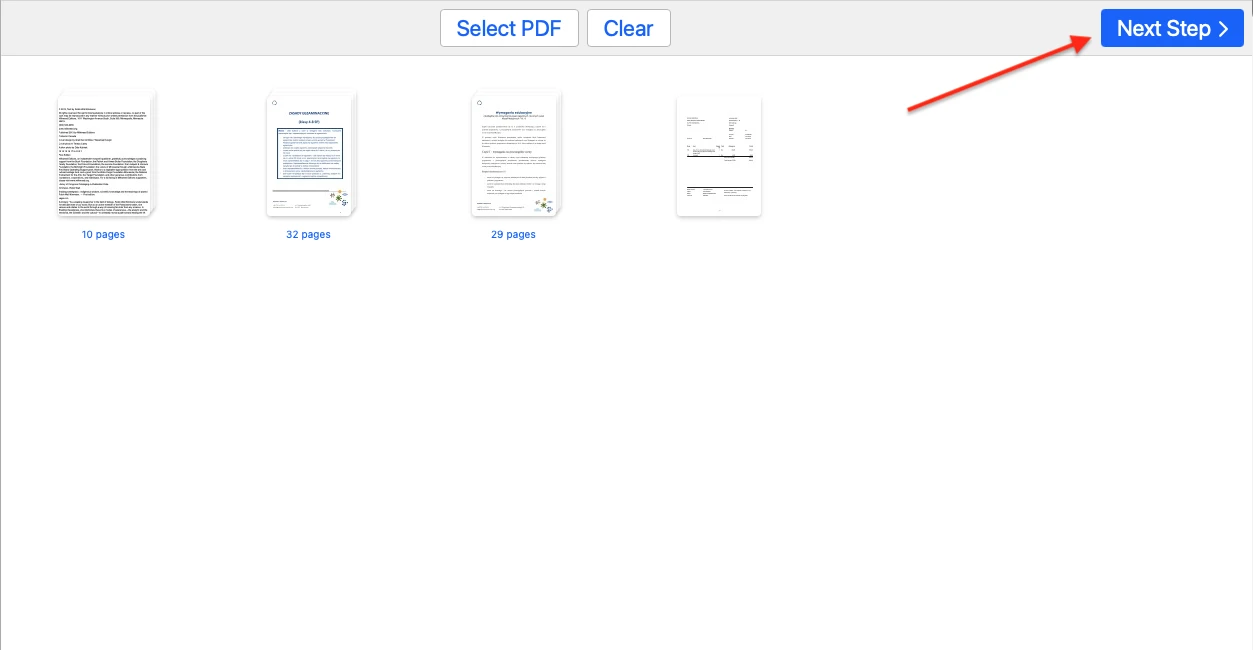
Unlike Adobe Acrobat, which requires five separate steps just to add, update, or remove a watermark, Watermarkly makes the process much faster. With Watermarkly’s free online app, you can move from uploading your PDF files to editing the watermark in just one click. There are no complicated menus or time-consuming setup — just a more direct way to watermark PDF documents.
Easy-to-Adjust PDF Watermark Design
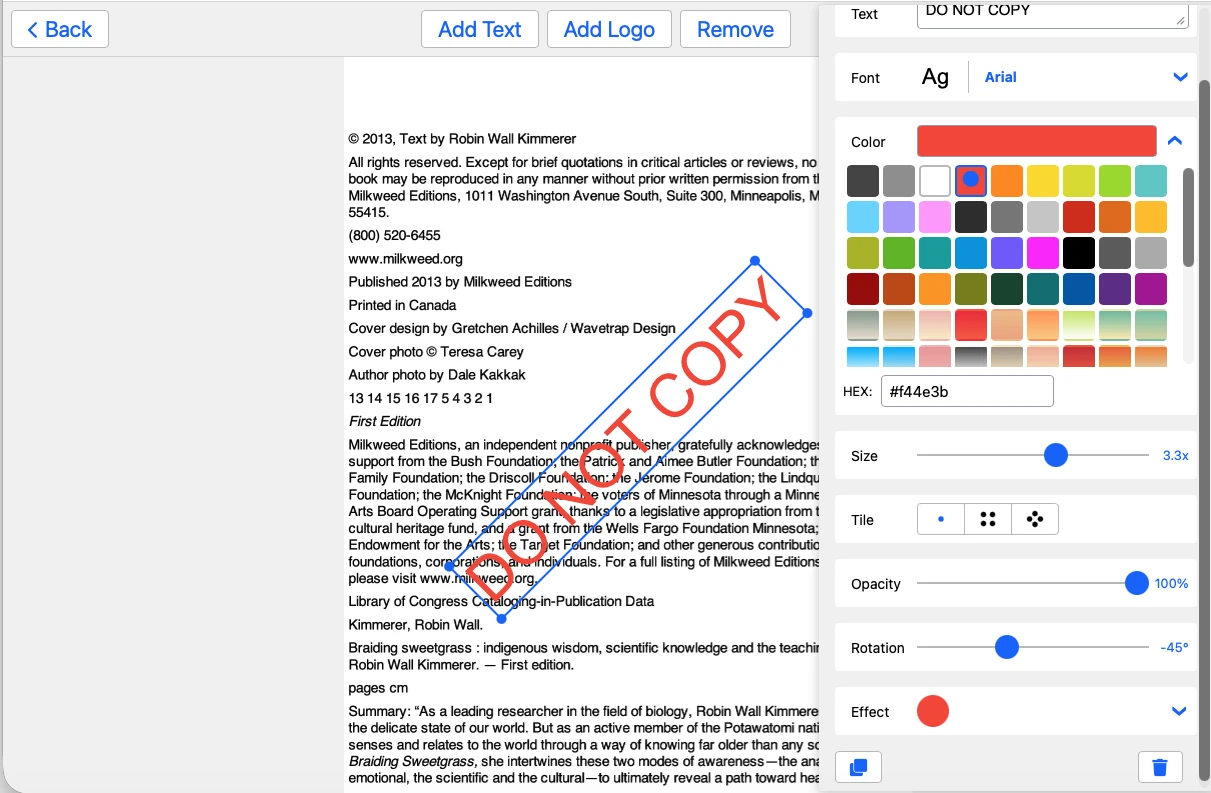
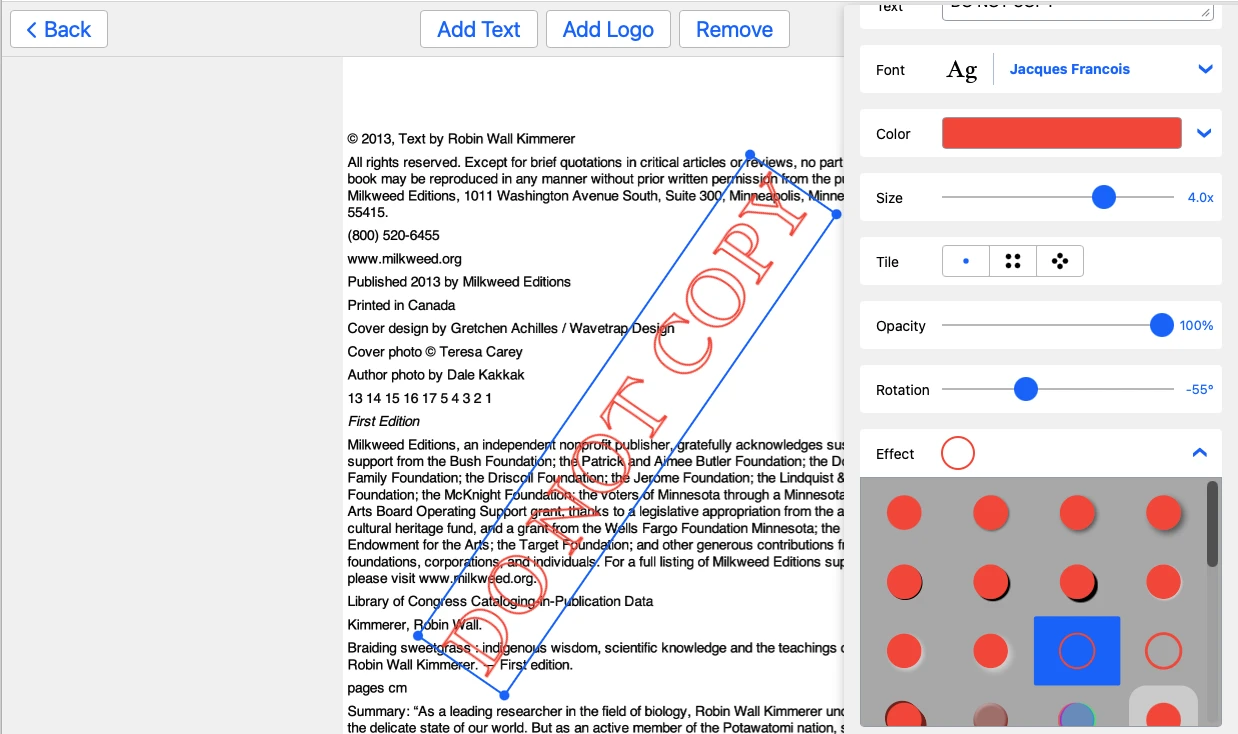
Watermarkly gives you flexible options for creating a watermark for your PDF documents and controlling how it looks on the document. You can freely edit both text and logo elements - change colors, fonts, size, rotation, opacity, and alignment. You can even add symbols like copyright signs or numbers to enhance your watermark.
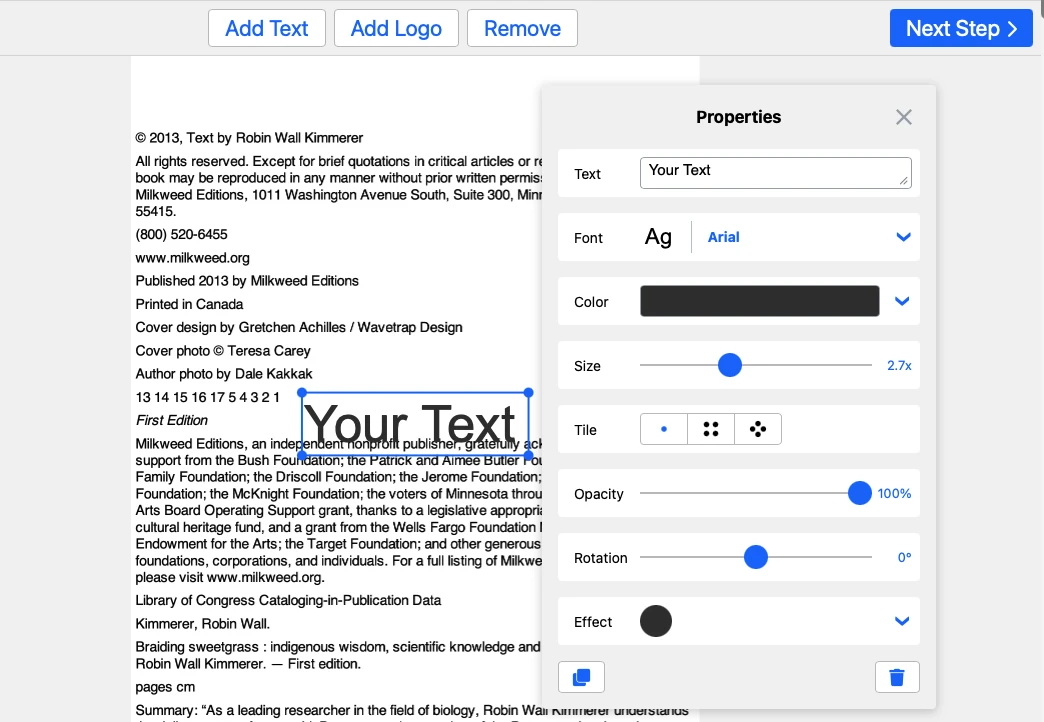
You can quickly adjust the size and position of the watermark on each PDF page. Instead of dealing with manual input or measurements, you can resize your watermark using a slider or by simply dragging its corners. Placing your watermark is just as easy - move it exactly where you want with a click and drag.
To make your watermark truly stand out, Watermarkly also offers over 30 effects, giving you the tools to create something both professional and eye-catching, all within an intuitive, hassle-free interface.
Use Logos and Images in Popular Formats
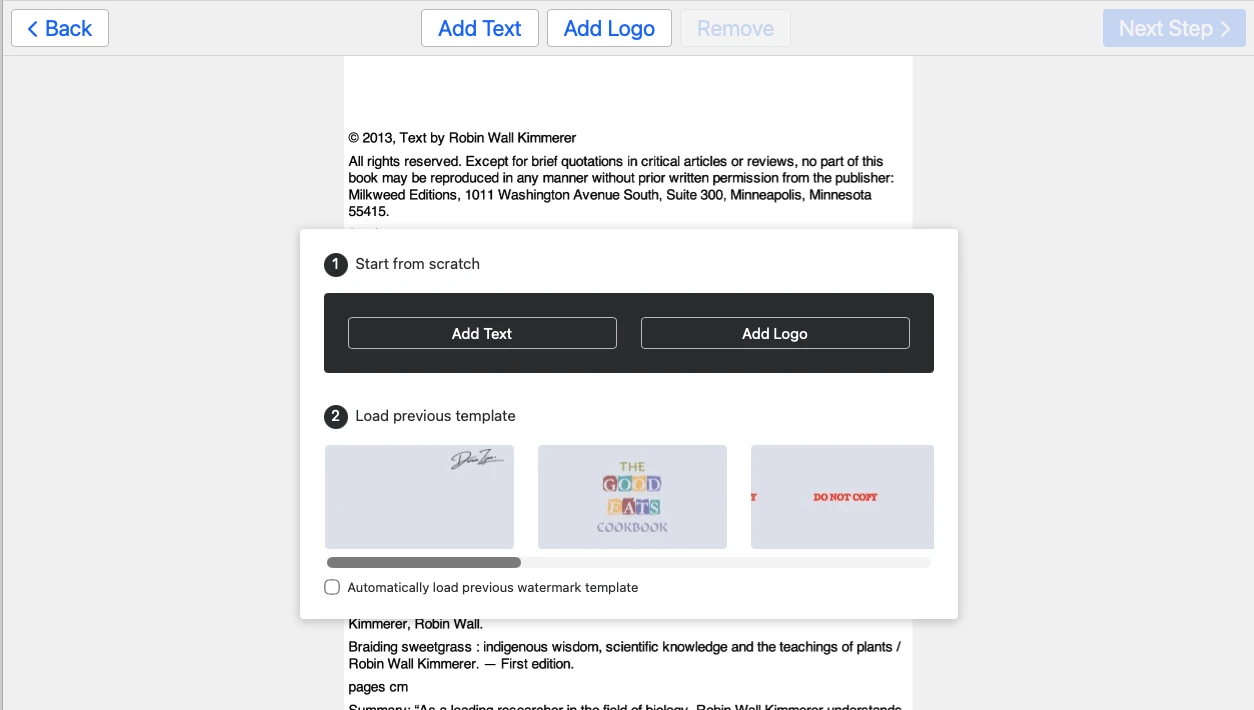
With Watermarkly, you can easily add a logo or image watermark to your PDF documents. All popular image formats, including PNG, JPEG, and BMP, are supported. That means you can use high-quality transparent logos or any image you prefer without needing to convert them first.
PDF-Specific Placement Options
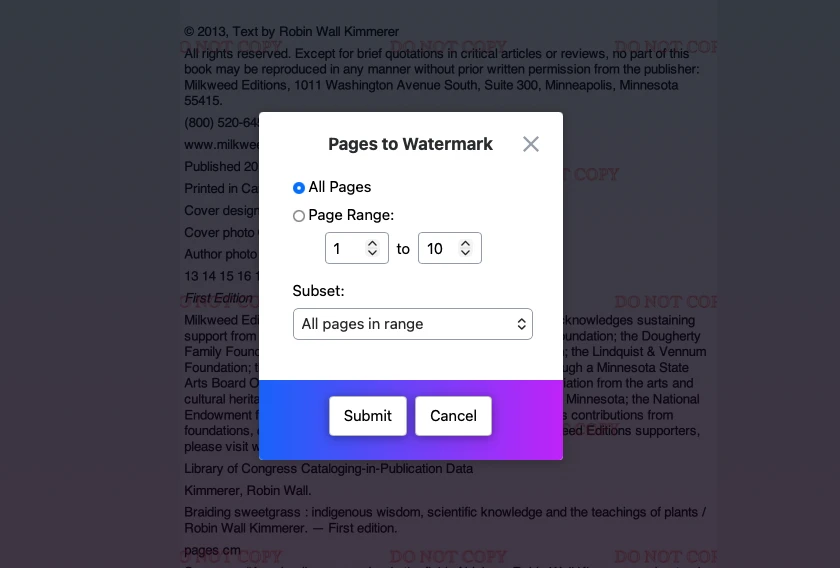
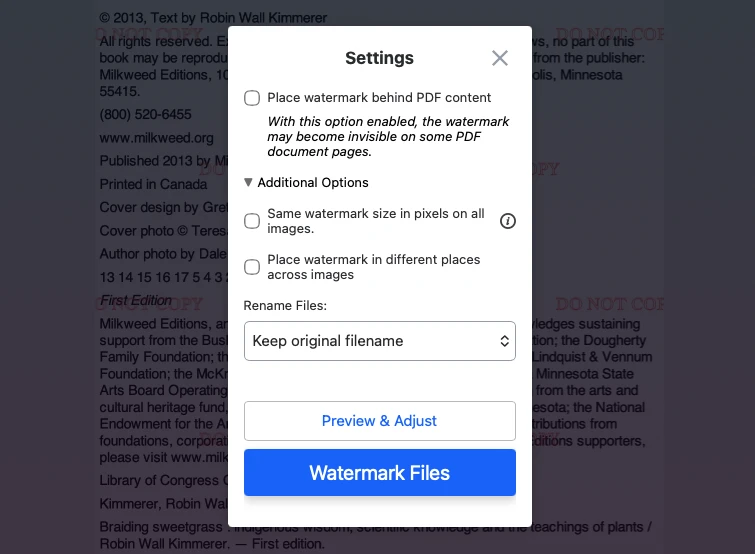
Watermarkly also offers PDF-specific options, such as placing the watermark below the document text and applying it only to a selected page range.
Batch Watermarking for Multiple PDF Files
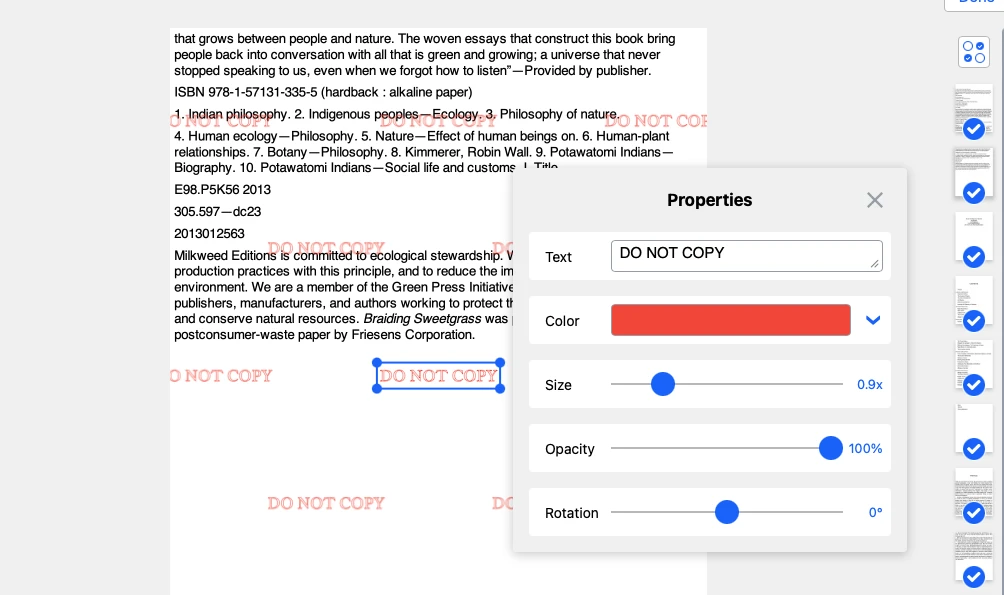
With Watermarkly, you can upload multiple PDF files and apply a watermark to all of them in one go. After editing, the Preview section lets you review how the watermark looks on each page of your uploaded PDF files, so you can keep it consistent or adjust individual pages when needed.
You can fine-tune the color, opacity, size, rotation, and position of the watermark on PDF as needed, even placing it differently on each page if desired. This level of flexibility and control makes batch watermarking both simple and efficient.
Free PDF Watermarking with Optional Upgrade
Watermarkly offers a free version of its PDF watermarking tool, letting you add watermarks to an unlimited number of PDF files. It's a great option if you need basic functionality and don't mind a small Watermarkly logo on your pages.
For those who want to get rid of Watermarkly’s logo and make the most of the app, the premium version starts at just $19.95 for a full year — a highly cost-effective solution for anyone who needs to watermark PDFs regularly without breaking the bank.
Watermark PDF Files on Any Device
Watermarkly is designed for maximum compatibility and convenience. Whether you're using Windows, Mac, Linux, iOS, or Android, you can access the free app directly from your browser - no installation needed. It runs smoothly even on slower internet connections, processing your PDF files quickly and without lag.
You can also import from and export files to a cloud storage like Google Drive, Google Photos, and Dropbox, so there’s no need to clutter your device with large files. Whether you’re working on a computer or a smartphone, Watermarkly makes it fast and easy to add a watermark to your PDFs - wherever you are.
Watermark PDF onlineHow to add watermark to PDF using Watermarkly
Adding watermark to PDF involves only a few steps:
- Upload the PDFs you want to watermark. Your PDF files stay private and are processed on your device.
- Design a watermark for your PDF. Add text or a logo, then adjust the size, color, opacity, rotation, and placement so it looks exactly the way you want.
- Preview the watermark throughout your PDF before saving the file. If you only want certain pages to be watermarked, open the Page Range settings and choose the desired option.
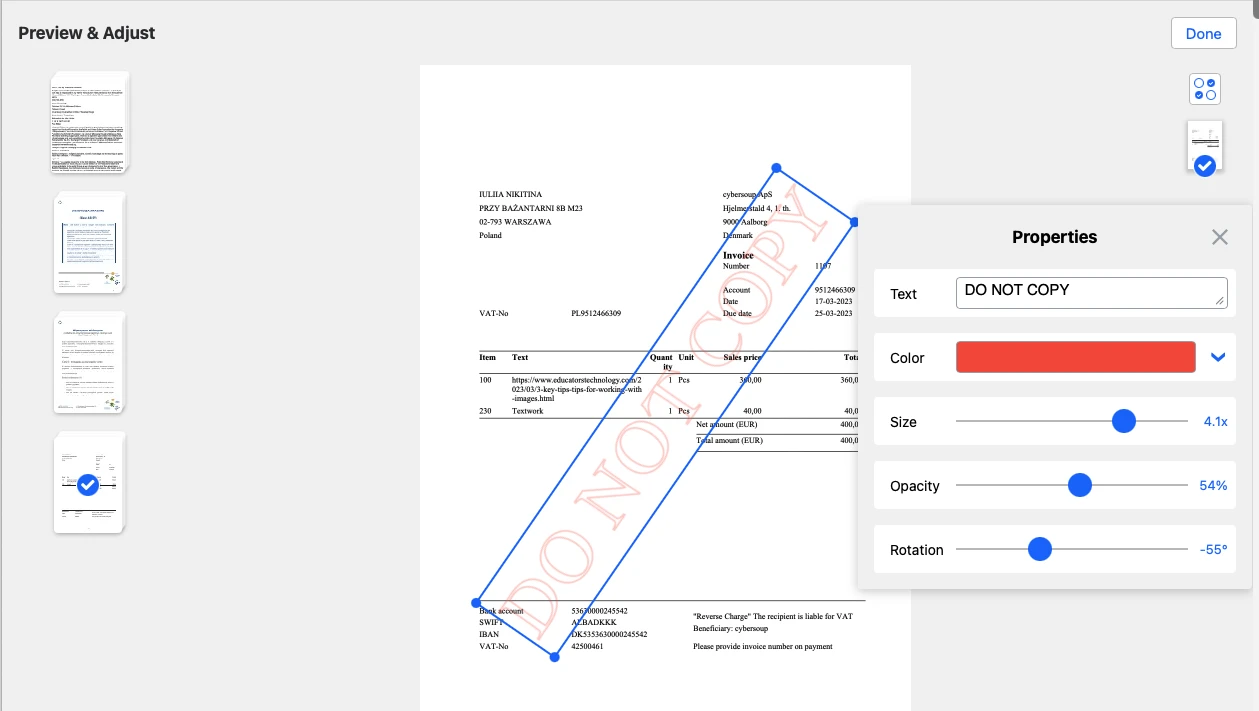
- Open the Export Settings to choose the final options. If needed, place the watermark below the text, then save the finished PDF files.
By default, Watermarkly automatically adjusts the size and placement of your watermark to fit your PDF. If needed, you can still reposition and resize it manually.
Watermark PDF onlineFAQ
What is a watermark on PDF documents?
A watermark is a logo, symbol, or text on a digital or physical document. It may be opaque, semi-transparent, or completely transparent. A PDF watermark shows who the document belongs to or communicates some valuable information – your phone number or website address, for example. Its main purpose is to protect your documents from being copied without your permission. However, in some cases, it can also help with promoting your brand.
How to add a watermark to PDF for free?
Watermarkly allows you to watermark PDFs for free. Since it’s an online app, you won’t have to download or install anything to get started. You won’t even need to register, because we have no accounts. Just open our app and start creating.
Can I add a watermark to a PDF without Adobe Acrobat?
Yes. Watermarkly works online in your browser, so you can add a watermark to PDF documents without installing Adobe Acrobat or other desktop software.
Are my PDF files uploaded or stored on your servers when using Watermarkly?
No. Your PDF files are processed on your device while you use the app, so they stay private during the watermarking process.
How to add a watermark to PDF on Mac and Windows?
The process of watermarking PDFs on Mac and Windows is the same – just open your browser of choice, go to our website, open the app, then drag your files into the app’s window, or import them from cloud storage by clicking on the “Select PDF” button. Our online tool offers the same set of tools and features for different operating systems, so you can use it on any device you want without any difficulties.
Will the watermark cover the text in my document?
Not necessarily. You can choose how the watermark should appear, including placing it below the text when needed, so the contents of the document remain readable.
Can I use a logo or image as a PDF watermark?
Yes. You can add either a text watermark or an image-based watermark, including logos in popular formats, depending on how you want your document to look.
How can I make a PDF watermark harder to remove?
For stronger protection, use a semi-transparent watermark, make it large enough to stay visible, and place it over important parts of the document. This makes removal more difficult without affecting the contents.