What About Batch Processing?
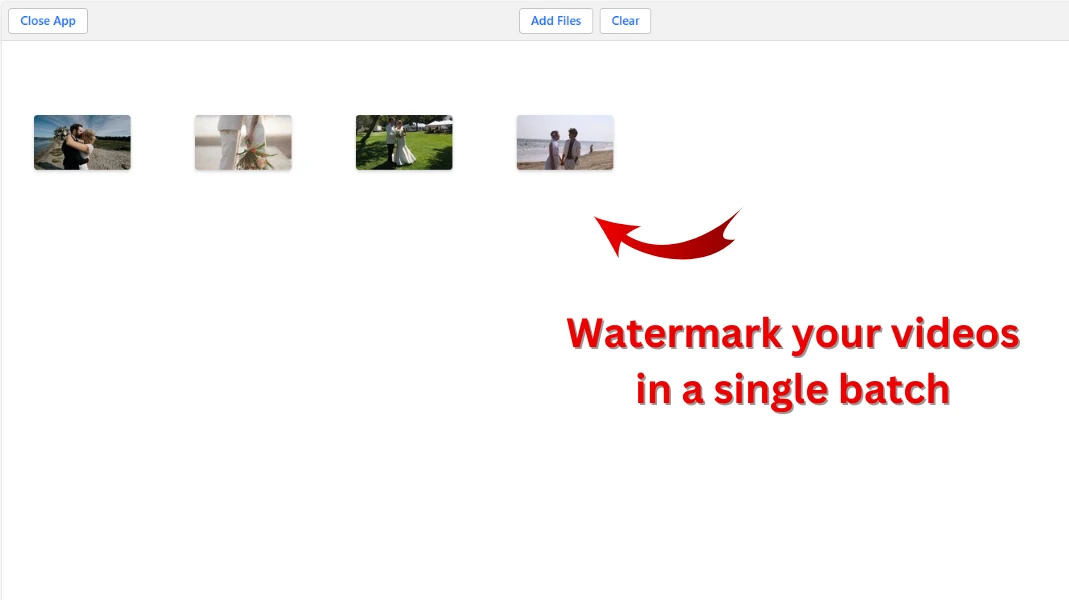
Working with one video at a time is fine. But if you have several files, you can upload them all, create the watermark once, and apply it to the whole batch in one go.
If you already have a saved template, use it again instead of rebuilding from scratch. That saves time when every product clip, tutorial, or social post needs the same logo in the same spot.
Other things you can do:
- Video watermark autoscaling. The app automatically adjusts the watermark size to match each video. A small clip gets a smaller mark; a large one gets a bigger one. You can turn this off when every uploaded video should use the exact same watermark size.
- Different watermark placement. The app can vary the watermark position from one video to another. That way the mark is harder to crop out across a batch.
Before exporting, open Preview & Adjust to check each clip. If one video has a different crop, frame, or subject position, you can move or resize the watermark for that file only.
Need to watermark large video files? There is also a desktop app, Visual Watermark. It handles heavy files faster than the web version and works the same way.
Making the Watermark Your Own
Your watermark could be a simple name in the corner or a tiled pattern across the whole frame. Maybe you want a logo, maybe text — it is up to you.
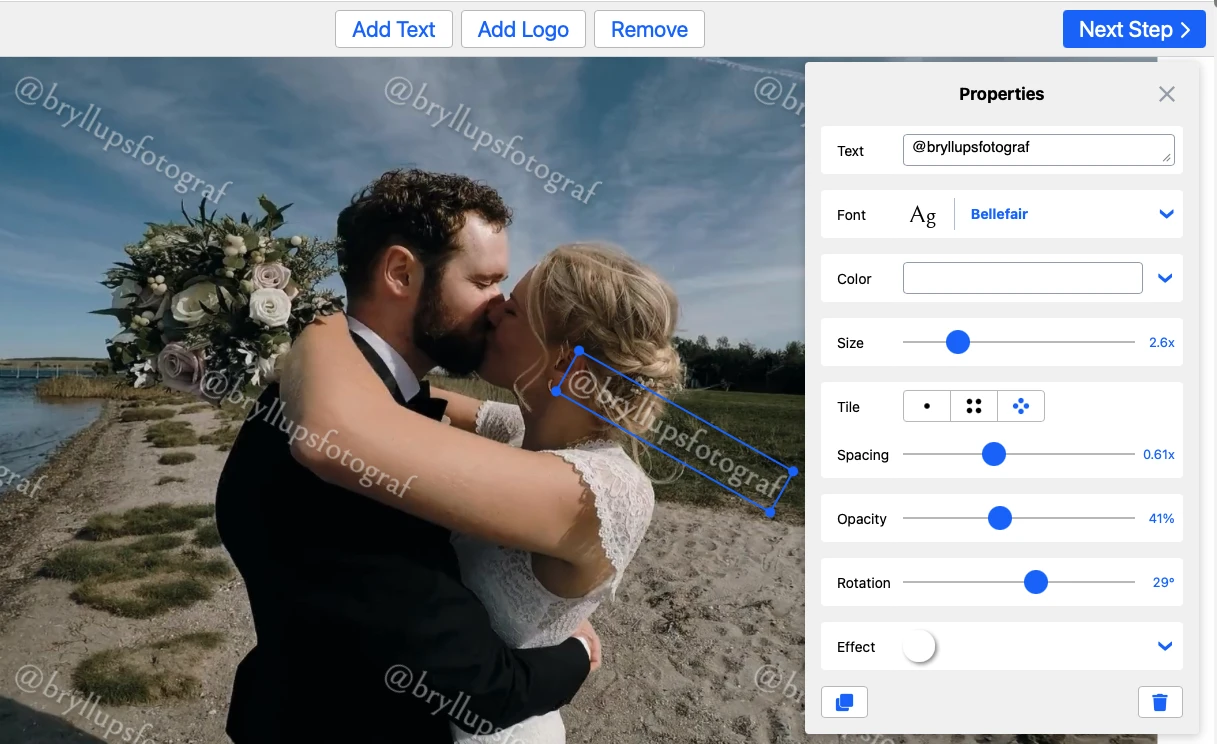
Adjust the watermark until it blends in with the video. You want it to look intentional, not slapped on at the last second.
Here is what you can work with:
- You can upload your own logo or create a watermark from scratch.
- You can add the copyright symbol © or use sequential numbers.
- Tiling the watermark repeats it across the frame.
- Font styles and visual effects are there if you need them.
A semi-transparent watermark works well on video. It is visible enough to mark ownership without pulling focus from the clip.
Private and Secure Video Processing
Watermarkly processes your video files in the browser. The clips themselves are not uploaded to our servers while you add the watermark.
The only items we store are the watermark templates you save. They are uploaded to our cloud server so the same templates are available on your other devices.
Because the tool runs online, there is nothing to install before you start. You just open the app, upload your videos, and export the watermarked copies when you are done.
How to Watermark Videos With Watermarkly
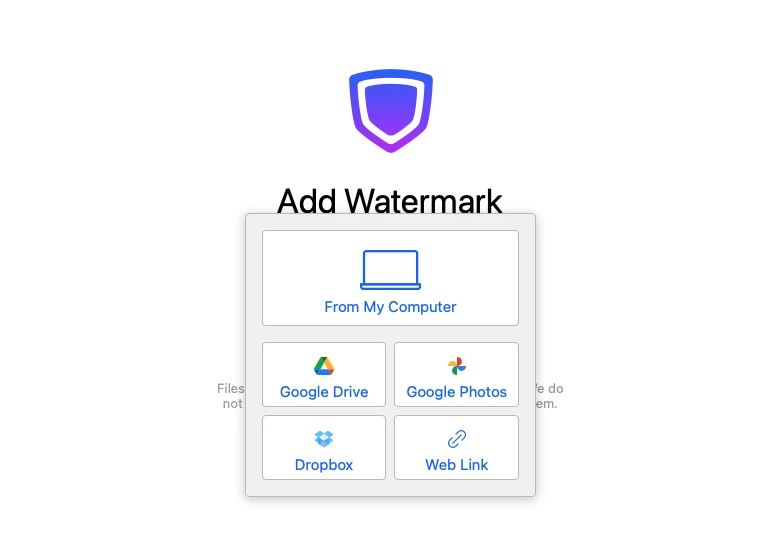
1. Upload your videos
You can add videos from your device, import them from the cloud, or paste a direct link. Working with just one file? That works too. Or upload several clips and let the app watermark the whole batch at once.
2. Choose the type of watermark
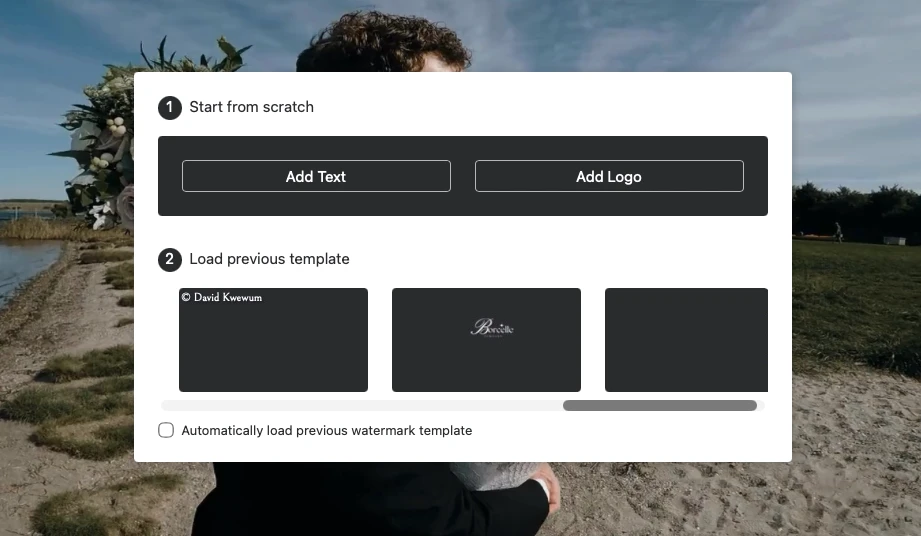
You can use a text watermark, upload a logo, or combine both in one design. No logo file handy? Grab an icon from Watermarkly's built-in gallery instead.
3. Set up your video watermark
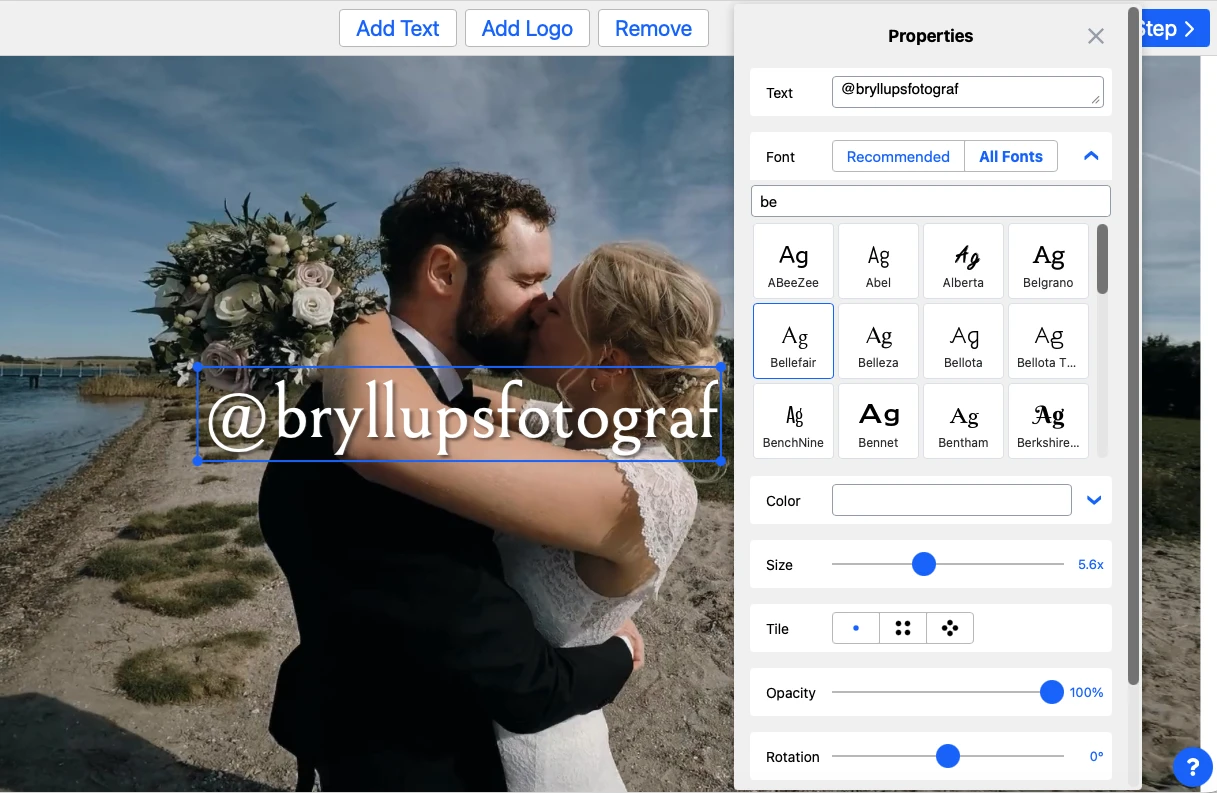
You can pick from 900+ fonts or choose from 1000+ icons. The copyright symbol © and sequential numbers are available too. Adjust size, color, transparency, angle, and effects until it looks right. Need stronger protection? Tile repeats the watermark across the frame.
4. Preview and adjust each video
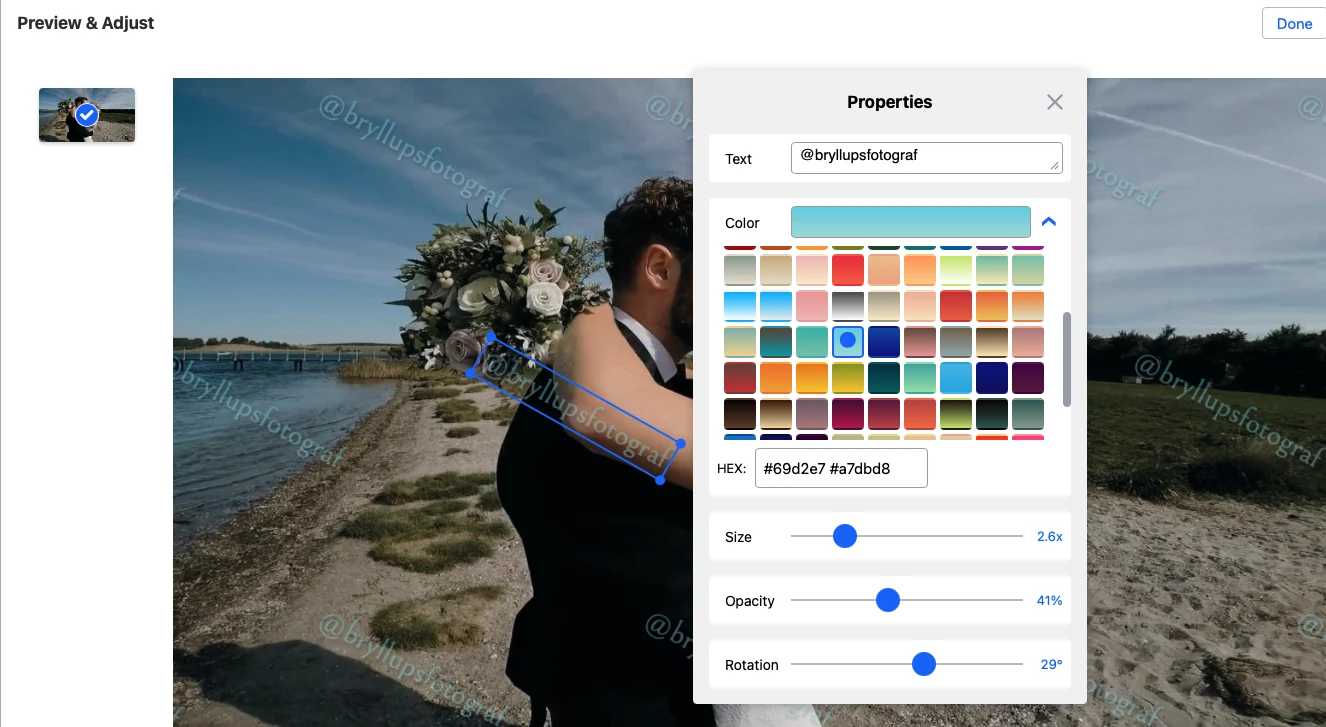
Preview each video before you apply the watermark. Clips have different dimensions or framing? Adjust the size and position file by file.
5. Export your watermarked videos
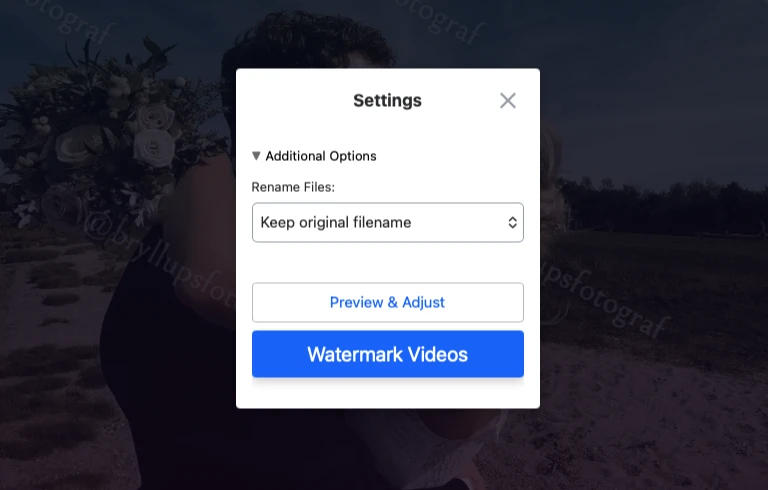
Apply the watermark and export the finished videos. If you uploaded a batch, Watermarkly processes the files together and keeps the selected design across the set.
Why Use Watermarkly for Video Watermarking
Watermarkly handles the practical side of video watermarking. You can upload common file types, reuse saved designs, check the result, and export without installing extra software.
- Supports common video formats. It works with MKV, MOV, MP4, and AVI files.
- Great for batch watermarking. You can process dozens of videos at once when a full set needs the same logo, text, or tiled watermark.
- Flexible logo watermarking. You can upload a logo in JPEG, PNG, GIF, BMP, or TIFF format and put it directly on your videos.
- Built-in background removal. If your logo lacks a transparent background, Remove Background cleans it up right in the app.
- Free and easy to use. The interface stays straightforward even if you are watermarking a video for the first time.
FAQ
Here are a few common questions about adding watermarks to videos online.
What is a watermark on a video?
A watermark is a text label, logo, symbol, or graphic placed on a video. People use watermarks to show ownership, protect content from unauthorized reuse, or keep a brand visible. Many video watermarks are semi-transparent, so the clip remains easy to watch.
How can I watermark multiple videos at once?
Upload all the videos you want to edit, choose your watermark, and let the app apply it to the whole batch. You can still preview the files and adjust individual videos before export.
Can I add both text and a logo to the same video?
Yes. You can combine text with a logo in one watermark design, including your brand name, copyright symbol, or sequential numbers.
Which video formats are supported?
Watermarkly supports MKV, MOV, MP4, and AVI files.
Are my videos uploaded or stored on your servers?
No. Your video files are processed in the browser and are not uploaded to Watermarkly’s servers. Saved watermark templates are synchronized separately, so you can reuse them on different devices.
What is the best place to put a watermark on a video?
It depends on the goal. For stronger protection, put the watermark over a detailed or important part of the frame. A corner or another edge works well for a cleaner look — visible, but not covering the subject.