Why Use Watermarkly’s Image Compressor?
Batch Compression With No Daily Limits
You can upload images in different formats and compress them all at once. Our free online image compressor has no limits on the number of files you can process per day or on image file size. We also don’t add watermarks to your compressed images.
Compress Images Without Noticeable Quality Loss
There are compression settings that help reduce image file size without noticeably affecting quality. If you compare the original image with the compressed version, the difference is usually minimal.

Full Control Over the Compression Results
The photo compressor offers three compression options to choose from. Depending on your needs, you can reduce file size significantly, apply lighter compression to preserve high image quality, or enter the target number of KB or MB to get a more precise result.
Private and Secure Image Compression
Our tool processes your files right in your browser. They never reach our servers and are not stored on them, so we do not have access to your images. Your files stay under your control at all times.
Lightning-Fast and Easy Processing
Watermarkly’s image compressor is a web app, so you can start using it right away without installing anything. It works fast and makes uploading and downloading quick and easy. You don’t need to worry about file formats or compression settings — just drop your images into the app and get smaller versions with a single click.
Available on Any Device
With our online tool, you can compress images on Mac, Windows, Linux, smartphones, and tablets. Whether you use an iPhone or an Android device, you can easily compress your photos from anywhere, as long as you have internet access.
Free Access and an Ad-Free Experience
Watermarkly’s photo compressor is free to use. You can compress your images without creating an account or dealing with distracting pop-ups and intrusive banners. We want the process to be simple, convenient, and pleasant from start to finish.
Compress Image OnlineHow to Compress an Image in 3 Steps
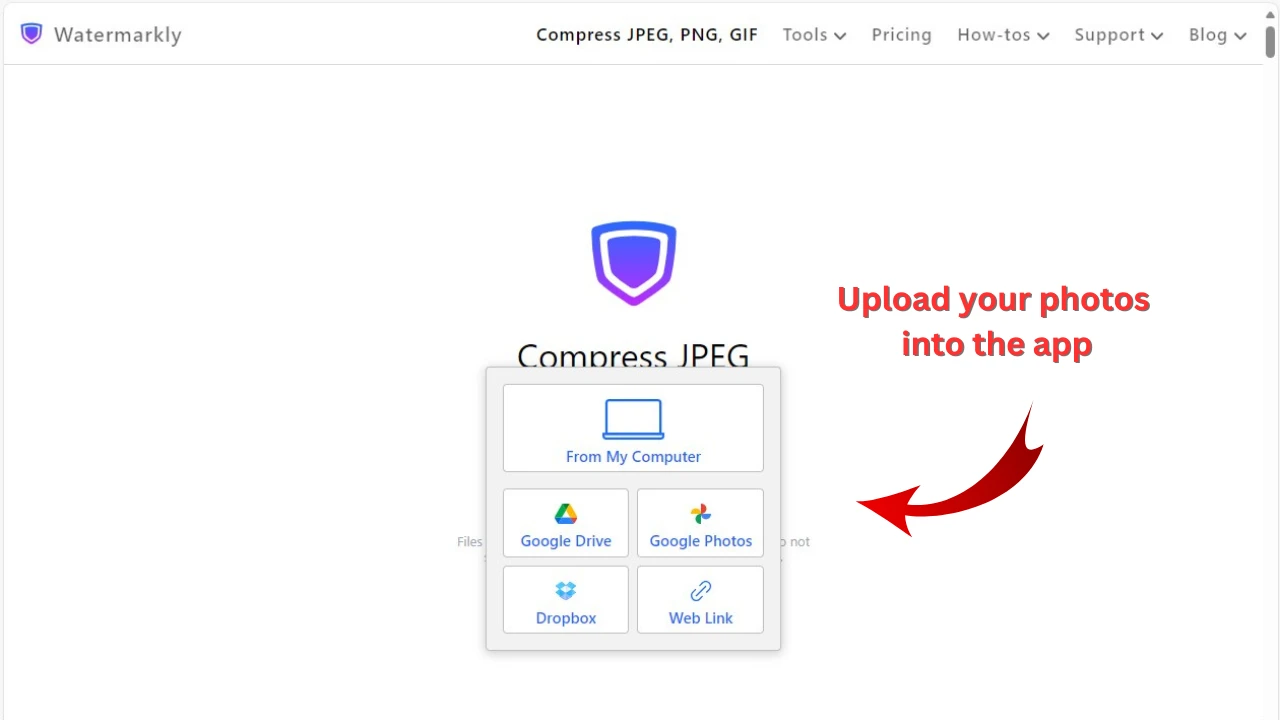
1. Upload your photos
Upload one or several images by dragging files directly from a folder to the app or click "Select Images" and choose one of the following options: from your computer, Google Drive, Google Photos, Dropbox, or a web page.
If you want to import images from either cloud storage service, you will need to grant access to your account first.
2. Choose the quality you need
The photo compressor offers three options for reducing image file size.
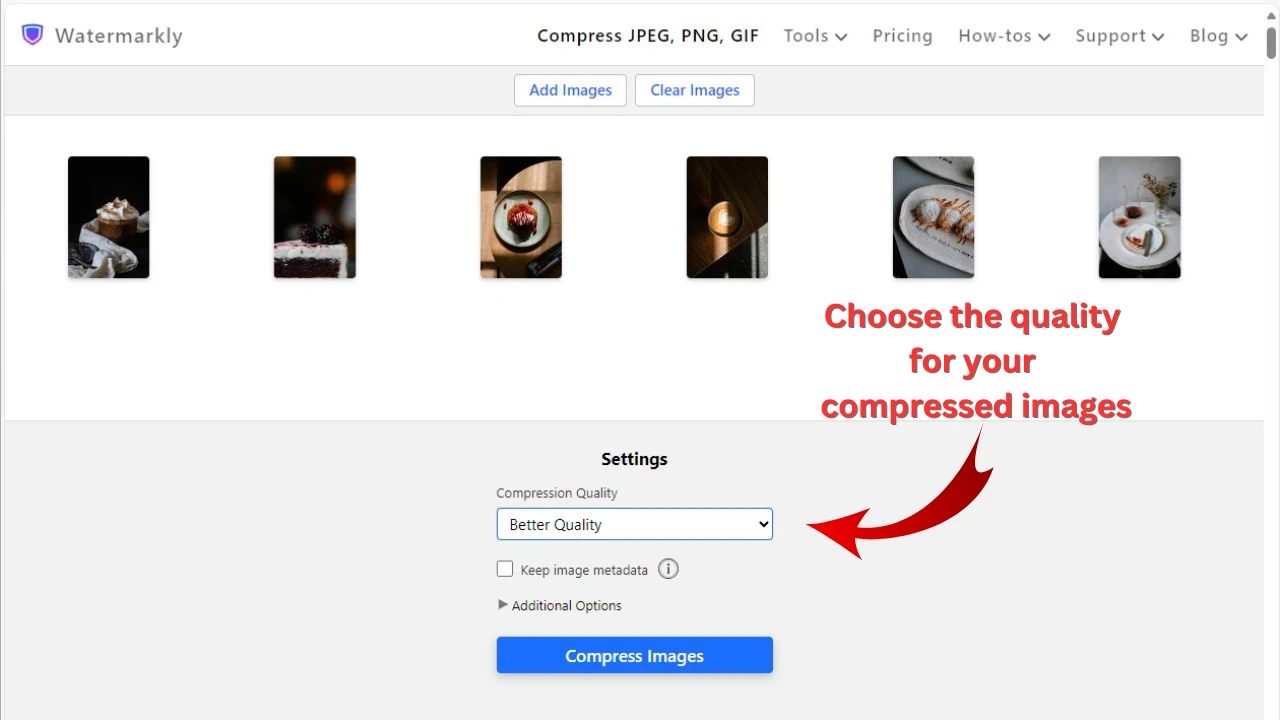
Better Quality
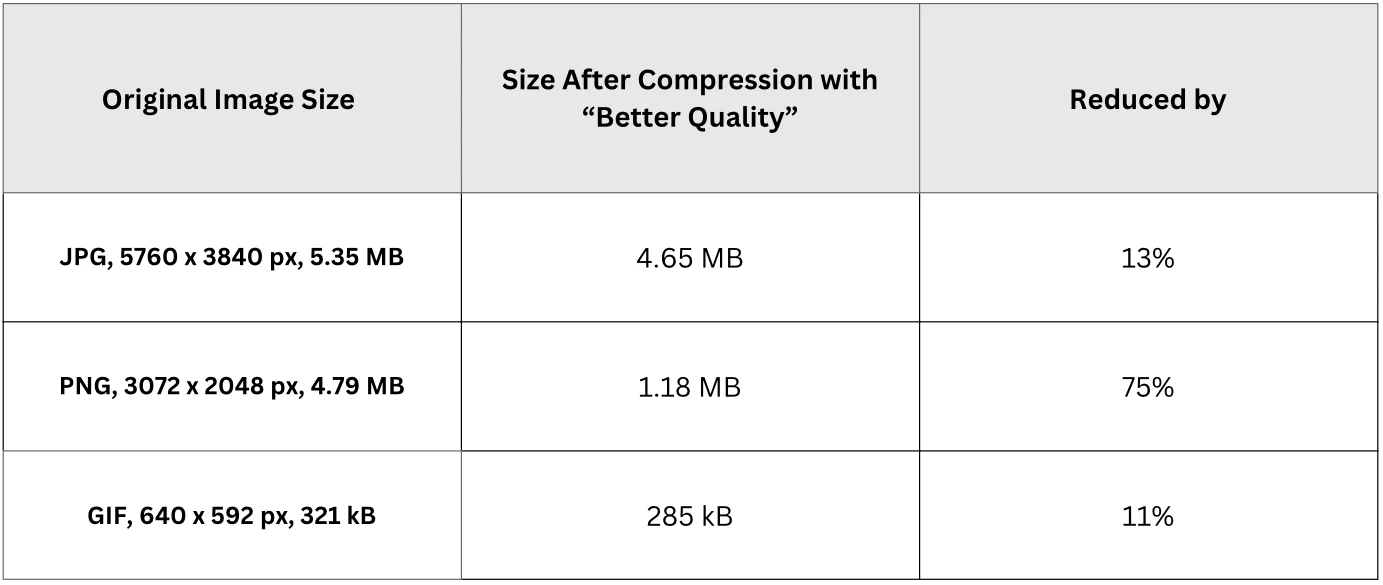
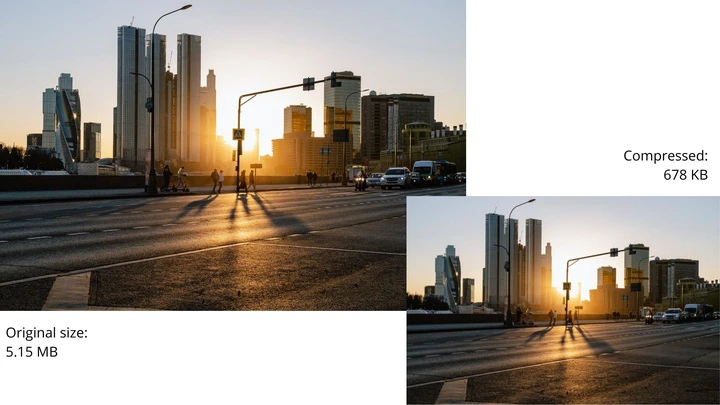
Choose this option if you want to compress images without noticeable quality loss for websites, portfolios, online stores, or client delivery.
Here are some examples of compression results using the Better Quality option:
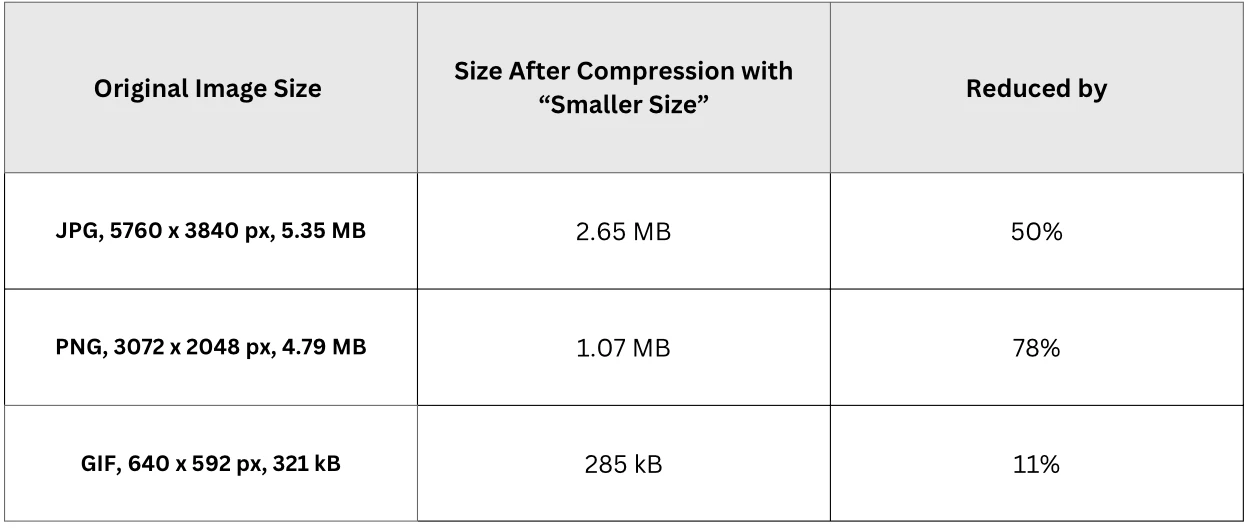
Smaller Size
Go for this option if you need the smallest possible file size for faster uploads, email attachments, or limited storage space.
To make an image as small as possible, some data has to be removed. The result will still look good for many everyday uses, especially on websites or social media. However, if you zoom in, the loss in quality will be much more noticeable than with the Better Quality option.
This option is for those who care more about the file size of an image than its quality.
As you can see, the biggest difference in compression levels between the two options is most noticeable when compressing JPEG files.
Specific File Size
This option is ideal if you need to compress an image to a certain number of kilobytes or megabytes and have more control over the final result.
You can specify the size right in the app, or try one of our dedicated compression tools:
3. Export your compressed images
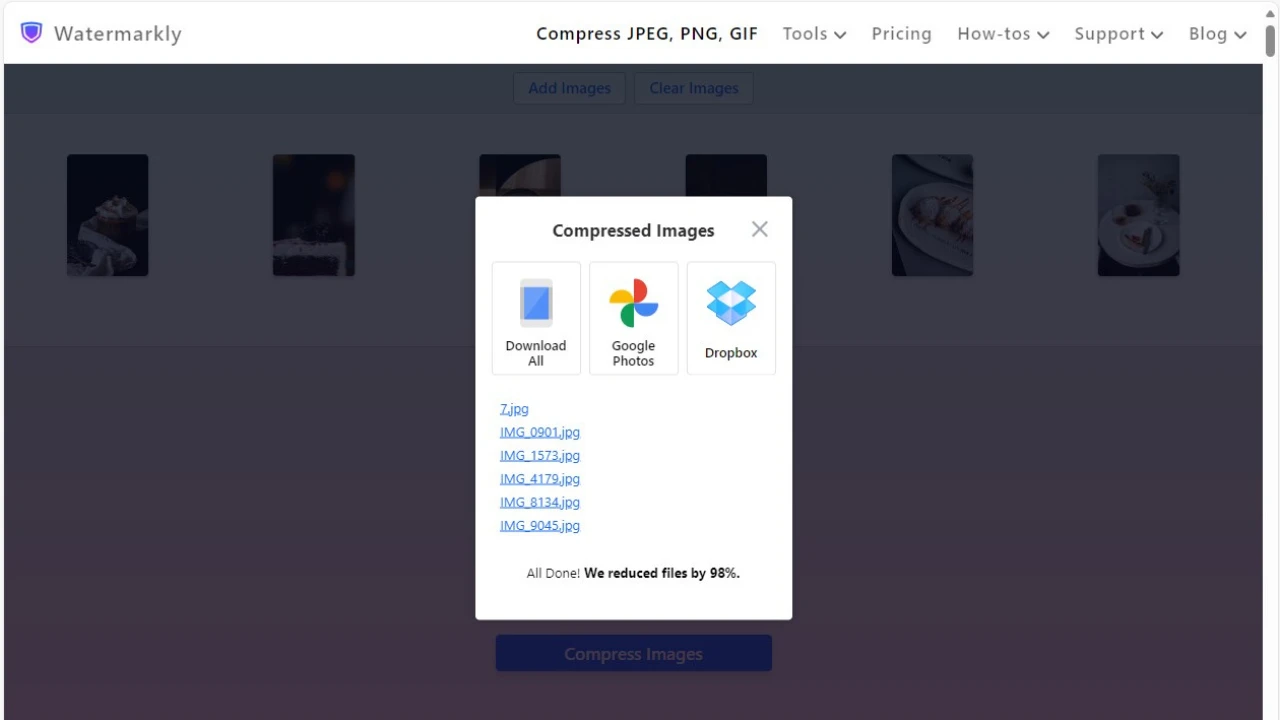
Click “Compress Images.” If you choose the Better Quality or Smaller Size option, you will see the size of your compressed images in bytes after the process is complete.
Download the compressed files to your device or a cloud storage account. Our image compressor is designed to preserve the quality of your photos while reducing file size as much as possible.
 Compress Image Online
What Affects Image File Size?
Any file, including an image, has a size. A file size is measured in megabytes and kilobytes. There are 1024 kilobytes in 1 megabyte.
A size of an image depends on various factors:
- Pixel dimensions. Your photos are composed of pixels. The bigger the number of pixels, the bigger will be the size of your image in megabytes.
- Quality and details. Photos with lots of colors, textures, and fine details usually have larger file sizes than simpler images.
- Format. Some formats are more efficient than others. For example, JPEG files are often smaller, while PNG files may stay larger because they usually preserve more image data.
- Compression level. Light compression keeps more detail but reduces size less aggressively. Stronger compression can make the file much smaller, but it may also affect image quality.
How Does Image Compression Work?
Compressing an image means reducing its file size while keeping its quality at an acceptable level. In many cases, the original and the compressed copy may look almost the same, especially if the compression is applied carefully.
There are two main types of image compression: lossless and lossy.
Lossless compression reduces file size without removing important image data, which means the quality stays the same. The main advantage is that compressed images can be restored to their original state without distortion or degradation. The downside is that the file size usually does not decrease dramatically. PNG is one of the most common formats that supports this type of compression.
Lossy compression permanently removes some unnecessary or less noticeable data to make the file much smaller. This method can reduce file size much more effectively, but if the compression is too strong, image quality may suffer. With the right settings, however, the image can still look very good. JPEG (or JPG) is the most common format that uses lossy compression.
It is also important to remember that if an image has already been compressed with quality loss, it cannot be fully restored to its original state. That is why it is always better to compress a high-quality original file whenever possible.
Compress Image OnlineWhy Is Image Compression Important?
Compressing images makes them easier to upload, store, and share. Smaller files take up less space on your phone, computer, or cloud storage, and they are much more convenient to send by email, messaging apps, or social media.
Image compression is especially important for websites. Large image files can slow down page loading, while compressed images help pages load faster and create a better experience for visitors. Even high-quality photos may become a problem online if their file size is too large.
Compression is also useful when you need to meet upload requirements. Many websites and platforms have file size limits for profile photos, forms, product images, and other uploads. If your image is too large, it may be rejected. Compressing it is often the easiest way to solve the problem without having to remove the image altogether.
Compress Image OnlineFAQ
How to compress images without losing quality?
If you want to compress images with minimal quality loss, start by selecting the Better Quality option in Watermarkly’s image compressor. This setting is designed to reduce file size while keeping the image as close to the original as possible.
Here are a few additional tips that can help:
- Choose a more efficient format. In some cases, converting an image to a format like WebP or AVIF can reduce file size while maintaining strong visual quality.
- Resize instead of compressing. Sometimes reducing an image’s pixel dimensions is enough to make the file smaller without noticeably affecting how it looks.
- Keep the original files. Try different compression levels to find the right balance between file size and image quality, but make sure your original images are not overwritten.
- Remove metadata. Deleting extra information such as camera settings, date, or location can also reduce file size without affecting image quality.
The final result will always depend on the format, resolution, and amount of detail in the original image. But in many cases, these steps can help you make a file much smaller while keeping the visual difference minimal.
How to compress an image online?
You can compress photos with Watermarkly’s online image compressor in just a few steps. Upload all your images in one batch, choose one of the three available compression options and click Compress Images. When the process is complete, download the compressed files to your device or cloud storage. The app is free to use with no daily limits.
How to compress an image for free?
Watermarkly’s photo compressor lets you compress images for free in just two clicks. There is no need to create an account or provide your email address. You can compress several images at once, even if they are in different formats. This makes the process faster and more convenient when you need to prepare multiple files in one session.
How to reduce image file size in MB?
You can use Watermarkly’s free online image compressor to reduce file size in MB or KB. Once your photos are uploaded, choose the Specific File Size option, enter the number you need, and click Compress.
This option is especially useful when you need your image to meet a file size requirement for a website, form, or email attachment. It gives you more control over the final result than standard compression modes.
How to compress an image on a mobile phone?
You do not need to download a separate app to compress photos on iPhone or Android. Watermarkly works in a mobile browser, so you can use the online image compressor directly on your phone. The process is the same as on the desktop. This way, you can reduce image file size on the go without installing anything or taking up extra storage space on your device.
How to reduce image file size correctly?
It all depends on what you want to achieve. For example, images for websites often do not need to be very large. In many cases, reducing a file to a few hundred KB is enough to help web pages load faster, even on slower internet connections.
It is usually better to avoid uploading unnecessarily large image files when a smaller version can look just as good. The right balance between file size and quality will depend on where the image is going to be used.