Choose Our WEBP to JPG Converter If:
- You need to process one or more WEBP files at once.
- You don’t want to pay for conversion.
- You need high-quality results.
- You want fast uploads and downloads.
- You want to convert WEBP to JPG with no limits.
- You don’t want to see ads.
- You don’t want to create an account.
- You need your images to stay private.
How to Convert WEBP to JPG: Step-by-Step Guide
1. Upload Files
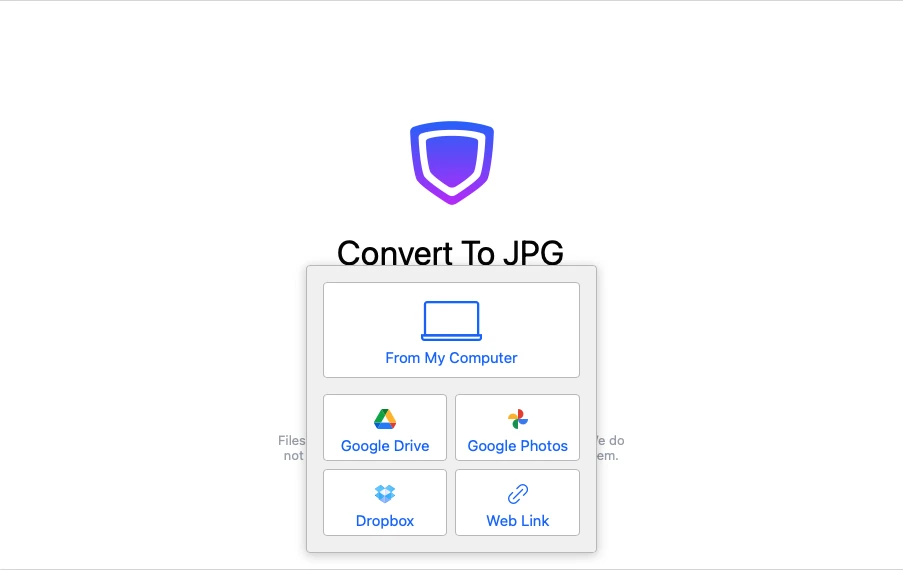
Choose the "Convert to JPEG" app from the Watermarkly Tools. Drag and drop your WEBP files to the converter window. You can also import files from one of the supported cloud storage services.
If you want to change the format but you don’t want to download a certain file from the Internet, you can simply provide a link to it. Then the file will be automatically uploaded into our WEBP to JPG converter.
2. Adjust the Conversion Settings
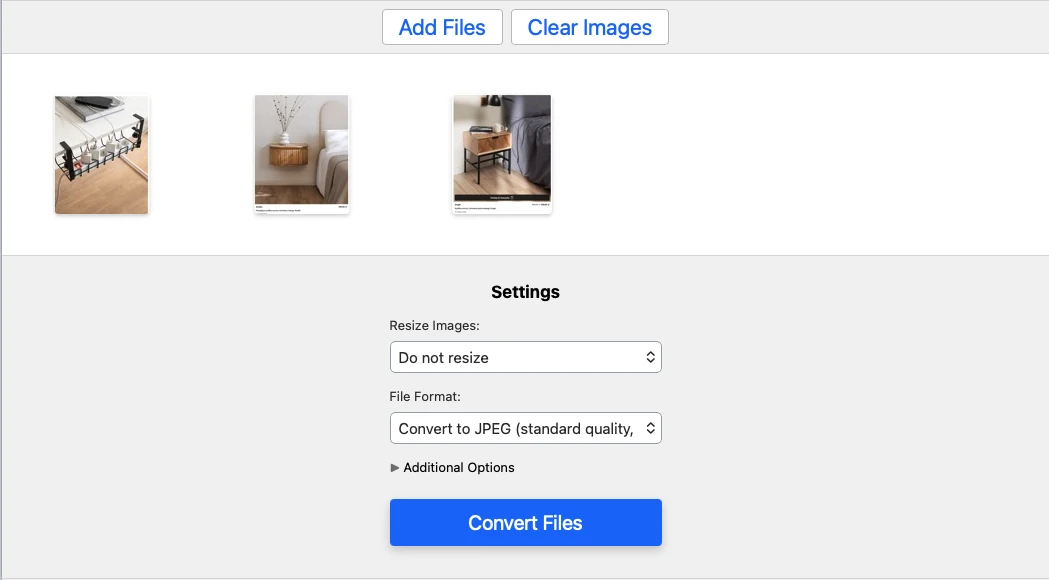
Once your images are in the app, the Settings section will appear. Here, you can choose what quality and file size your images will have once the WEBP to JPG conversion is done.
It is also possible to enter specific pixel dimensions for your JPGs.
Our WEBP to JPG converter never overwrites the originals or changes them in any way. For this reason, you can opt for your JPGs having the same name as the originals. But it is also possible to rename your converted images to “image 1” or add a suffix to the name.
3. Start the Conversion
As soon as you click the "Convert Files" button, the app will automatically start converting WEBP files. This process doesn’t require your intervention. So, wait for the app to finish.
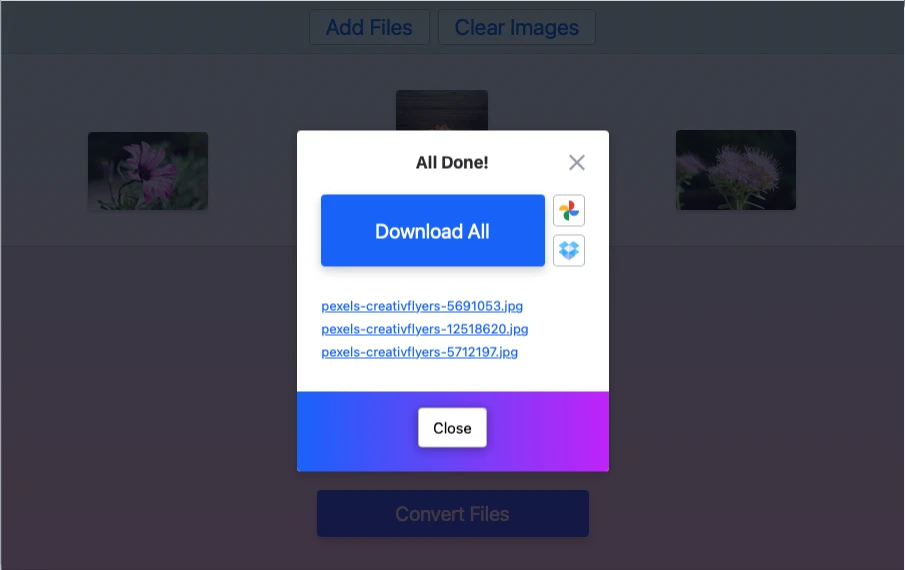
Once the conversion is complete, you will see a couple of options to save the results. You can download your converted files right to your device or upload them to your cloud storage.
WEBP to JPG Converter Settings
In some converters you simply upload images, and the app converts them. It’s easy and quick. But you have no control over the result. In Watermarkly’s WEBP to JPG converter it’s different. Here, you can select image quality for your JPGs.
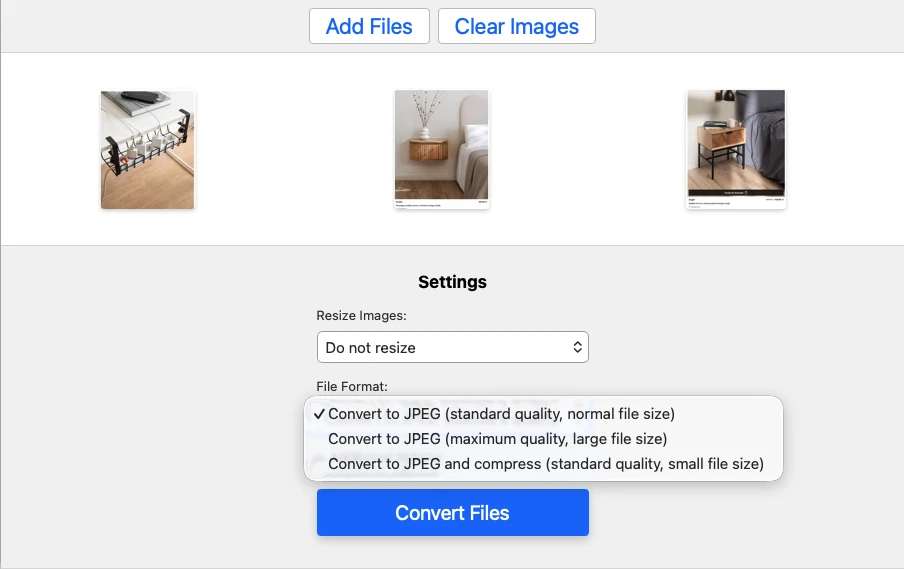
You will have the following options to choose from:
- Maximum quality;
- Standard quality;
- Standard quality + compression, which will result in decent quality.
Please note that file size depends on the quality you choose when converting WEBP to JPG.
For instance, if you go for the maximum quality, the file size of your high-quality JPGs will be relatively big. But if you opt for standard quality, during the WEBP to JPG conversion, our app will do its best to maintain the balance between good image quality and average file size.
In our WEBP to JPG converter you can also resize image. It means that you can set specific pixel dimensions for your JPGs.
The following options for resizing are available:
- Exact height and width – you’ll be able to change both pixel dimensions;
- Exact height – you’ll be able to change only the height;
- Exact width – you’ll be able to change only the width;
- No more than – you’ll be able to set maximum pixel dimensions;
- Specific percentage of the original image – you’ll be able to change the size of your JPG by a certain number of percent.
Of course, it is also perfectly possible to keep the pixel dimensions unchanged when converting WEBP files to JPG.
Why You Should Convert WEBP to JPG
WEBP is a great image format with clear benefits—especially for modern websites. But JPG (JPEG) is still the better choice in some situations. If you want your images to display correctly everywhere, upload without issues, or edit more easily, converting WEBP to JPG can help.
Here are the main reasons to convert:
Broader compatibility
WEBP format is gaining popularity. More and more apps, browsers and software are starting to support it. However, it is still not as widely used as JPG.
By converting your images from WEBP to JPG, you will make sure that no matter what browser or device people use, they will be able to view your visual content.
Web optimization
Image compression is one of the best ways to speed up your website. While WEBP supports both lossless and lossy compression, compressing WEBP files can sometimes reduce image quality—especially for detailed photos.
JPG compression is widely used for web images and often produces great results with minimal effort. It can also be faster and simpler to work with, especially if you need to optimize many images quickly.
Format requirements
Some websites and apps only accept certain file types, and WEBP isn’t always one of them. Since JPG is one of the most common image formats on the internet, it’s more likely to be accepted.
For example, Instagram doesn’t support WEBP. If you want to post a WEBP image there, you’ll need to convert it to JPG first.
Image quality in certain cases
WEBP was designed to provide good image quality at smaller file sizes. However, with complex photos or images with lots of fine detail, WEBP compression can sometimes introduce visible artifacts. The result may look softer or less sharp than a JPG version.
If you notice blur, artifacts, or reduced detail, converting WEBP to JPG may give you a cleaner, sharper image.
Frequently Asked Questions
How to convert WEBP to JPG for free?
Use free online WEBP to JPG converter from Watermarkly. Upload your WEBP files into the app. Then, pick the necessary options in the settings. Select the image quality and file size for your converted images. When you’re ready, click the “Convert Files” button. The converter will process the files. Once it’s done, you will be able to download all the files in one go. If you don’t have enough space on your device, you can upload the converted images to one of the offered cloud storages.
When is it better to change WEBP to JPG?
WEBP is a strong option in many cases. But when you need maximum compatibility, simpler editing, smoother uploads, or consistently sharp results, converting WEBP to JPG is often the better choice - especially for sharing and publishing online.
Can I convert my WEBP files to other formats?
Yes. Here are some other free online converters you can use:
What else can I do with my images for free on Watermarkly?
Start with our main tools for quick, basic image editing: