What Our JPG Converter Guarantees
- Lightning-Fast Processing: Even if you’re converting a large number of photos, you’ll be impressed by how quickly your files upload and download.
- No Usage Limits: The free version of our JPG converter comes with no restrictions. There are no limits on the number of conversions or file sizes. We also don’t add watermarks to your processed files.
- Batch Conversion: There’s no need to upload images one by one — upload them all at once. You can even convert images of different formats to JPG simultaneously.
How to Convert Image to JPG: Three Simple Steps
1. Upload Your Image
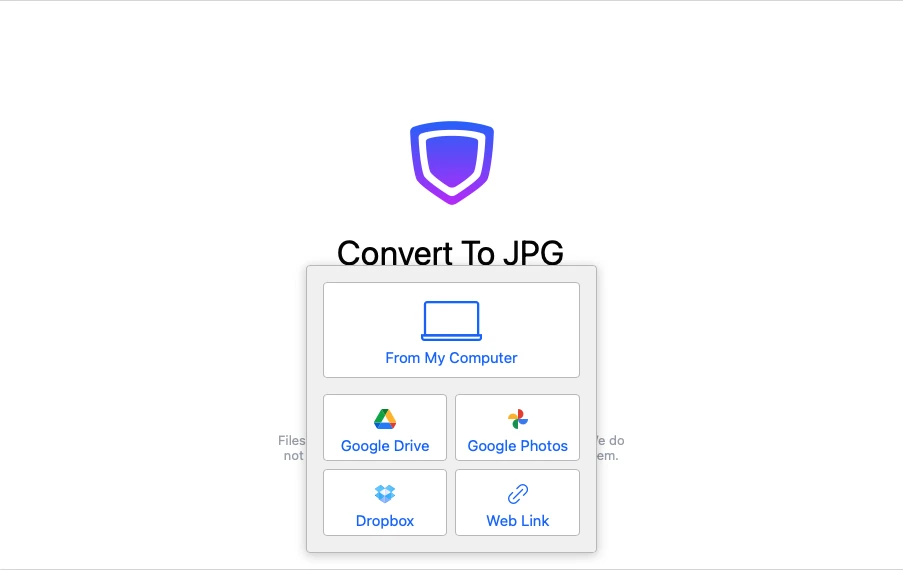
Open the app by clicking on the "Tools" tab and selecting "Convert to JPG" from the list. Then click the "Select Files" button or drag the necessary file into the Watermarkly's JPG converter.
You can also import from one of the supported cloud storages such as Google Drive, Google Photos, and Dropbox.
2. Specify the Settings
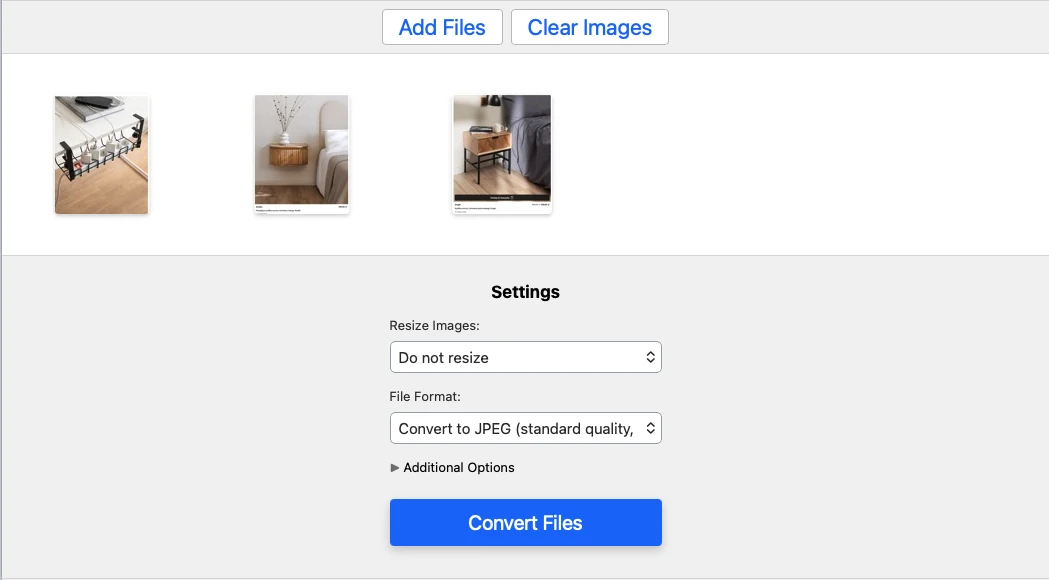
If you need to convert multiple files to JPG, click the "Add Files" button and upload more images into the app.
Next, you need to decide whether you want to resize your images or not.
At the end select the new file format and image quality. If necessary, you can rename your images, too.
3. Download the Results
When you are done with the settings, click the “Convert Files” button. The JPG converter will start converting your photos. This process is done automatically and doesn’t require any involvement from you.
When the photo converter to JPG is done, you can download your images to your device or import them directly to one of the cloud storages.
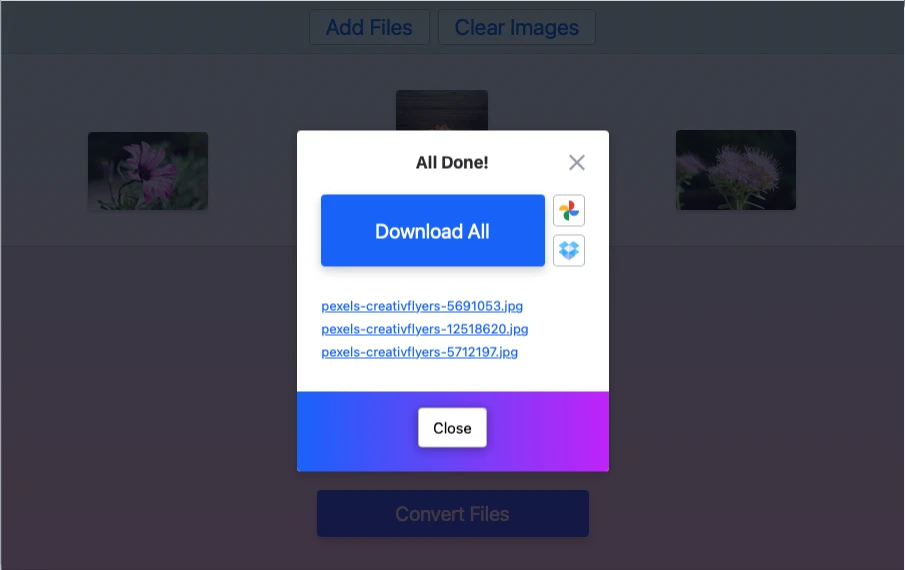
It’s worth mentioning that our image converter to JPG never changes the original files. All the changes will be applied to copies.
Image Quality After Converting to JPG
Watermarkly's image converter to JPG allows you to select a different quality for images after you convert them. Let’s take a look at the 3 options that our app offers.
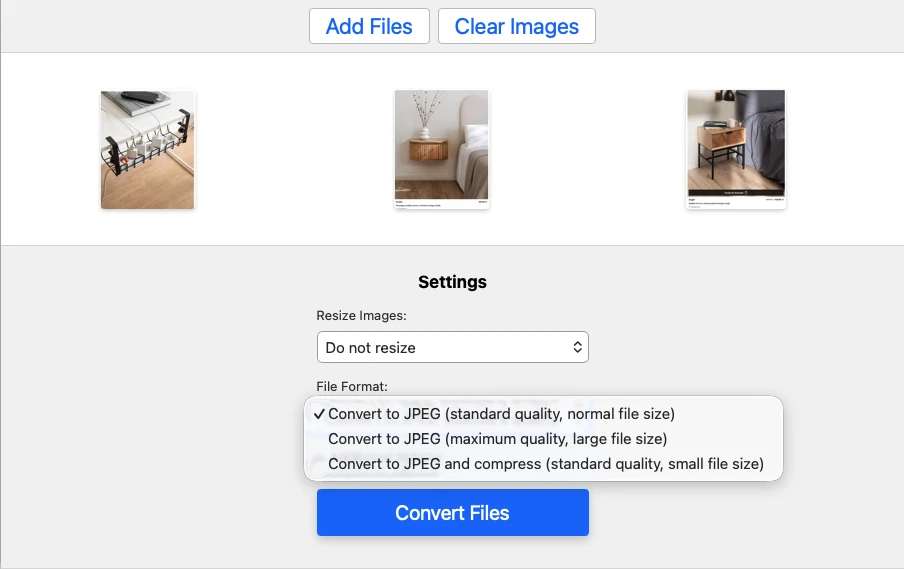
Standard Quality, Normal Size:
- Minimal data loss
- Quick processing speed
- Manageable file size
- Output quality similar to the originals
Maximum Quality, Large File Size:
- No data loss
- A bit slower processing speed
- Larger file size
- No quality loss
Standard Quality, Small File Size:
- Some data loss
- Slower processing speed
- Much smaller size
- Redundant data removed
| Standard quality Normal size | Maximum quality Large file size | Standard quality Small file size | |
|---|---|---|---|
| Data Loss | Minimal | No | Some |
| Processing speed | Quick | A bit slower | Slower |
| File Size Outcome | Manageable file size | Larger file size | Much smaller size |
| Output Quality | Visually similar | No quality loss | Redundant data removed |
When You Should Convert Files to JPG
If you need images with no transparency
JPG is a great format, but it has a drawback – it doesn’t support transparency. Therefore, it’s great for storing and sharing images that don’t have any transparent layers or elements. For example, photos, scans, and drawings.
If you want to publish your files online
The vast majority of images that you see online is in JPG; due to its high compatibility and relatively small file size. This format is perfect for posting visual content on websites as well as sharing your images on social media. For example, Instagram supports only JPG and GIF formats; PNGs can be uploaded in some cases, too, but it’s not recommended.
If you need high-resolution photos
JPG is widely-used by photographers. Surely, nearly all professionals and amateurs will set their digital cameras to shoot in raw – to have files with as much information as possible. However, RAW formats can be opened only with special software. You can’t exactly send RAW images to your clients. A JPG converter might help here. Plus, JPG images will take up less memory space than RAW files. Thus, the majority of photographers tend to convert their photography works to JPG.
FAQ
Is Watermarkly’s JPG converter free to use?
Yes — you can get excellent results completely free of charge. Batch processing? No problem. Uploading large files? Absolutely. Converting photos of different formats to JPG at the same time? Why not. And all of this comes with no ads and lightning-fast file uploads.
What formats does Watermarkly's image converter to JPG support?
You can upload multiple files in different formats, such as HEIC, WEBP, PNG, PDF, SVG, BMP, and GIF, to convert them to JPG. In addition, you can use one of the following free tools for specific conversions:
How long it will take the app to convert images to JPG?
The conversion speed will depend on the size of your images and the export settings. You will receive processed files almost instantly when working with high and medium quality.
What other free conversion tools does Watermarkly offer?
On our website, you can also convert your images to the following formats:
Can I convert files to JPG on a smartphone?
Our app to convert photo to JPG is browser-based, so yes, you can. Your files can be processed on any device, including smartphones. Just open the browser on your smartphone, go to our website, upload your files, set the settings and start the conversion.
What else can I do with my images after converting them to JPG?
It depends on your needs. Here are a few options: