Key Reasons to Choose Our PNG to JPG Converter:
- Works on any device
- Free to use
- Supports batch processing
- No limit on the number of files
- No limit on image size
- Fast uploads and downloads
- No irritating ads or intrusive banners
- Your images aren’t uploaded to our servers
- No need to sign up, create an account, or subscribe to our newsletter.
How to Convert PNG to JPG Online
1. Decide Which Files You Want to Convert
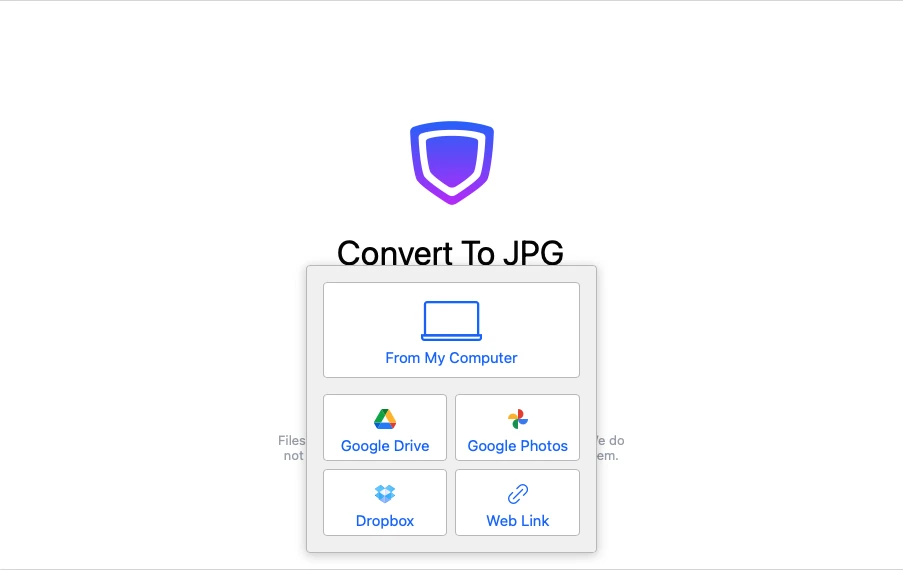
Drag your files from the folder and drop them into the app. Alternatively, import the images by clicking on the “Select Files” button.
You can also import your files from a cloud storage service.
Finally, if an image is on a website or social media platform and you want to change its format on JPG, there’s no need to download it. You can simply copy and paste a link to it.
2. Go to the Settings
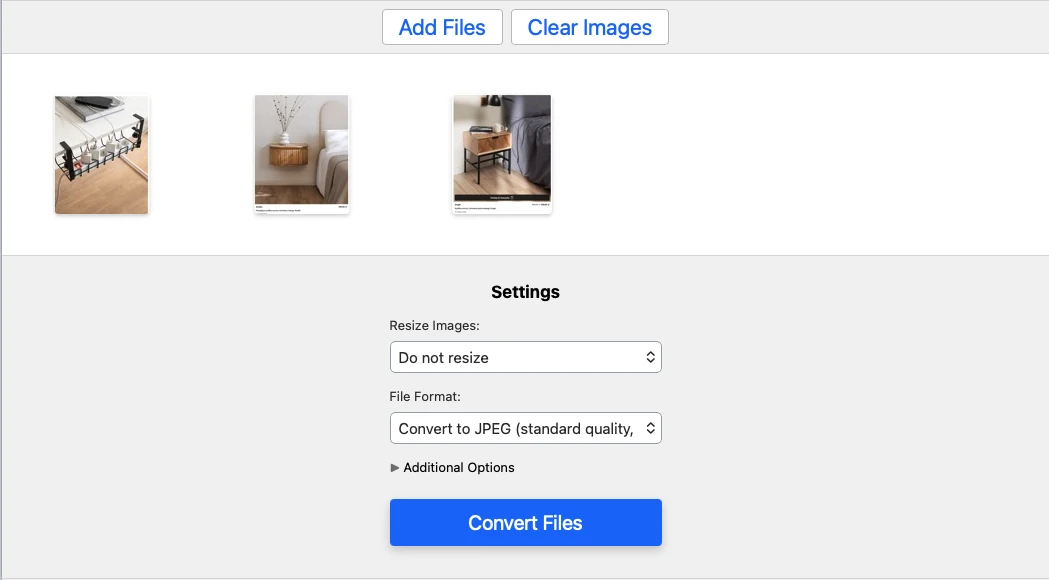
Once your images are in the app, the Settings section will appear. Since you’re converting PNG to JPG, you will see only JPG in the File Format menu.
But here, you’ll also need to choose the image quality. Your converted images can have a standard or a maximum quality. It’s possible to compress images, as well. This way, their file size will be drastically decreased.
In the settings, you can also change the size of your image – you can enter new pixel dimensions or resize the image by a certain number of percent.
3. Get the Result
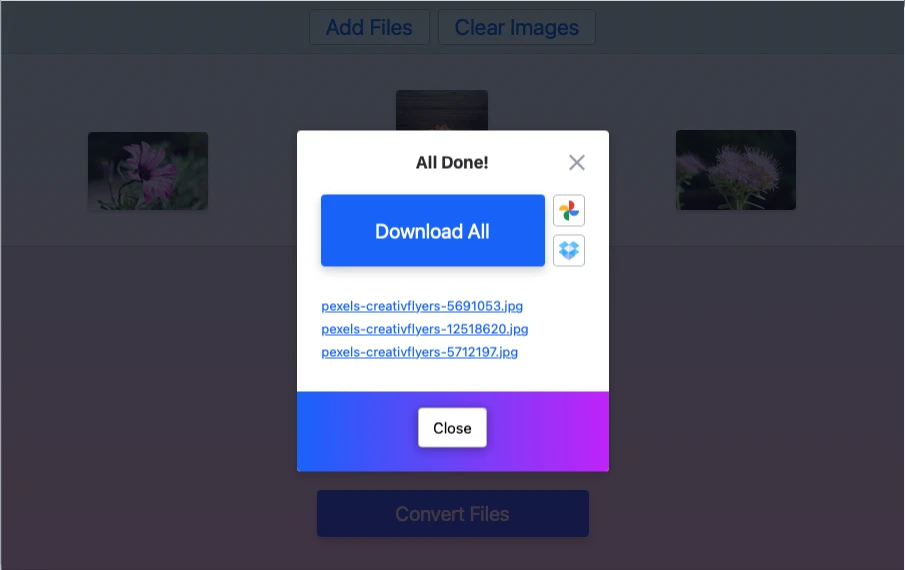
When you’re ready, click on the “Convert Files” button. Now, you’ll have a couple of minutes to relax, since the app will start processing your files automatically.
Once the conversion is complete, you’ll need to download the converted copies to your device. Alternatively, you can upload them to one of the cloud storages.
All done!
Learn More About the Settings
Our PNG to JPG converter has an uncluttered and pretty straightforward interface. Nevertheless, you’ll have a decent amount of control over the final result.
Let’s take a look at what settings you can find in Watermarkly:
Pick the Quality of your JPGs
Before we begin, there’s something you need to be aware of:
- JPG images tend to have a smaller file size than PNG images.
- PNGs usually have a better quality than JPGs – this is mostly due to the fact that PNG is a lossless format whereas JPG is a lossy format.
In other words, when you process PNG files, no information is lost. But if you process a JPG file, some loss of information occurs.
You need to be aware of both of these things because your JPG image won’t be exactly the same as its PNG original.
After the conversion from PNG to JPG, you’ll get an image that has a different file size and image quality no matter what. But how drastic these changes will be depends on which option in the settings you choose.
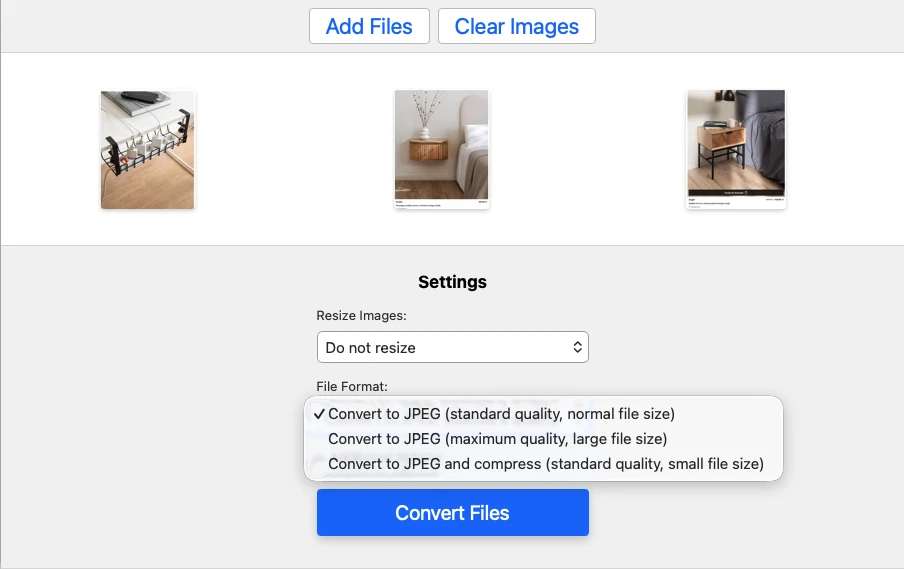
Here are the options that our PNG to JPG converter offers:
- Standard quality. This option produces images of a regular file size. There will be some loss of image quality, but it won’t be too drastic. You will mostly see it if you zoom in on your converted files. This is a great option if you need to convert PNG to JPG to post your images on social media, for instance.
- Maximum quality. If you go for this option, you’ll get JPG images of the highest quality possible. What you need to know about this option is that the file size of your JPGs will be almost the same or maybe even bigger than of the original PNGs. This is a perfect option for you if you prioritize the image quality over the file size.
- Standard quality with compression. The difference between this option and the first one is that here the app will compress the PNG images as well as convert them. This option will produce JPGs of a smaller file size than the first one. The quality will be slightly lower, too, but it will still be good enough. You might need to go for this option if you want to publish images on your website. This way, your JPGs will look good, yet they won’t occupy too much space on your server.
Pick the Size of Your JPGs
Our PNG to JPG converter allows you to resize your processed images. Please note that here you can enter new values for the pixel dimensions of your image, not its file size.
Here are the most popular options that might be useful for you:
- Do not resize. The pixel dimensions of your JPG images will be the same as the pixel dimensions of your PNG originals.
- Exact height. This option allows you to change the height of your JPGs by entering a new number of pixels.
- Exact width. This is similar to the previous option, but here, you’ll be able to change only the width of your JPGs.
- Exact height and width. This is a combination of the first and the second options. You’ll be able to change both the height and the width of your JPGs by entering new values for pixel dimensions. This is a perfect option if you want to meet certain size requirements; for instance, if you want to publish your images on a social media platform. Please note that you might need to change the aspect ratio of your image by cropping it; this option can be chosen in the app.
- No larger than. You can type in values for maximum pixel dimensions. In other words, you won’t get these exact pixel dimensions, but the height and the width of your converted image won’t be bigger than the values that you entered.
- Percentage. If your image needs to be smaller, but you don’t care about specific pixel dimensions, you can resize your image by a certain number of percent. For instance, if you enter 60 percent, your image will be smaller by 40% once the app converts it from PNG to JPG.
When You Might Need to Convert PNG to JPG
Surely, PNG format has lots of advantages. It is great if transparency support is required. It can be a perfect choice if an image contains some text and a lot of sharp lines – you will get much better results with PNG than with JPG. However, there are quite a lot of cases where converting PNG to JPG might be not only preferable, but highly crucial.
Here are several reasons:
Smaller File Size
The file size of JPG images tends to be smaller than that of PNG images. You can see this by comparing the same image with the exact same pixel dimensions, where one file is in JPG format and the other is in PNG format. You’ll notice that the PNG file is larger.
You may need an image to have a smaller file size to meet the size limits of an email service or messenger app. Another example is when you need to post an image on a website. Your image will load faster on a webpage if it has a smaller file size. This can save bandwidth and improve your website’s performance.
Disk Space
Since PNGs have a bigger file size, they will take up more memory of your device. If you constantly face the problem of running out of memory space, it might be a good idea to convert PNG to JPG. This will help empty some disk space.
Quality Preservation
Even though JPG is a lossy format, if you use the right settings, the loss of information during compression will be minimal and you’ll be able to retain high image quality. This might be especially useful for converting photos and other types of images that have a lot of fine details and complex textures; you might’ve noticed that in most cases, they become less sharp and clear after compression.
Compatibility
This is probably one of the most common reasons to convert PNG to JPG. Naturally, a lot of modern browsers, software and apps tend to support PNG. However, this format is nowhere nearly as popular as JPG, which is supported by practically all devices, operating systems, social media platforms, etc. For instance, Instagram advises its users to post images only in JPG.
Ease of Use
Since JPG is widely used and tends to produce images of a smaller file size, this format is more convenient for data exchange, editing photos and sharing them online.
Frequently Asked Questions
Why do I need to convert an image from PNG to JPG?
Converting an image can be useful if you need to reduce the photo file size. An image of a smaller file size will load faster on a web page, which is what you need to improve a website’s performance. A smaller file size will also make it easier to send an image over a messenger or an email. Additionally, JPG images usually occupy less disk space, saving you some memory storage.
How do I choose an online converter that’s suitable for my needs?
When choosing an online converter, make sure that it provides excellent conversion with little to no loss of information. This is crucial if you need your processed images to have a good quality. What’s also important is that it should be possible for you to adjust the level of JPG compression. This will help you achieve the optimal balance between image quality and file size.
Another thing to pay attention to is that an online PNG to JPG converter should be reliable and work quickly. It has to produce amazing results consistently. Plus, it needs to be user-friendly and have a straightforward interface. Fortunately, Watermarkly fully meets all of these criteria.
What compression level is best to choose when converting PNG to JPG?
The choice of compression level depends on what results you want to get. If image quality is crucial for you and your images are very detailed or contain some text, the lower the level of compression will be, the better. If you are using Watermarkly, it’s better to choose “Maximum quality” option.
On the contrary, if you need to reduce the file size as much as possible, there aren’t that many details in your image and you are okay with your image having an average quality, then you should go for a higher level of compression. If you are using Watermarkly, choose “standard quality with compression”.
How do I check the image quality after changing PNG to JPG?
Once conversion is complete, you can open your JPG image and zoom in on it to check whether all the details look sharp and clear, and whether the image quality meets your needs. If necessary, you can open the PNG original and its JPG copy, put them side by side and zoom in on both of them. For instance, you can do that in Lightroom in the Compare mode. This way, you’ll be able to check whether the converter did a good job at preserving all the details and colors.
Since Watermarkly never changes or overwrites originals, you can convert one and the same image in different ways, experimenting with different options. Then you can compare all the results you got to see which combination of settings works best for you.
Does Watermarkly offer any other tools aside from PNG to JPG converter?
Absolutely, Watermarkly offers a broad range of free online conversion tools, such as:
What’s more, you can also try our photo editing tools:
There’s no need to switch between different websites. Optimize your images for online publishing with Watermarkly.