
Blur Faces in Multiple Photos at Once
Watermarkly’s face blur app is the perfect solution when you need to process a large number of photos. Thanks to the powerful AI technology, faces are detected and blurred automatically in just a few seconds. All you need to do is upload your photos to the app.
There’s no need to edit each photo individually. Simply review the results to make sure all the faces you want to hide have been blurred.
If the app blurs more faces than necessary, you can easily fix this with a single click.
Blur Face Online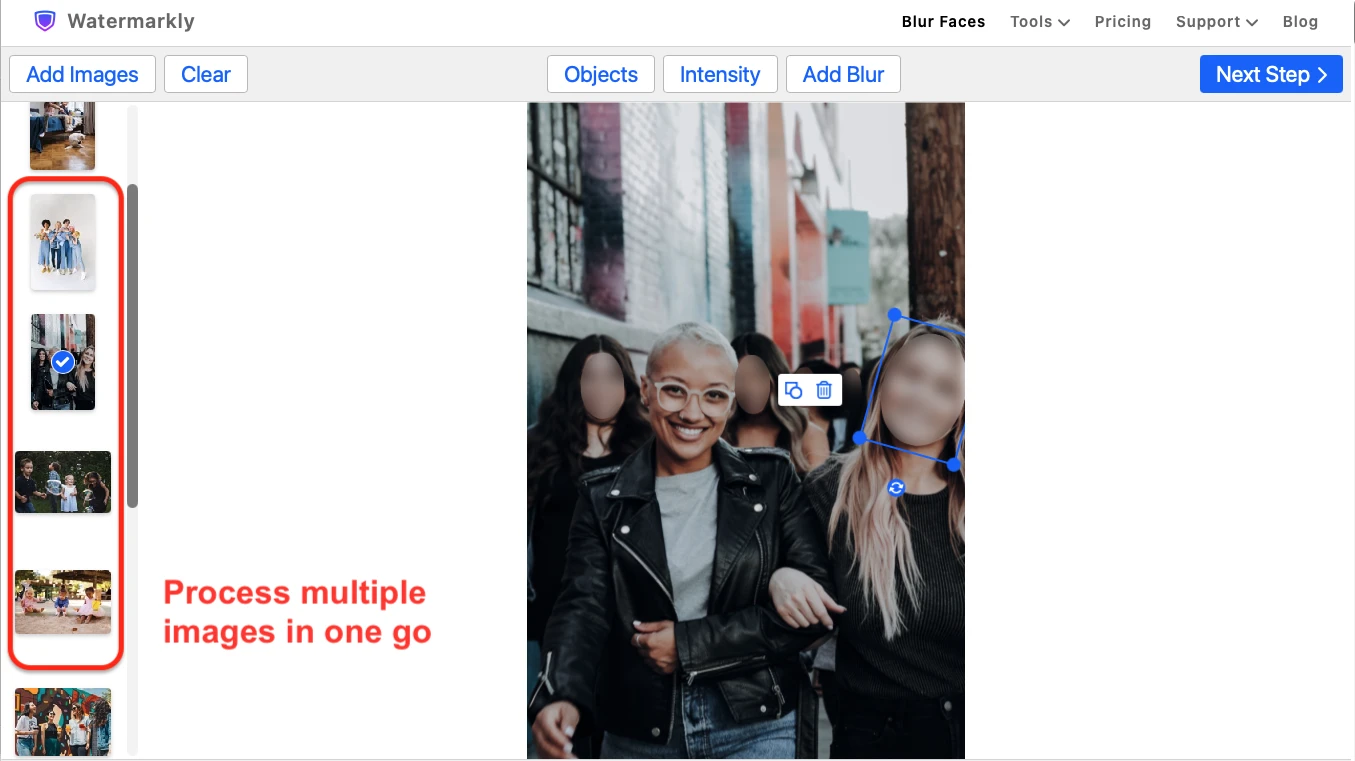
Customize the Blur to Get the Perfect Result
Once the app has automatically blurred the faces in your photos, you can easily make any final adjustments you need, such as:
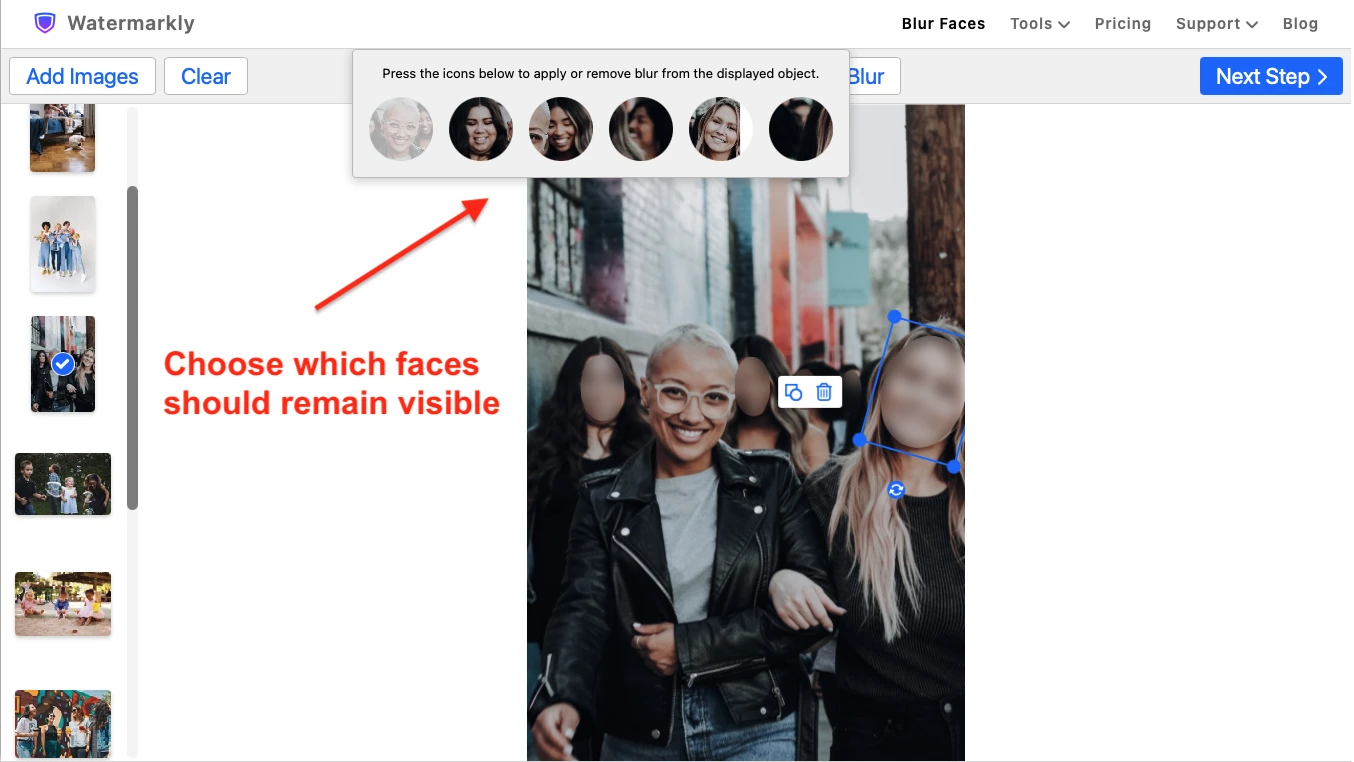
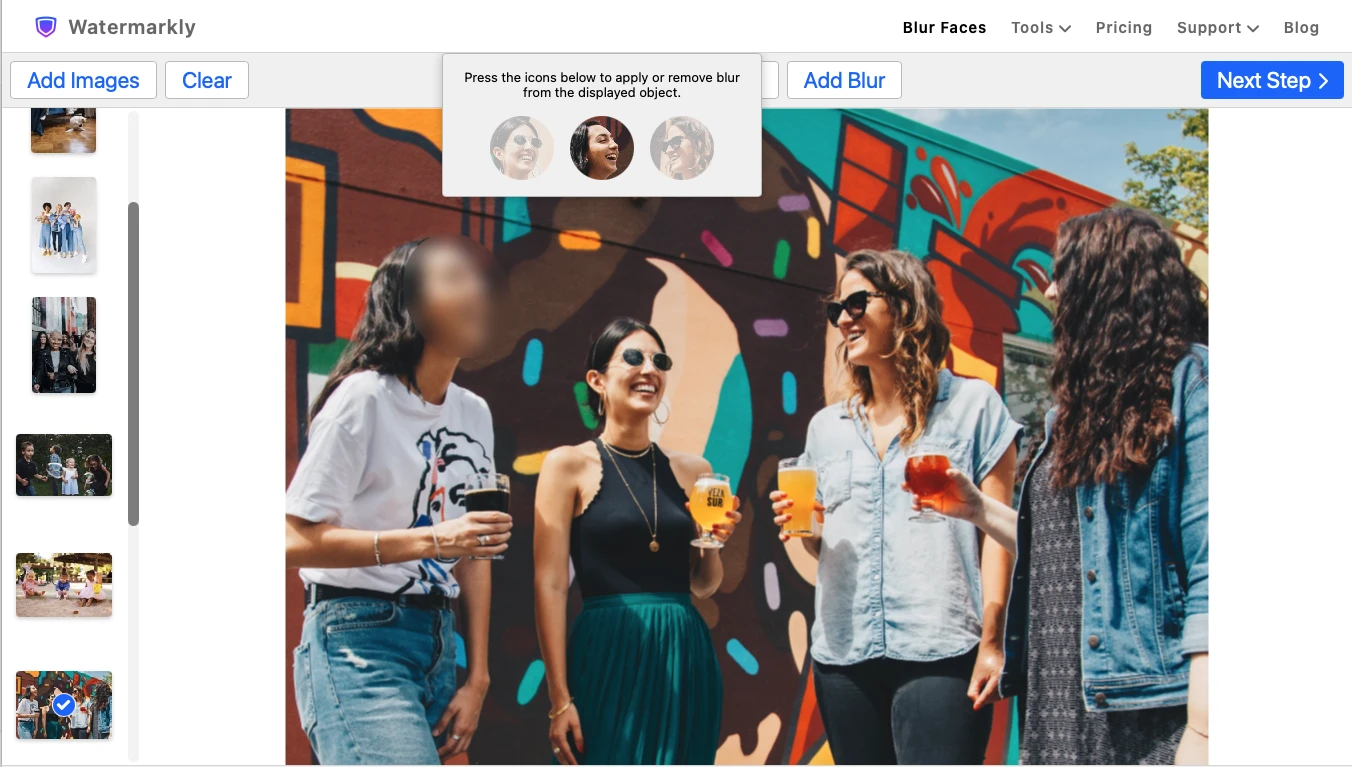
- Choosing which faces should remain visible
- Adjusting the blur intensity
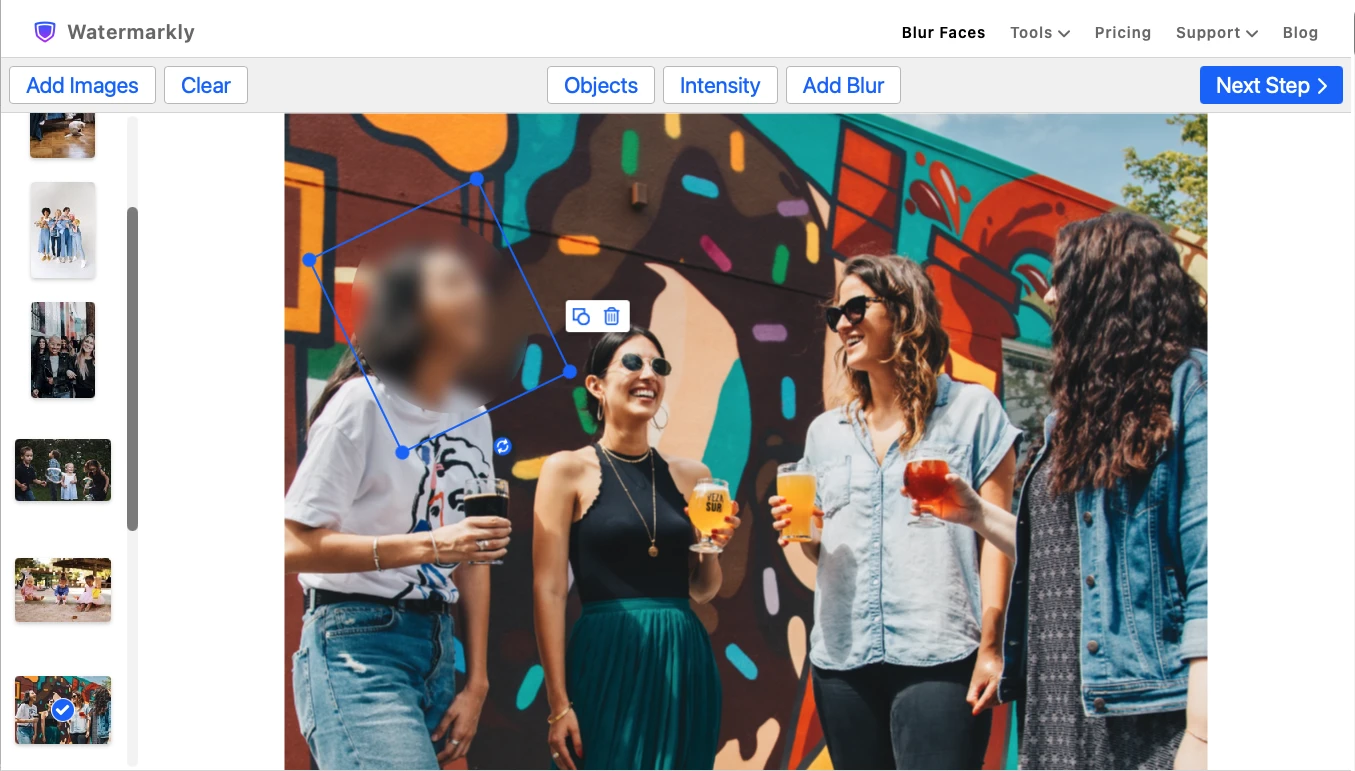
- Changing the shape, angle, size, and position of the blurred area
- Adding blur to additional faces or other objects
This gives you full control over the final result, so you can get exactly the look you want.
Blur Face OnlineMore Than Just a Face Blur App
Our online tool is useful not only for blurring faces but also for hiding any other objects or sensitive information in your photos.
Here are a few other ways you can use the app:
- Automatically blur license plates
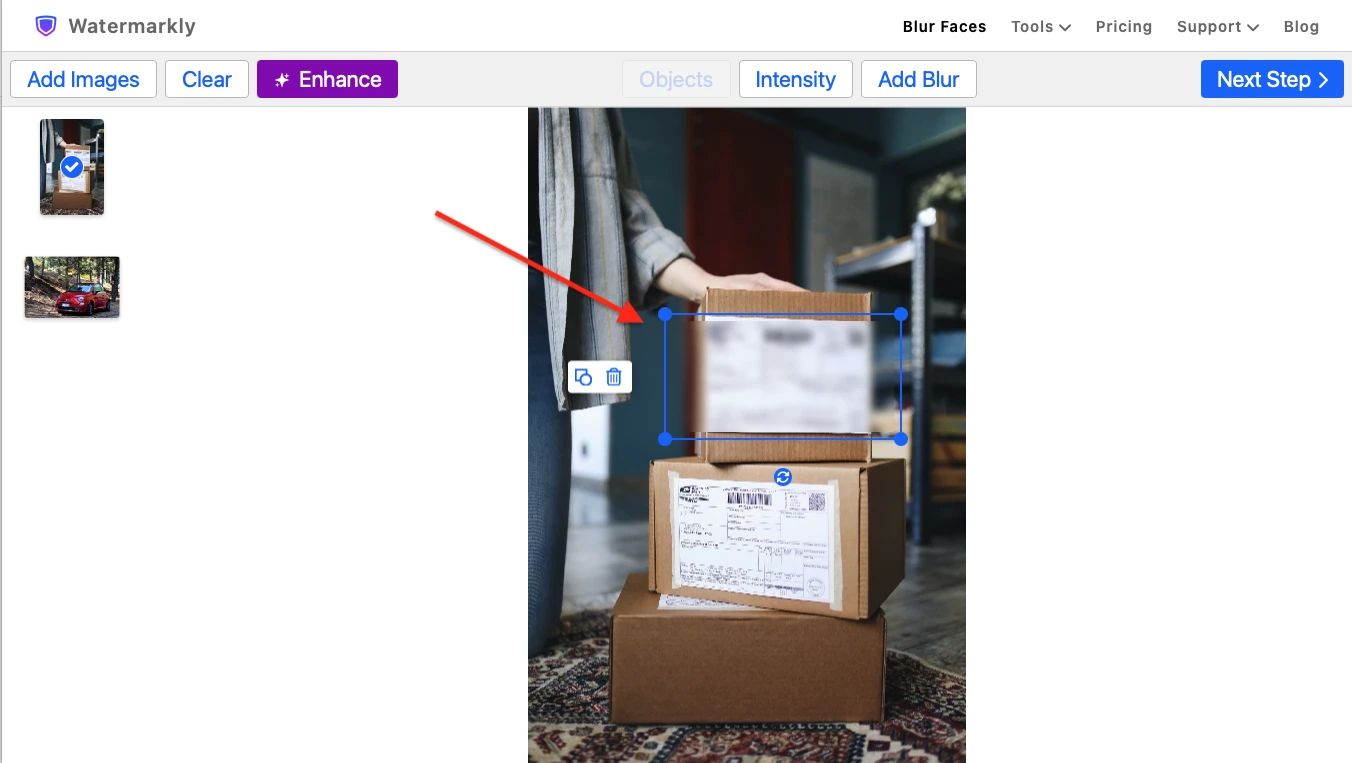
- Blur specific parts of an image, such as a house number, brand name, account number, personal information in a screenshot, and more
- Blur an entire image.
No matter what type or shape of blur you choose, Watermarkly’s face blur app creates smooth, seamless edges around blurred areas, giving your images a clean and polished look.
Blur Face Online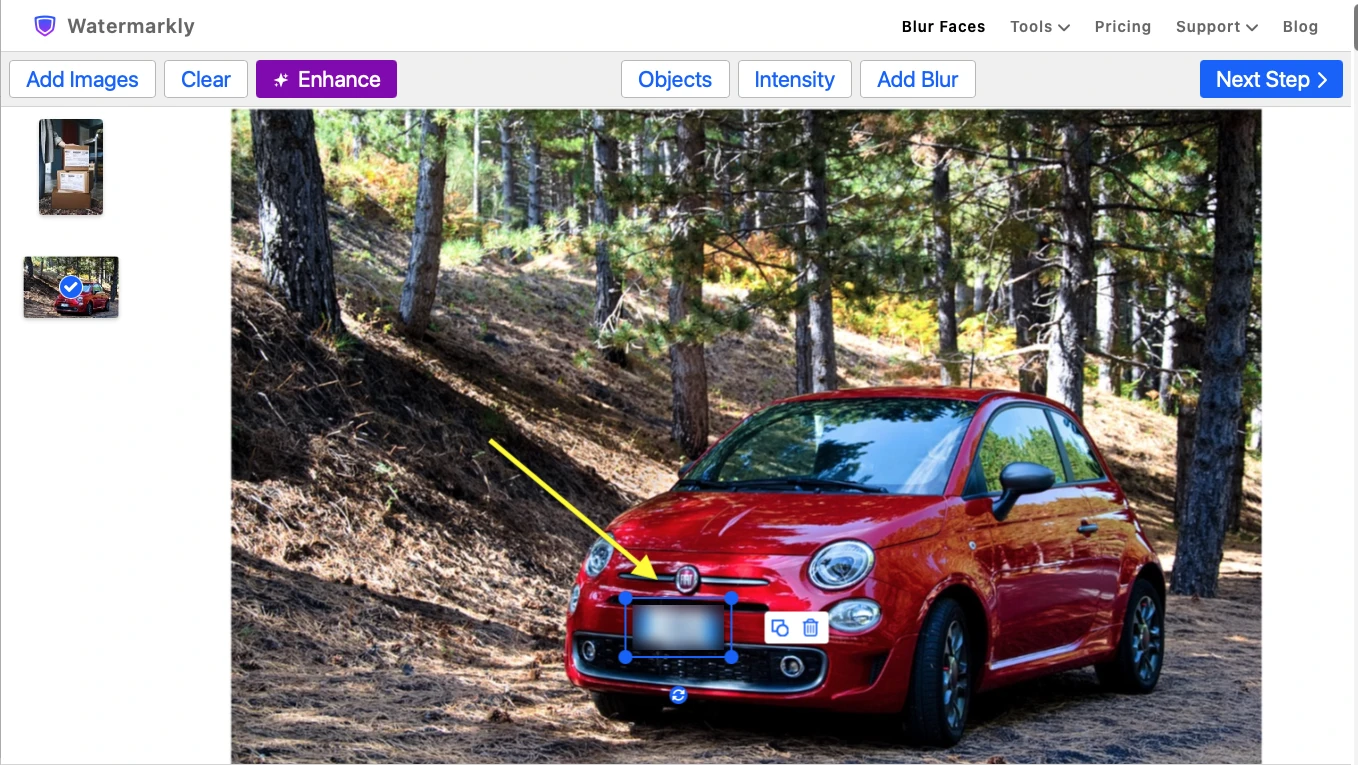
How to Blur a Face in a Picture with Watermarkly
Watermarkly is ridiculously easy to master. Even if you have never used a face blur app before, with our tool you can achieve the desired result in just a few clicks.
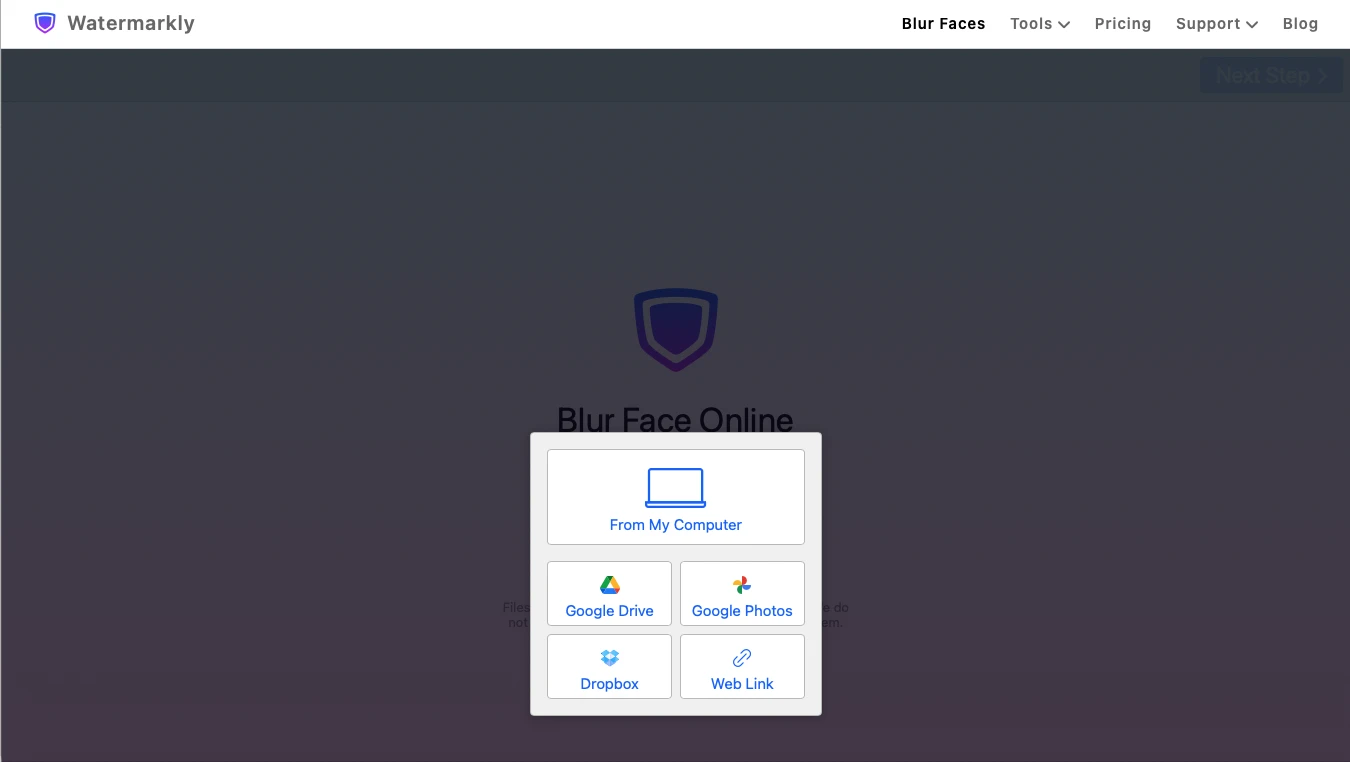
1. Upload your images
Drag and drop your files into Watermarkly’s Face Blur app or import them from your device, cloud storage or web page.
2. Check the results
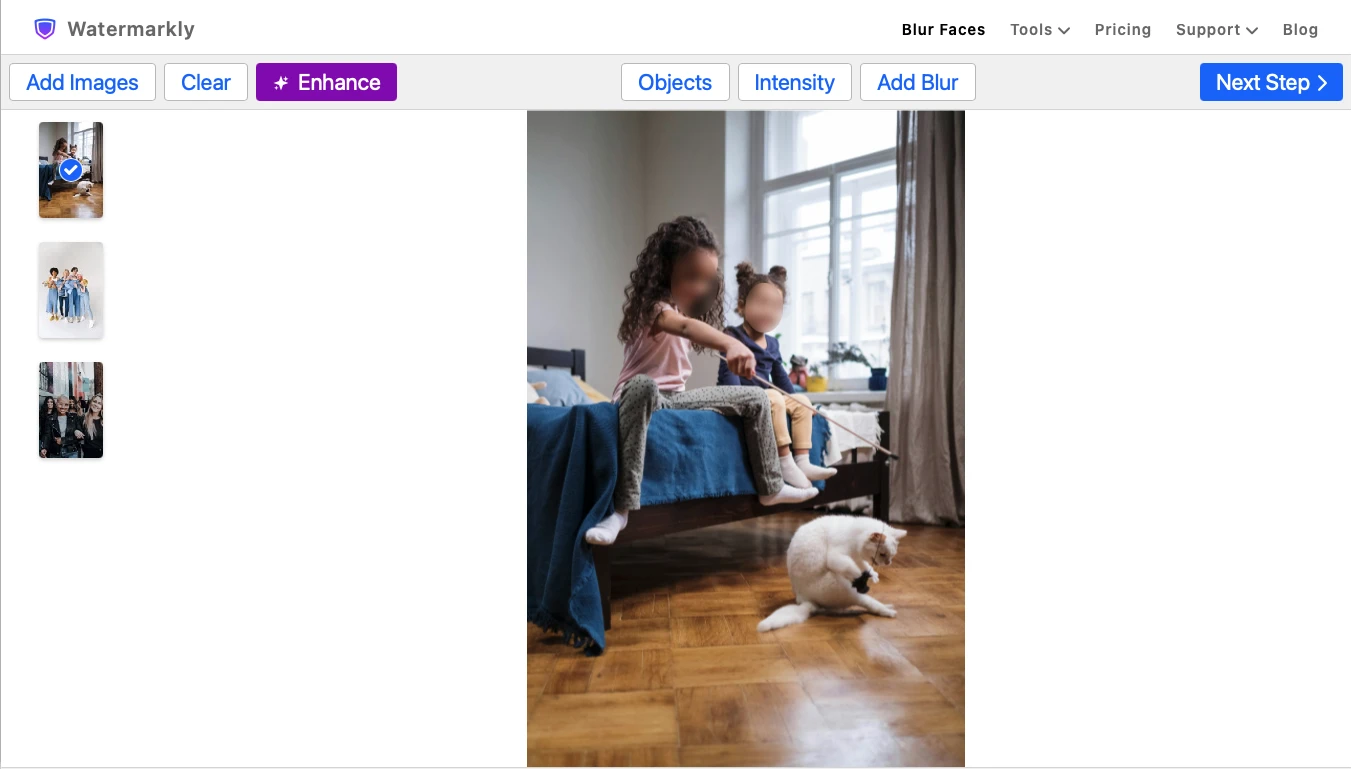
Faces in all photos will be automatically blurred. If you are happy with everything, just click Download Images and get your processed copies.
Make edits if necessary
If you aren’t satisfied with the face blur intensity, if some of the faces need to be visible, or you want to adjust the blurred areas in any other way, you can easily do all of those things with the help of the editing toolkit.
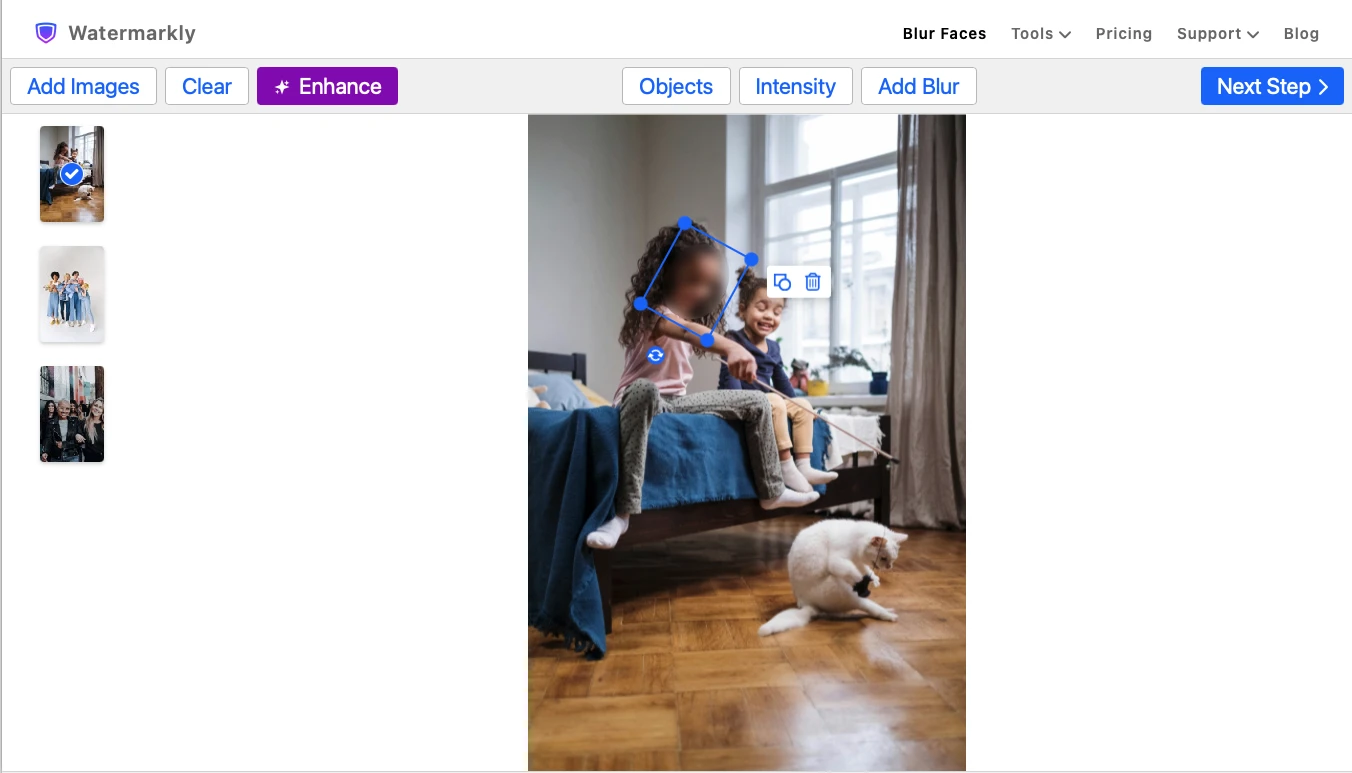
Click Objects to select only those faces that should be blurred.
Click Intensity and move the slider to adjust the level of intensity. Its range varies from 0 to 100%.
Select the blurred area and click the Shape icon next to it. You can then switch the shape of the blurred area from oval to rectangular.
Tilt the blurred area if needed. To do this, click the blurred area you want to adjust and rotate it to the desired angle.
Resize the blurred area. Once you see the blue border around the face blur, you can adjust its height and width. This can be useful if, for example, you only need to cover the eyes, or you don’t like the fact that the blurred area covers the hair and the ears, and not just the face.
Please note that, while editing, the borders of the blurred area look quite sharp. However, after downloading the images, you will notice that the borders have become more feathered and look more organic in the image.
4. Download images
Before saving your photos, you can change their format by converting them to JPEG, PNG, or WebP, resize them to specific dimensions in pixels or a specific file size in MB, rename the files, and enable the Keep Image Metadata option.
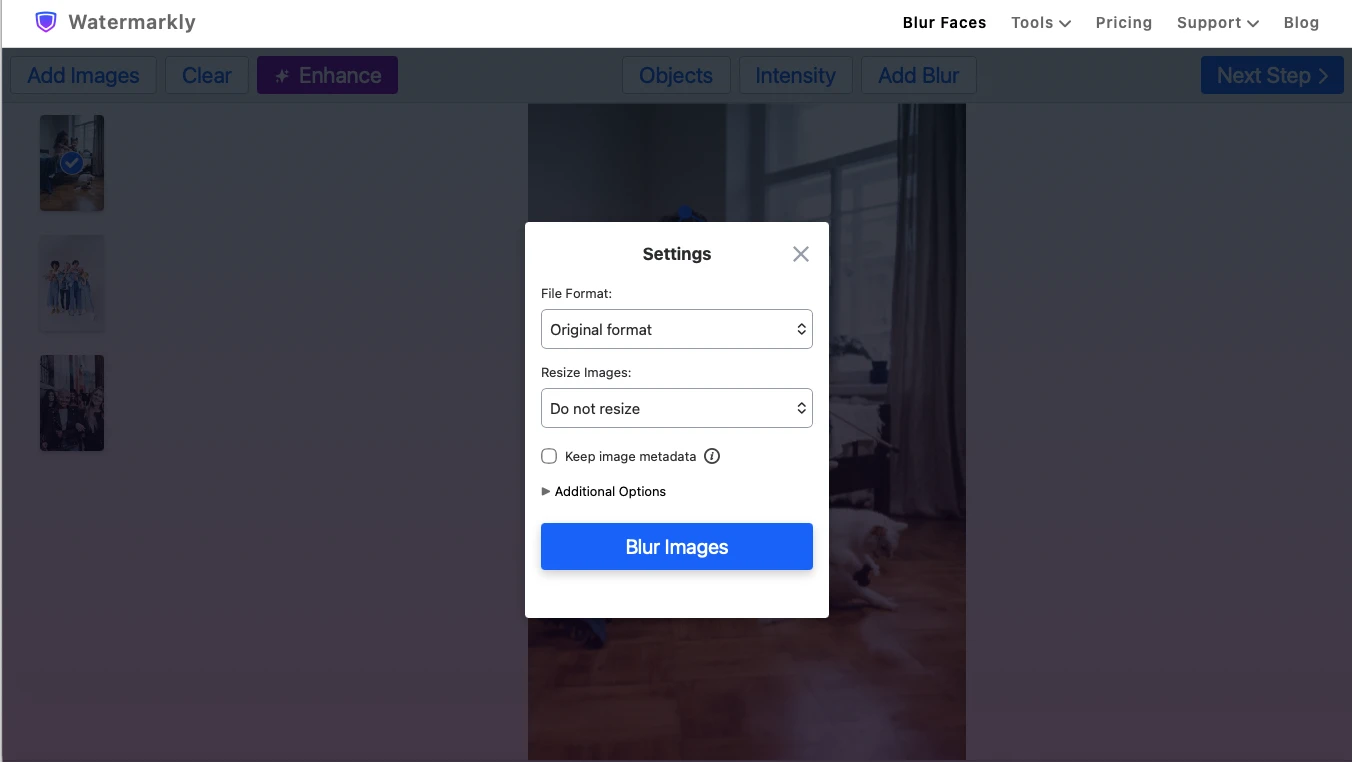
Watermarkly’s face blur app never overwrites your original images. Instead, it creates copies and applies all changes to them, so your originals remain untouched.
Once your photos have been processed, you can save them to your device or export them directly to Google Drive, Google Photos, or Dropbox.
Blur Face OnlineREST API
Our blur tool is available as a REST API.
Learn more about the APIWhy You Should Blur Faces in a Photo
In today’s data-driven world, it's enormously important to protect the privacy of individuals and ensure their anonymity when sharing visual content online. This should be done to protect people's identities or comply with the strict regulations like GDPR or CCPA. It’s no wonder that efficient and reliable tools for blurring faces are in great demand these days.
All the regulations that protect personal data state that sharing images of people is allowed only with their consent. If you can’t get their consent, you will need to blur faces in your photos. If you don't want to get a lawsuit, of course. In addition to this, you will protect people's identities and their personal information. It will be impossible for your images to be used for malicious purposes and you won't get anyone – including yourself – into trouble.
In journalism, blurring faces is not just important, but sometimes vital. It will allow you to tell stories without putting people in danger. If you blur faces in your images, you will protect the identities of your sources – witnesses, victims, people who know something and that criminals might want to harm. Plus, people will agree to be interviewed much more easily if they are sure that their identities will be kept secret.
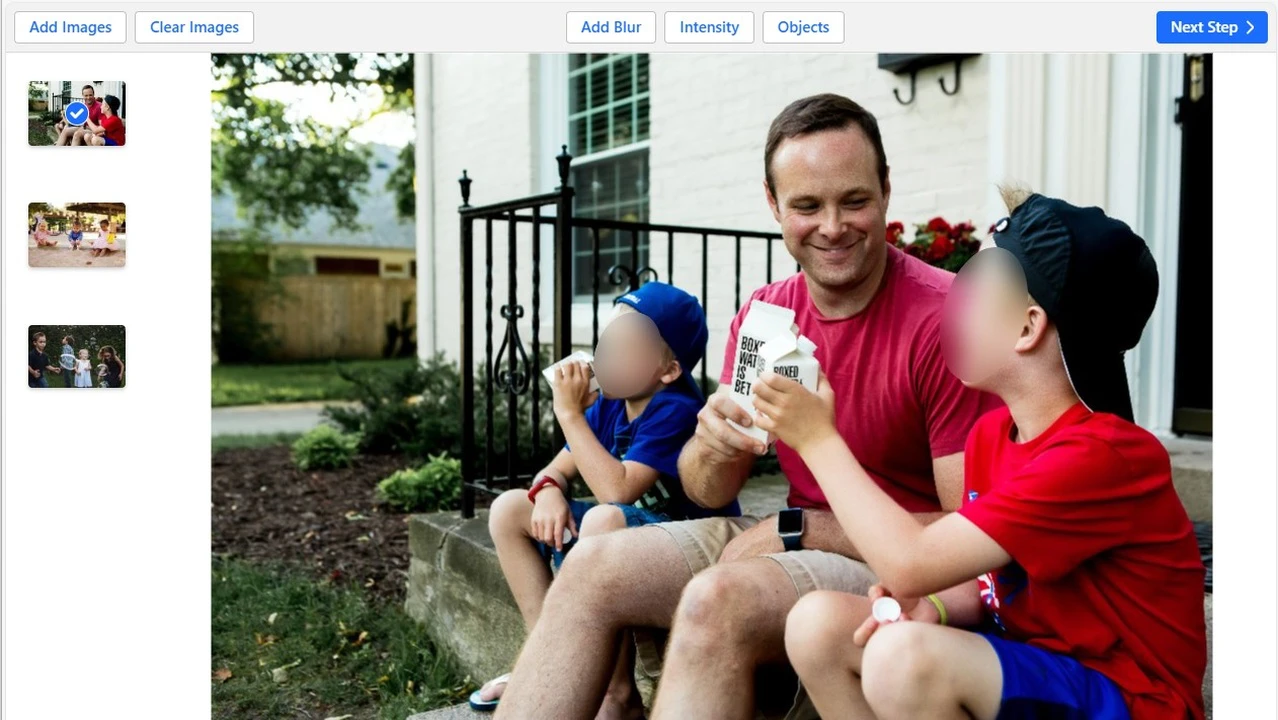
Not to mention that you absolutely have to blur faces of children in your images. This will protect their privacy and dignity. If a child was a part of a criminal case, it’s better not to disclose their identity to avoid any stigmatisation, psychological harm, abuse, or discrimination.
The Watermarkly Blur Faces app creates blurs that have smooth borders. This means that all the blurred areas will fit into your photos organically and unobtrusively. At the same time, people’s faces will be extremely difficult to identify.
Blur Face OnlineFrequently Asked Questions
How do I blur a face in a picture?
Go to the Watermarkly website, choose the Blur Face tool, and upload one or several images. All the faces will be blurred immediately. If everything looks great, download the images.
How can I blur faces online for free?
Try Watermarkly’s face blur app. With it, you can easily blur faces in a photo extremely fast . You will master it with ease without any tutorials. This tool works in a browser, so you can use it on a computer, laptop, tablet or smartphone.
Does Watermarkly’s blurring tool have any limitations?
The free version of the face blur app has only one limitation - it adds the Watermarkly logo to the processed images. You need to purchase an upgrade to remove it.
What is the best app for blurring faces?
Watermarkly is one of the best face blur apps. It is very simple and fast. It blurs faces automatically and is incredibly convenient if you need to process a batch of photos. You can also make small adjustments to the blurred areas to achieve the perfect result.
How to blur something in a picture?
Upload your picture to the Watermarkly Blur Face tool. Click on "Add blur", move the blurred area over the place you need to hide, adjust the size, shape and tilt of the blurred area and then download the processed copy.
The blurred areas will be almost invisible and won’t have a negative impact on the overall look of your photos.