Documents are often stored and shared in the PDF format because of its benefits. Whatever content you put in it – be it text or different types of images – it will be of excellent quality and look sharp and great. PDFs are also perfect for printing. But most importantly, this format is often chosen precisely because it is secure. It is insanely easy to make any edits in a Word document. PDFs, on the other hand, tend to be quite challenging to edit. In addition to this, it is possible to make your PDF even more secure.
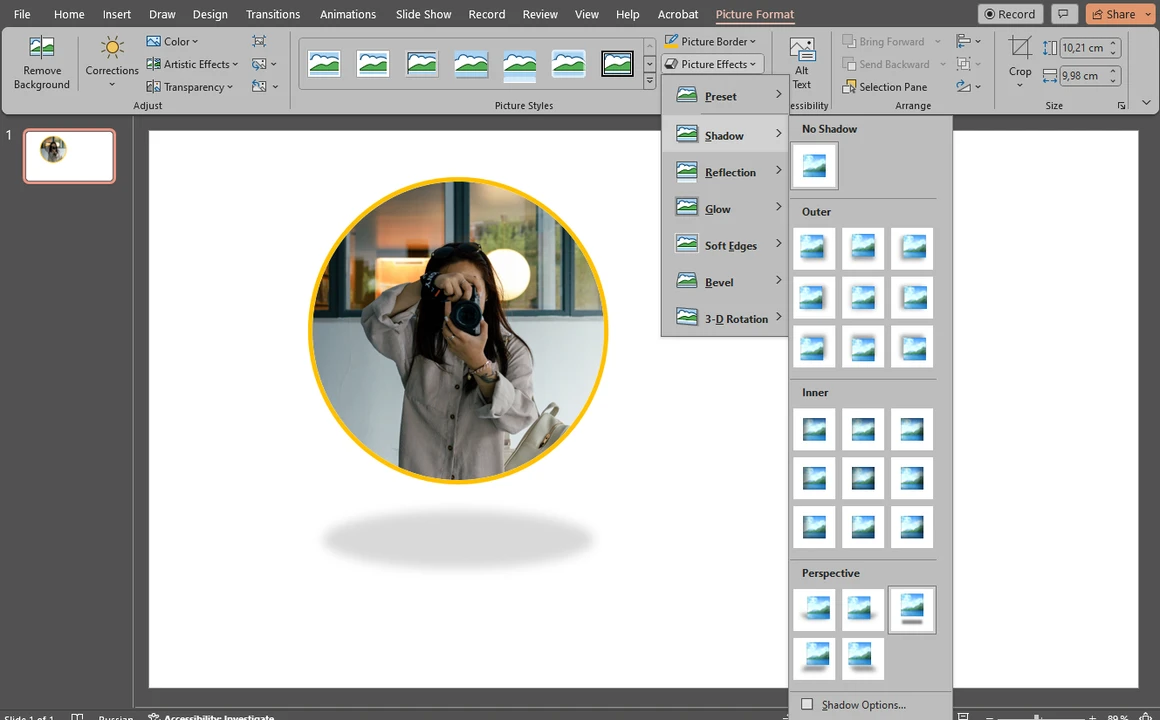
When giving a presentation, you need to keep people’s attention. Your goal is to present your information in an engaging and easily digestible way. Otherwise, people will lose their interest pretty quickly. A great way to achieve this is to include images in your presentation. Visual content is extremely popular these days – it’s widely used in marketing, you see it all over the Internet. This is because it is much easier and quicker for people to perceive information when it’s presented in a visual form.
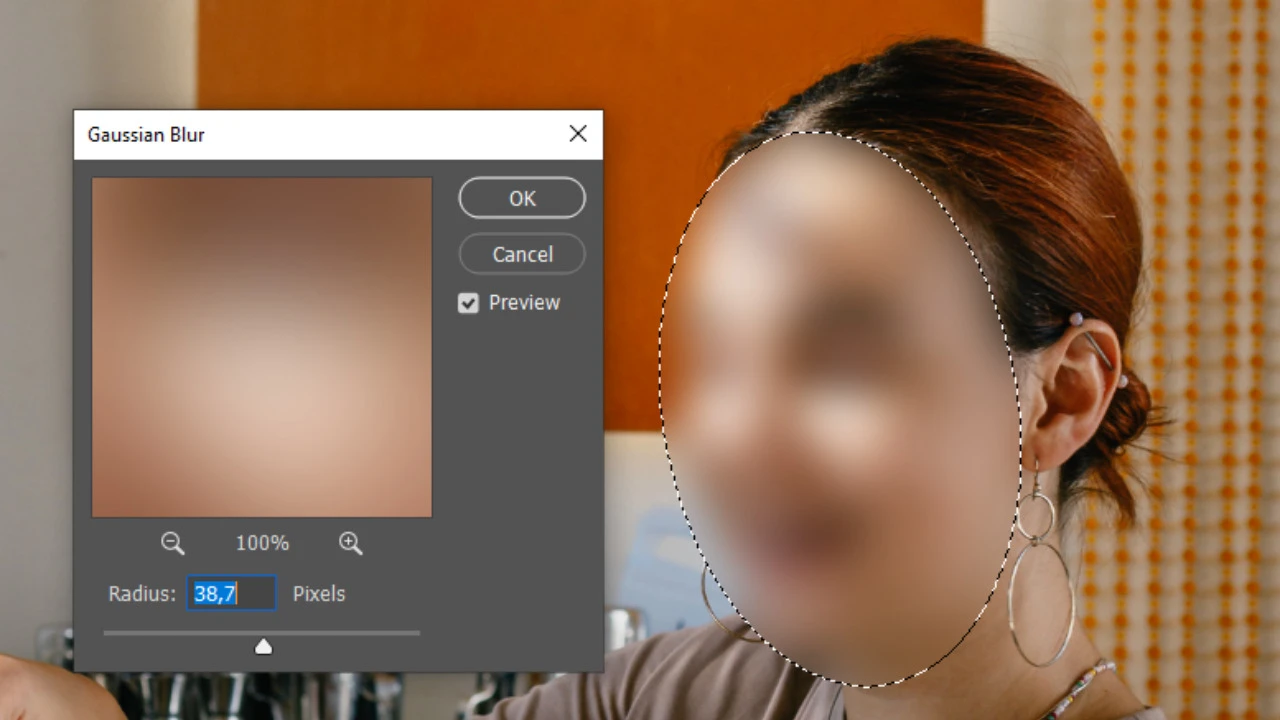
There are a number of reasons why you might want to blur faces in an image. Maybe you took a group photo and want to post it online, but a couple of people aren’t comfortable with you sharing a picture of them. In this kind of situation you have two options – not posting the photo at all or blurring those people’s faces.
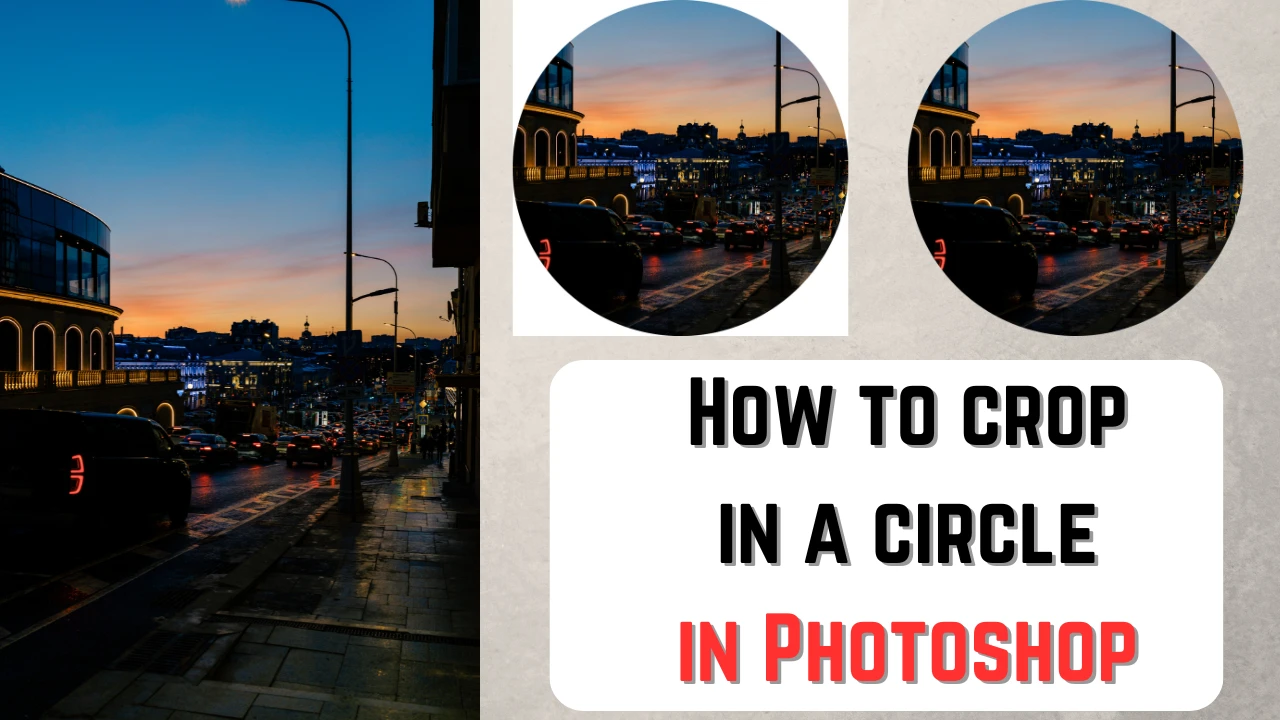
In most cases, digital images tend to be rectangular. But it doesn’t mean that you can’t experiment with shapes. You’ve probably come across some circular images on the Internet, haven’t you? Maybe you’ve seen them on a website. It could’ve been someone’s profile picture. Have you ever wondered how you can get the same result? Well, you’re in luck! In this article you will learn how to crop an image into a circle in Photoshop.
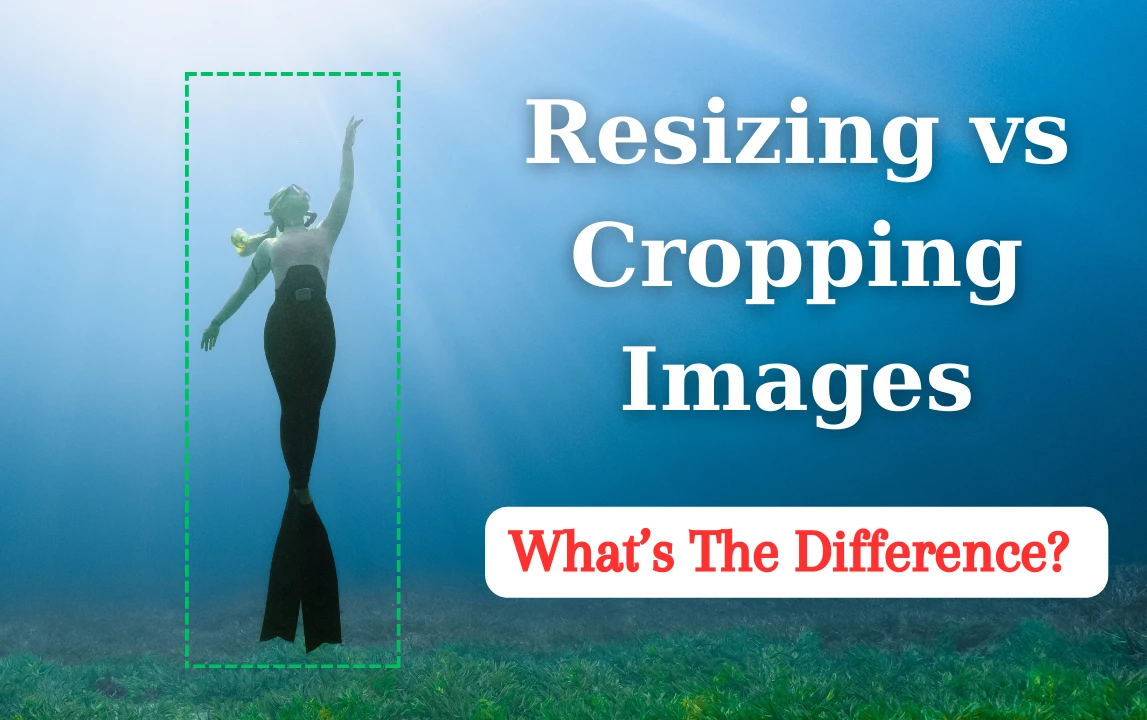
It may be difficult to tell the difference between resizing and cropping. But both of these tools are necessary to master for pretty much anyone who shares images on social media or their website. Why? Because you will inevitably have to use them at some point or another. These two tools are key to preparing your visual content for publishing online or printing. If you don’t know the difference, you might end up with blurry printed out photos or images that have such a big file size that they barely load on your website; even if your visitors have a fast internet connection. If you want to get better at image editing, you’ll need to learn what it means to resize an image and what it means to crop it. The better you understand this, the better results you’ll get.
 Lina Thorne • Updated · Posted in PDF Editing