How to Protect Your Privacy Online: 8 Simple Tips to Stay Safe
by  Lina Thorne • Updated · Posted in Watermarking Tips , Photo Editing
Want to know how to protect your privacy online? The key is to build a few simple habits: use strong passwords, limit what you share, check your photos before posting, and stay alert to online threats.
In this guide, you’ll learn how to protect your privacy online with 8 practical tips that can help you stay safer on social media, messaging apps, public Wi-Fi, and beyond:
- Share Less Personal Information
- Strengthen Your Passwords
- Share Photos Safely
- Browse Without Being Followed
- Audit Apps and Extensions
- Protect Yourself from Phishing
- Secure Your Smartphone
- Use Encryption, Antivirus, and Firewall
How to Protect Online Privacy in Everyday Life
There are practical, effective steps you can take right now to protect yourself and your information.
One of the most powerful privacy strategies is also the simplest: be intentional about what you share.
For example, someone browsing your profile might discover:
- Your birth date
- Your hometown
- Your pet’s name
- Your workplace
- Your daily routines
These details might seem innocent in isolation. But to someone with bad intentions, they’re puzzle pieces. And once assembled, that puzzle can answer security questions, guess your passwords, or trick your friends into thinking they’re talking to you.
Need-to-know basis
Think of your personal information on a need-to-know basis. Does a random e-commerce website really need your birth year to ship you a pair of socks? Does a newsletter about baking tips really need your full name and phone number?
Probably not.
If a form field isn’t required, don’t fill it out. That goes for:
- Middle names
- Phone numbers
- Birth dates.
Security experts even suggest using fake answers for security questions when possible – your first pet’s name doesn’t have to be accurate.
Throwaway email
Your primary email address is the master key to your digital life. For everything else – newsletters, free downloads, forum sign-ups – create a secondary email address. If that address gets sold, spammed, or compromised, your main accounts remain untouched.
Here’s a tip. It might be a good idea to create a separate email for your banking and investments, as well. To put it simply, you can have three different email addresses:
- a secret email address that’s only for your finances
- the main email address that you use for communication, resetting passwords, etc
- another email address for newsletters, free downloads, and so on.
Most people overlook shared digital spaces. That collaborative Spotify playlist from college. That Google Doc from a group project years ago.
But if one person’s account in that shared space gets hacked, what can the hacker see? What can they access? More importantly, are you still comfortable with that person having a window into your world?
Take a few minutes to audit your shared folders, playlists, and albums. If you don’t actively use or need them, remove yourself.
2. Strengthen Your Passwords
Here’s the problem with reusing your password for different platforms: It only takes one.
One website gets hacked. One database gets leaked. One password ends up in the wrong hands. And suddenly, that same key opens every door you’ve ever built.
This is how identity theft actually happens – through simple chain reactions. One weak link, and the whole thing comes down.
Better Barriers
Weak passwords remain one of the easiest ways for attackers to break into accounts. Here’s what actually works.
Do:
- Use long passwords (16+ characters is ideal)
- Combine letters, numbers, and symbols
- Enable multi-factor authentication (MFA) everywhere possible
- Change passwords after known data breaches
- Create a unique password for every account.
Don’t:
- Reuse passwords
- Use personal information
- Use predictable patterns
- Store passwords in plain text.
Here’s a tip: Length matters more than complexity. A long password made of random words is exponentially harder to crack than a short one with a bunch of symbols. Think “purple-monkey-dishwasher-rocket” instead of “Tr0ub4dor&3”. The first one is easier to remember and harder to break.
Password Manager
Since every account should have its own password, it’ll be pretty much impossible for you to remember all of your passwords. That’s why you should use password managers. You’ll just need one master password – make it a good one – and the manager will handle the rest.
Most password managers can also generate random passwords for you, store them securely, and autofill them when you need to log in.
Two-Factor Authentication
2FA ensures that even if someone gets your password, they still can’t access your account without that second verification step – usually a code sent to your phone or an authenticator app. This adds an extra layer of security.
Enable this on every account that offers it. Most platforms make this easy to set up in their security settings.
Your Wi-Fi
Your home Wi-Fi router is the gatekeeper for everything you do online. Every password, every message, every transaction.
And if you’re still using the default password that came on a sticker on the bottom, you might as well leave the front door wide open with a welcome mat.
Changing your router password takes two minutes. Make it strong and unique.
If you want to protect online privacy, don’t overlook the personal details hidden in your photos.
Before you hit “post” on that photo of your new car parked in your driveway, or that candid shot of a friend at a café, take a hard look at the background. Is your house number visible? Are there faces of strangers or children in the crowd? In public spaces, you may be capturing individuals who have not consented to being photographed or shared online.
Fortunately, you can use Watermarkly to share your photos safely.
Watermarkly’s Blur Tool allows you to easily blur faces, blur license plates, and any other sensitive information in a photo. Its powerful AI technology can even detect faces and plates automatically, saving you tons of time when processing multiple images at once. A few clicks, and your photo is ready to share without revealing anything you didn’t intend to.
But what if you don’t want to blur something, but rather cover it up in a fun way? Or what if you’re a photographer worried about someone stealing your work?
Watermarkly’s watermarking tool is the perfect solution. Instead of blurring something in a photo, you can cover sensitive information with a logo or even an emoji. For photographers and artists sharing their work online, adding a visible watermark is a tried-and-true method to claim copyright and ensure your original work won’t be used without your permission.
4. Browse Without Being Followed
You know that feeling when you talk about something – just talk about it, out loud, with a friend – and then later you see an ad for that exact thing on your phone? It’s creepy, right? Like your devices are listening?
Social media platforms and search engines make money by showing you ads. And to show you relevant ads, they need to know everything about you. It means that every move you make online is being watched, recorded, and analyzed.
To protect your privacy online, it’s important to browse in a way that limits tracking and data collection.
Reliable VPN
A Virtual Private Network (VPN) is like a tunnel for your internet traffic. When you use one, your data travels through an encrypted connection that hides what you’re doing from prying eyes. It hides your IP address.
This is especially important when you’re using public networks, which are notoriously easy to hack. A VPN wraps your traffic in a layer of protection that makes you much harder to target.
Just make sure to invest in a high-quality VPN. Using a free VPN is also dangerous due to the potential for malware infections, data harvesting and sale.
Search engines that don’t watch
Google processes billions of searches every day. And it remembers almost all of them.
If that thought makes you uncomfortable, consider switching to a privacy-focused search engine like DuckDuckGo. It doesn’t track your searches. It doesn’t build a profile of who you are. It just gives you results and moves on.
The private mode myth
Incognito mode stops your browser from saving your history on your own computer. That’s great if you’re shopping for a surprise gift or planning a party.
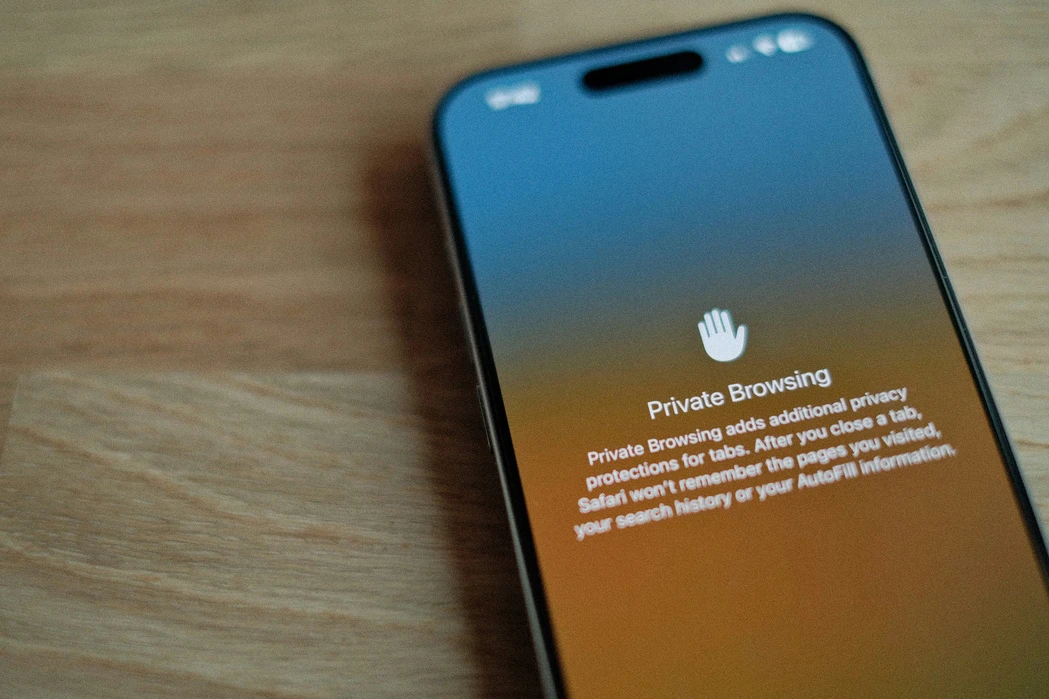
But incognito mode doesn’t hide your activity from your internet provider, your employer (if you’re on a work device) or the websites you visit. It’s privacy from the people who share your computer, not from the internet at large.
5. Audit Apps and Extensions
Another important part of how to protect privacy online is controlling app permissions.
Every app on your phone is a potential data collector. Even the ones you don’t use. They sit in the background, quietly doing whatever they were programmed to do, which often includes gathering information about you.
Take fifteen minutes to do an app audit. Delete anything you don’t need. For the ones you keep, check their permissions. Does a flashlight app really need access to your contacts? Does a simple game need your location? Probably not. Revoke those permissions.
It might also be a good idea to turn off automatic geolocation and turn it on only when it’s really necessary. Limit access to microphones and cameras, as well.
Software updates matter
Software updates almost always include security fixes. When a vulnerability is discovered – and they’re discovered all the time – the developers create a patch. If you don’t install it, you’re leaving that vulnerability open.
Enable automatic updates wherever possible. It’s one less thing to remember, and it keeps you protected without any effort on your part.
6. Protect Yourself from Phishing
The weakest link in any security system is usually humans. We get busy. We get distracted. We get scared. And sometimes, we get tricked.
Have you ever gotten an email that looked real but felt wrong? Maybe it claimed to be from your bank, warning about suspicious activity. Maybe it was from a friend, asking for help in an emergency.
These are phishing attempts. They’re designed to look legitimate, so you’ll let your guard down. The goal is usually to get you to click a link, enter your password, or send money.
Here’s how to spot them:
- Urgency is a red flag. Scammers want you to act before you think. “Your account will be closed in 24 hours!” “Respond immediately to avoid charges!” Real companies don’t talk like that.
- Check the sender. Hover over the email address (don’t click). Does it match the company it claims to be from? Sometimes it’s close but slightly off – “support@amaz0n.com“ instead of “amazon.com.”
- Don’t click links. If an email claims to be from your bank, open your browser and go to the bank’s website directly. Don’t use the link in the email. If there’s really a problem, it’ll show up in your account when you log in.
Remember, if it sounds too good to be true, it probably is.
7. Secure Your Smartphone
Your phone holds a huge amount of personal data. It goes everywhere with you. It knows where you live, where you work, who you love, what you worry about.
So securing it is essential if you want to protect online privacy.
Lock screen
Use a passcode. Don’t use a pattern, which can leave smudge marks. Don’t use your birthdate, your house number, or any other code that thieves might be able to guess. You need a real passcode, at least six digits, preferably more.
Better yet, use biometrics if your phone supports them. Fingerprint or face recognition adds a layer of security that’s unique to you and hard to fake.
Sideloading apps
Only download apps from official sources – the Apple App Store, Google Play, or your device manufacturer’s store. Don’t go for sideloading apps as they can carry risks of malware, security issues, and phishing scams.
Before downloading, check the reviews. Check the permissions it’s asking for. If a calculator app wants access to your contacts, something is wrong.
8. Use Encryption, Antivirus, and Firewall
There’s another layer of protection that works silently in the background, often without you even noticing it.
Encryption
Encryption is the process of converting readable data (called plaintext) into an unreadable format (called ciphertext) using complex mathematical algorithms. Without the correct decryption key, that ciphertext looks like random garbage to anyone who intercepts it.
When used correctly, encryption prevents your digital messages, files, and communications from being accessed by anyone except their intended recipients.
You need to:
- Enable full-disk encryption on all your devices.
- Use end-to-end encrypted messaging apps like Signal or WhatsApp (and check that E2EE is enabled).
- For sensitive files, consider dedicated encryption software like those recommended by PCMag.
- When choosing cloud storage, look for providers that offer client-side encryption or zero-knowledge architecture (meaning they don’t know your password and can’t access your files).
Antivirus and Anti-Malware
If encryption is about keeping your data safe from prying eyes, antivirus software is about keeping your devices safe from invaders.
You need to:
- Install reputable antivirus software on all your devices. Mobile devices aren’t immune to malware.
- Enable real-time protection so threats are caught as they appear.
- Run regular scans.
- Keep your antivirus updated so it recognizes the latest threats
- Don’t ignore warnings.
Firewalls
A firewall monitors traffic going in and out of your device or network. It examines data packets, checks them against security rules and blocks anything that looks suspicious or unauthorized. This prevents hackers from scanning your device for vulnerabilities, and blocks unauthorized programs from accessing the internet.
You need to:
- Ensure your built-in firewall is enabled: Windows: Go to Settings > Privacy & Security > Windows Security > Firewall & network protection Mac: Go to System Settings > Network > Firewall
- Consider a third-party firewall if you want more control or have specific security needs.
- Be extra cautious on public networks.
- If you use security suite software, check that its firewall features are enabled.
In Conclusion
If you really want to protect your privacy online, it’s all about being intentional, informed, and proactive.
Start with the basics:
- Share less personal information
- Strengthen your passwords
- Enable two-factor authentication
- Keep software updated
Then gradually add stronger layers like VPN protection, encryption, and privacy-focused browsers.
Learning how to protect privacy online is not about disappearing from the internet — it’s about making smarter choices every day. With the right mindset and tools in place, you can significantly reduce your risk and enjoy the digital world with far greater confidence and peace of mind.