
How to Add a Watermark in Canva (Free & Pro Accounts)
by  Lina Thorne • Updated · Posted in Watermarking Tips
Canva is a cloud-based graphic design platform that makes it easy for anyone to create professional-looking designs, even with no prior design experience. It offers a wide range of templates, fonts, and other design elements that are especially useful for creating visual content for social media, presentations, slides, posters, and more.
Canva can also be used to add watermarks to your photos. Below, we explain how to add a watermark in Canva using both free and Pro accounts. The guide includes step-by-step instructions for creating text and logo watermarks, applying them to single or multiple images, and creating tiled watermarks for better protection.
It also highlights the key advantages and limitations of Canva as a watermarking tool, helping you decide when it’s a good fit and when a dedicated watermarking app may be a more efficient choice.
How to Add a Watermark in Canva for Free
If you’re using Canva for free and don’t plan to upgrade to a Pro account, the only way to add a watermark to your photo is by using the Text tool. Essentially, you’re just adding text to your image and then adjusting its size, transparency, position, and so on.
Step by step, the process looks like this:
- Go to Canva.com.
- Click Create and enter the required image size. A blank canvas of the selected size will appear.
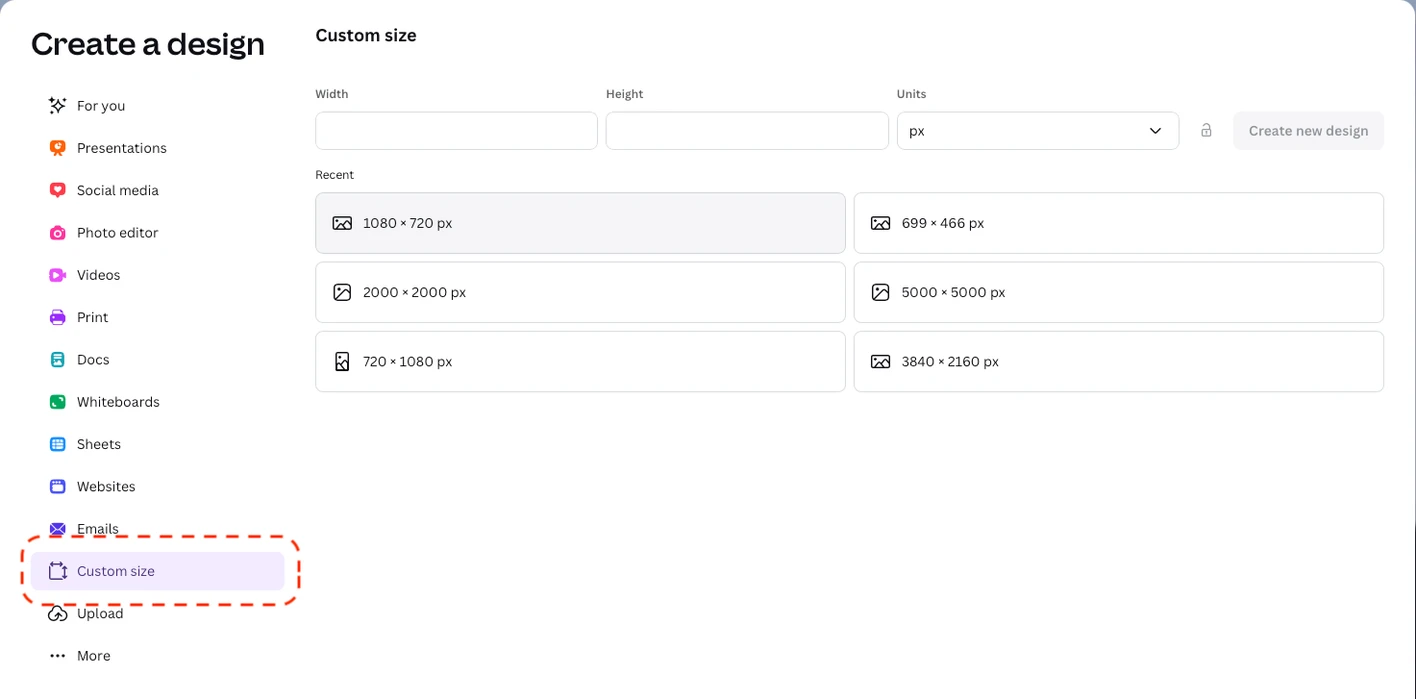
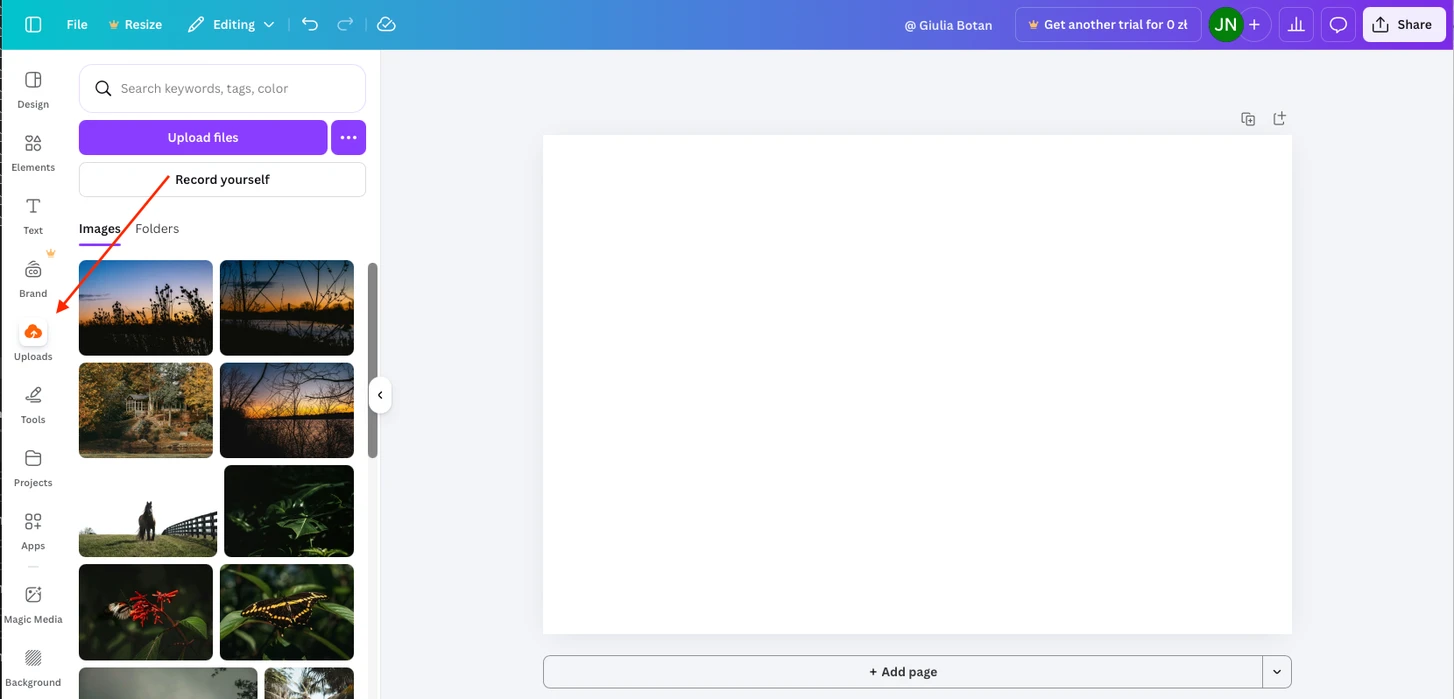
- Go to Uploads and select the photo you want to watermark. If the image hasn’t been uploaded yet, click Upload files to add it.
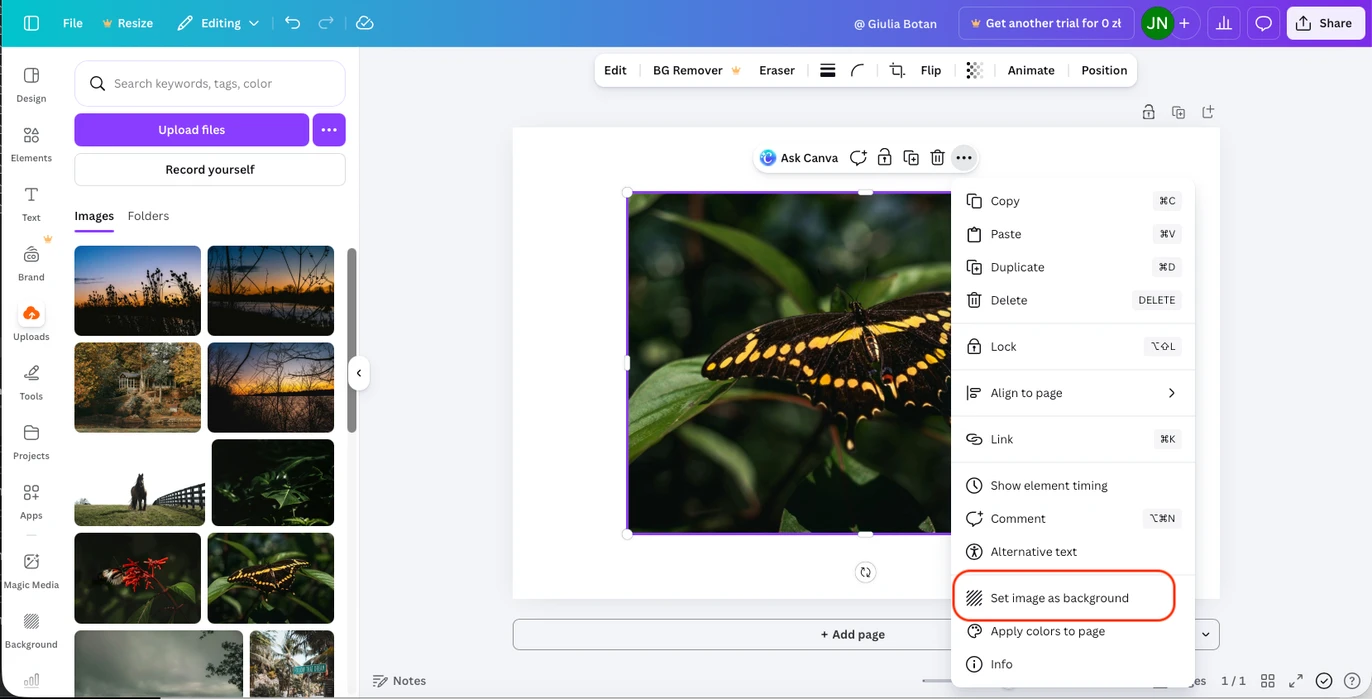
- Resize the image so it covers the entire canvas. You can do this manually or simply click Set image as a background.
- Now add the watermark. Go to the Text tool, choose a text style, and type your name or any other text.
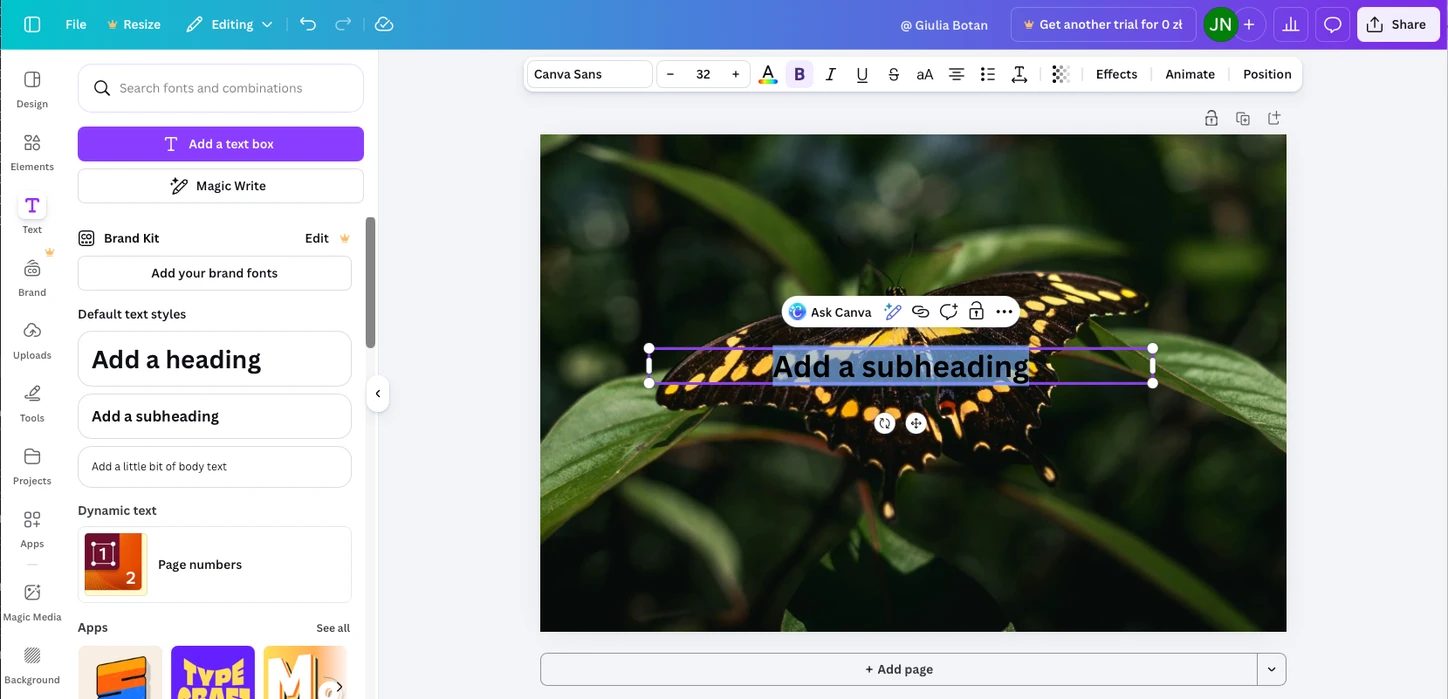
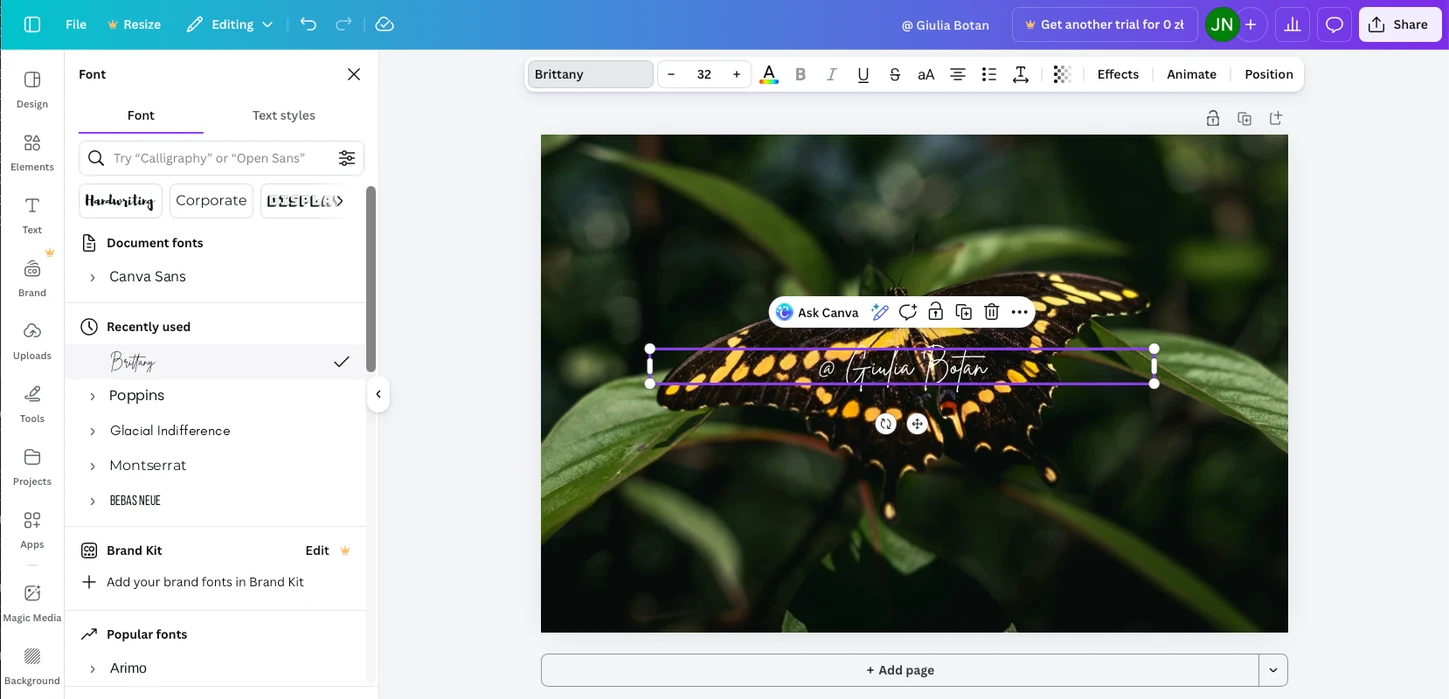
- Adjust the font and size.
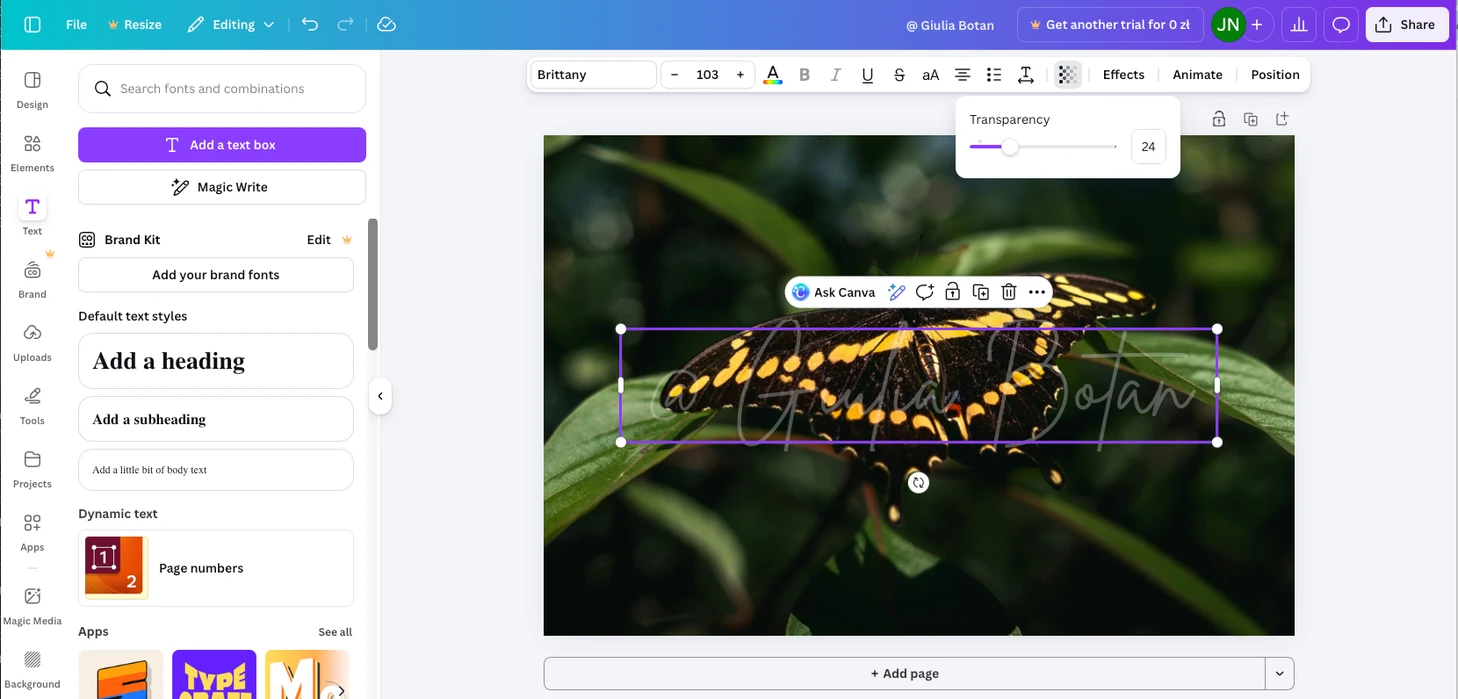
- Set the transparency level.
- Decide whether your watermark should cover the entire image or just a small part of it.
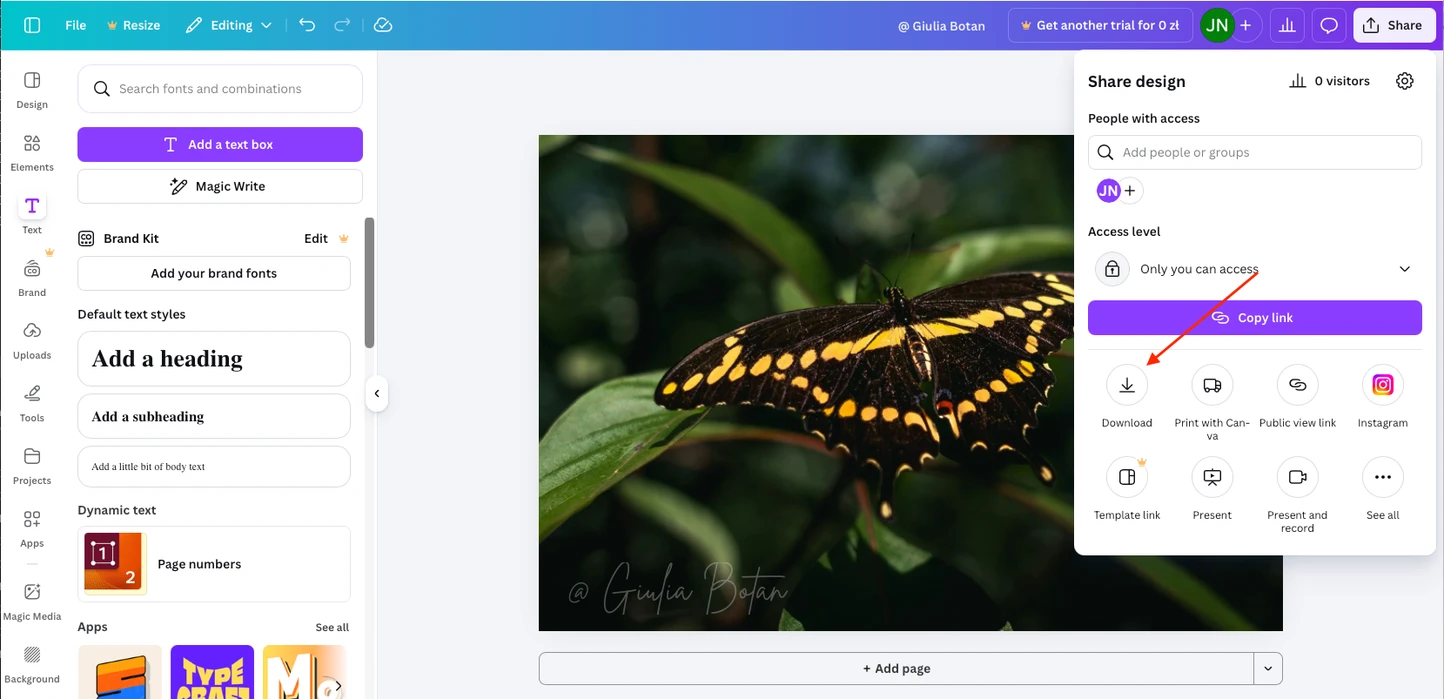
- To download the result, go to Share → Download. Your watermarked photo will be saved as a PNG file.
How to Make a Tiled Watermark in Canva
If you want your watermark to repeat across the entire image:
- Create your watermark text as usual.
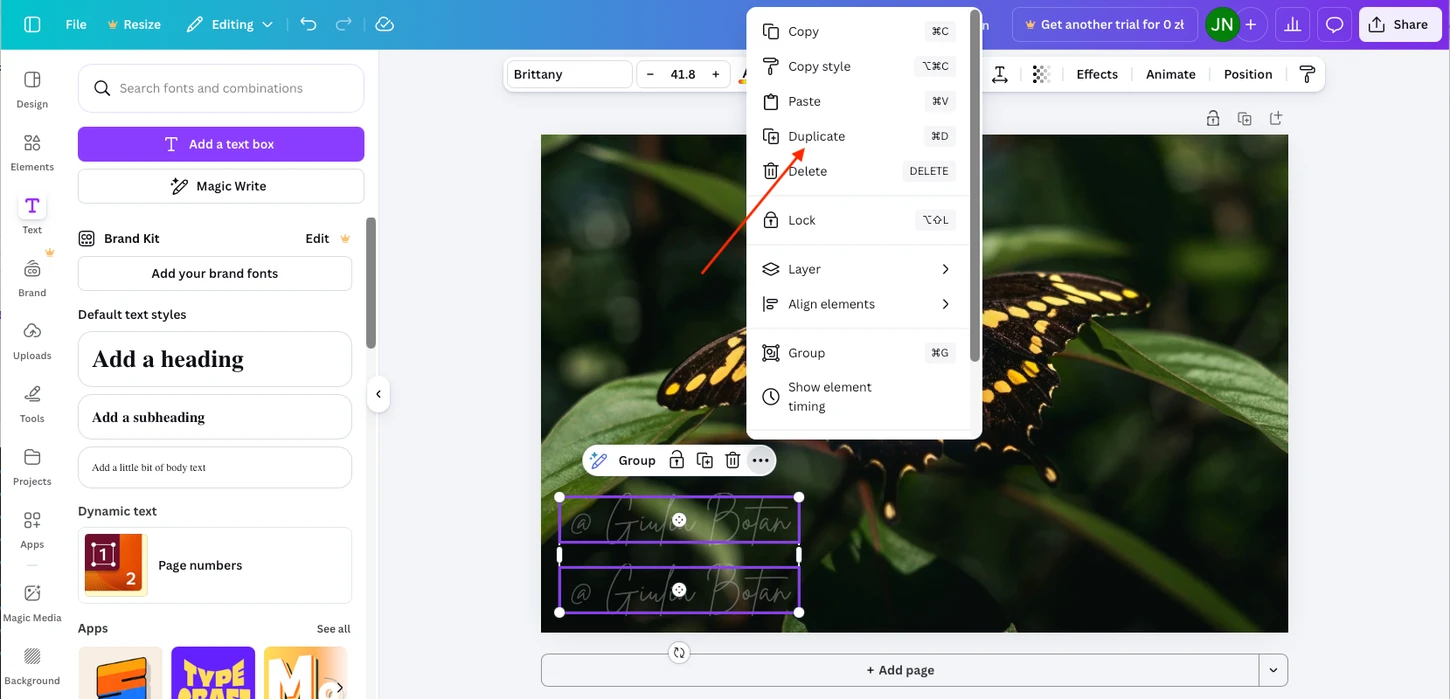
- Duplicate the watermark multiple times.
- Position the copies evenly across the image until the desired coverage is achieved.
How to Add a Watermark in Canva to Multiple Photos
Canva’s free version doesn’t support batch watermarking, but you can still apply the same watermark to multiple images using this workaround:
- Once you’ve added a watermark to one photo, click the Duplicate page.
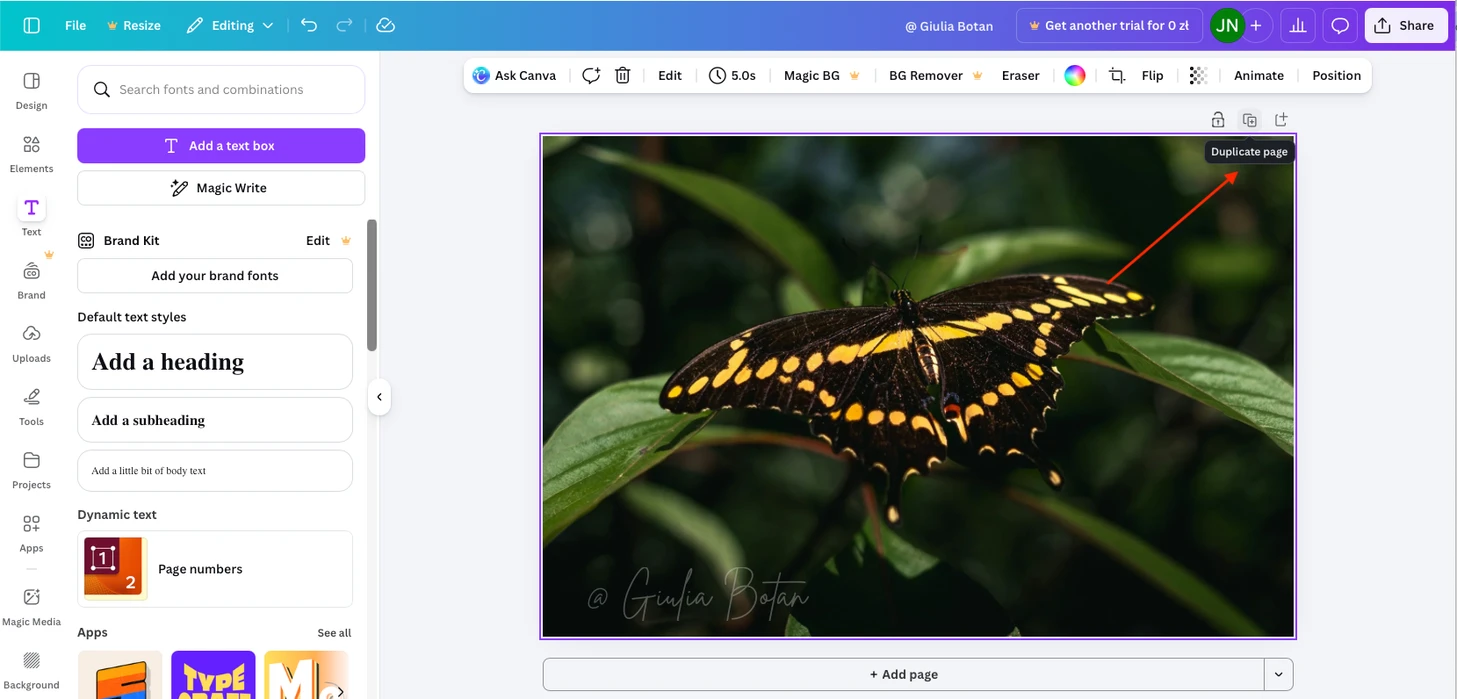
- Go to the new page and delete the previous image. You’ll be left with a blank canvas and the watermark. If your watermark text is white, it may be temporarily invisible against the white background.
- Add a new photo to the empty page and resize it to fit the canvas. If you click Set image as a background, the photo will appear immediately with the watermark on top.
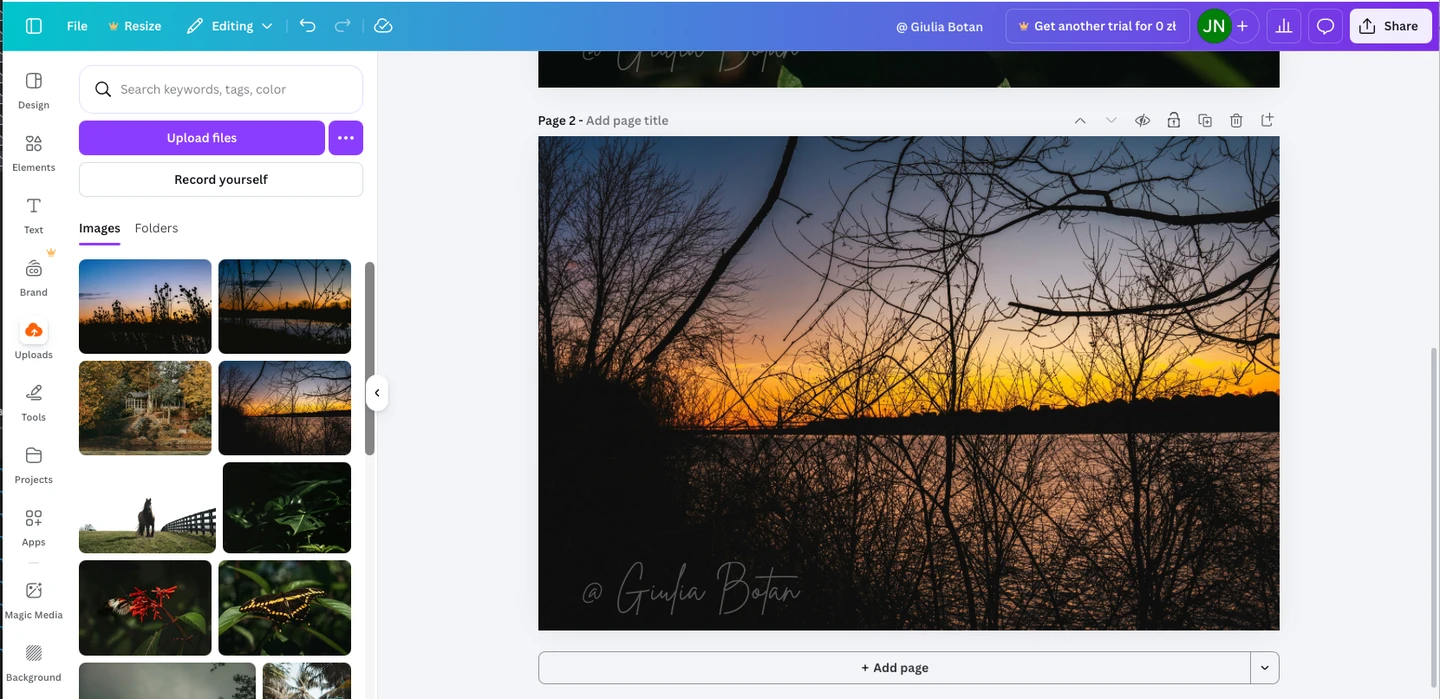
- Repeat these steps for each additional photo.
Important: All photos must have the same size and orientation, since they will be placed on the same canvas. The watermark will appear identical on every image.
How to Add a Logo Watermark in Canva for Free
To use a logo instead of text:
- Upload your logo to Canva. Make sure it’s a PNG file with a transparent background.
- Drag the logo from Uploads onto your image.
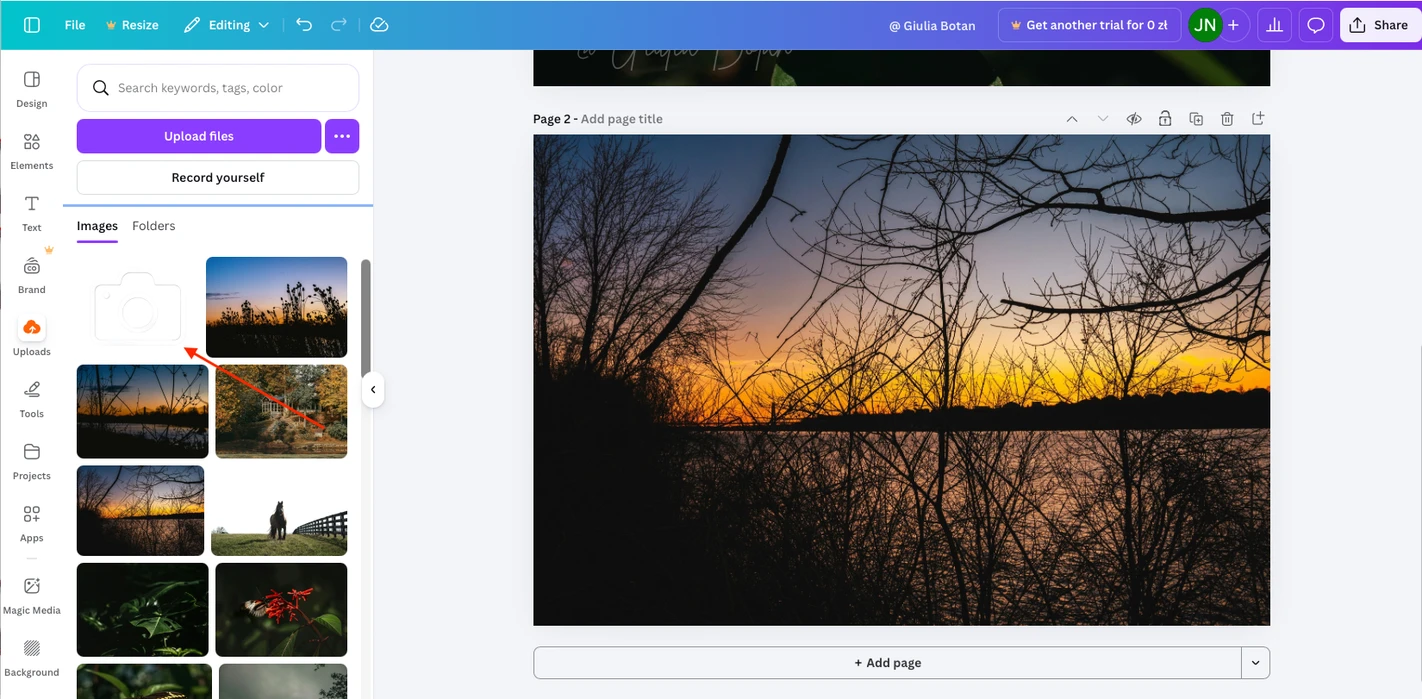
- Adjust the size and placement.
- Reduce the opacity.
- Download the final image using Share → Download, just as you would with a text watermark.
How to Make a Watermark with a Canva Pro Account
The paid version of Canva offers two major advantages that make adding a watermark easier, faster, and more creative.
1. Create a Custom Watermark Template from Scratch
With Canva Pro, you can design a watermark from scratch using a large library of ready-made logo designs, signature styles, and even graphic elements.
For example, if you want to use a logo as your watermark, follow these steps:
- Go to Canva.com, click Create a design, and choose Logo from the available design types.
- Open the Design tab and scroll through the templates. Choose a logo that fits your style and replace the text with your own.
Once your logo is ready, save it. Canva Pro allows you to export files with a transparent background, which means you can easily add the logo as a watermark to any photo.
In addition, the Pro version includes the Background Remover feature. If your logo has a solid or monochrome background, you can remove it with a single click.
2. Save and Reuse Watermark Templates
Another key benefit of Canva Pro is the ability to create watermark templates, save them with a transparent background, and upload them back into Canva whenever needed.
This means you don’t have to recreate or manually adjust your watermark each time. Instead, you simply add a new photo and place one of your saved watermark templates on top of it.
This approach significantly speeds up your workflow and ensures a consistent watermark style across all your images.
Main Pros and Cons of Canva for Watermarking Photos
Let’s start with the strengths.
Canva allows you to add watermarks to photos for free. If you only need to protect a single image and a simple text signature is sufficient, Canva is a solid choice.
If you have access to the paid version, you can get more creative by designing a custom signature or logo and using it as your watermark.
However, Canva’s main limitations are related to scalability. Unlike apps such as Watermarkly or Visual Watermark, Canva doesn’t support bulk processing of large numbers of photos. If you already have a watermark template and need to apply it to hundreds of images in different formats, sizes, or orientations, adding watermarks in Canva can quickly become inconvenient and time-consuming.
A similar limitation applies to repeated (tiled) watermarks used for enhanced protection. Even with a paid Canva account, you can only create and save a custom pattern manually. Dedicated watermarking apps, on the other hand, generate tiled watermarks automatically with a single click.
Let’s Sum Up
Canva is one of the watermarking tools worth trying. Its free version works well if you only need to protect a few photos with a simple watermark. However, if you require batch processing, stronger watermark protection, reusable watermark templates, or more advanced editing options, it’s worth considering alternative online tools or upgrading to Canva’s premium version.
More About Editing in Canva
How to Resize an Image in Canva