Style Text on an Image However You Want
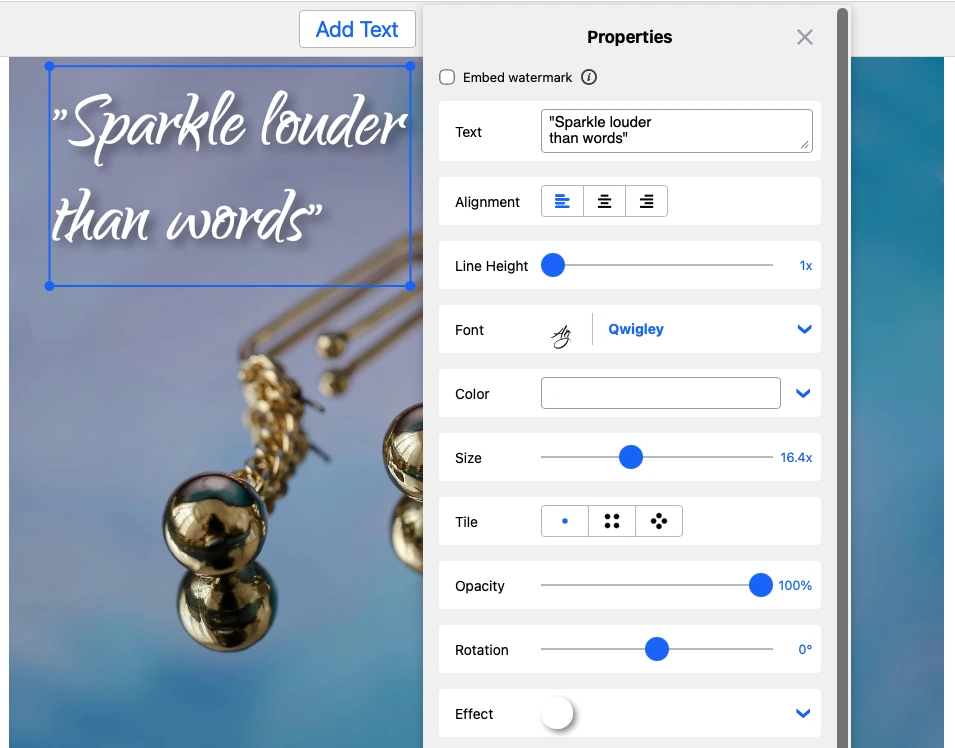
With Watermarkly’s app for adding text to a photo you can add a single word, a string of text, or even a lengthy quote. You can go for one color and one font for the entire text or select different fonts and colors for different words.
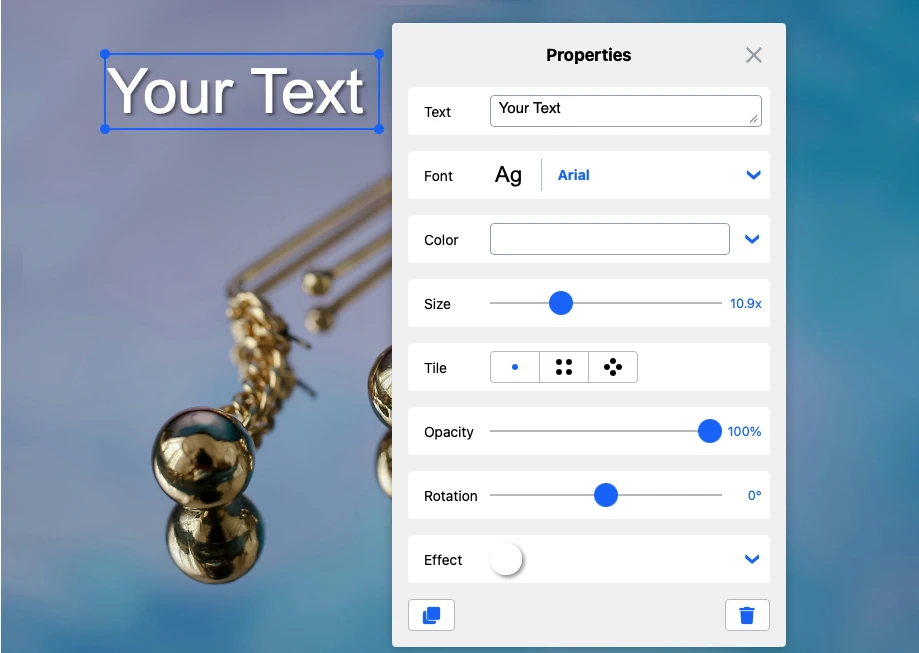
The editing toolkit includes:
- Multi-line text alignment and line height adjustment
- 926 fonts including 12 recommended ones
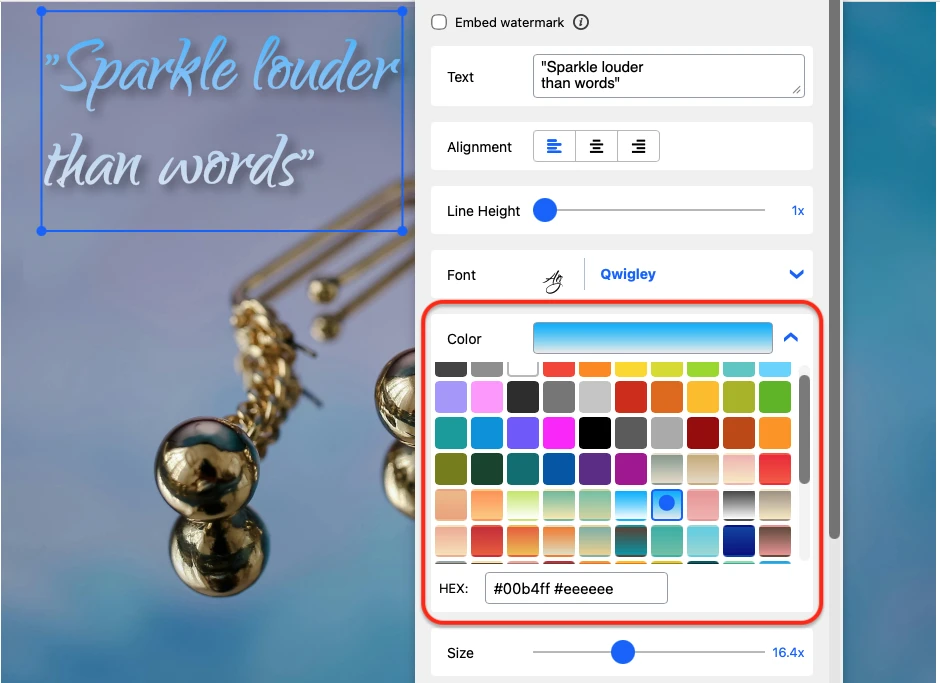
- More than 90 solid colors and gradients
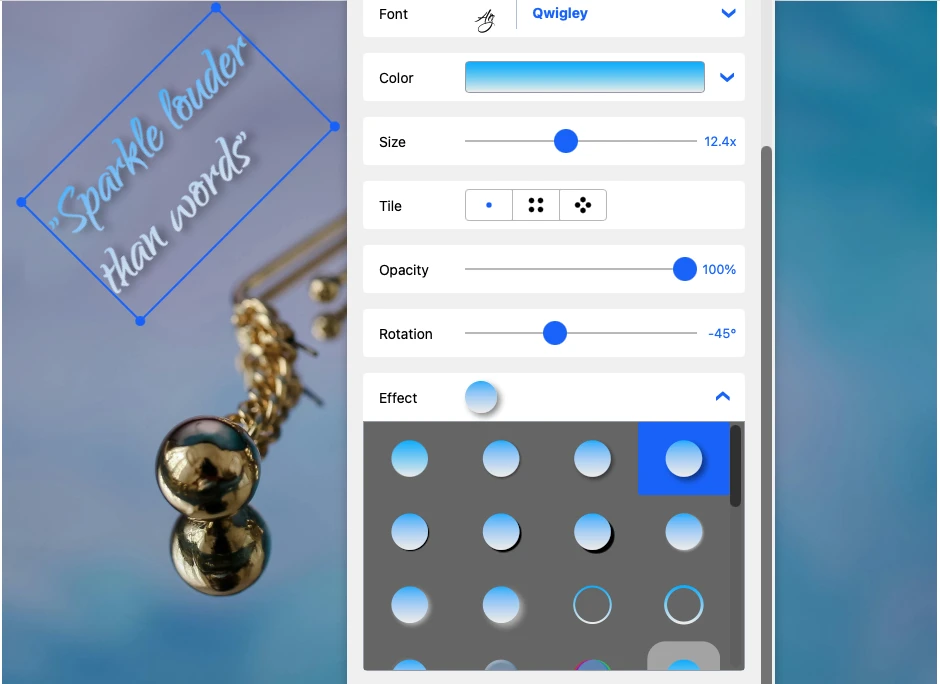
- 39 effects for texts, including shadows, 3D and contrasting backgrounds
- Position, rotation, and size adjustment.

Add Text to a Photo in Seconds

Our online app works lightning-fast even if you have poor internet connection. Your image is uploaded and exported instantly. The editing process is smooth and lag-free.
More to that, Watermarkly’s online tool offers features that make adding text to an image much quicker and easier:
- The last 10 text templates you’ve added are saved automatically
- You can duplicate your text on image with just one click
- Want to upload a different photo but keep the text you’ve just designed? That requires just one click!
- Ready to export your image? Just one click and the result is saved!
Add a Logo to a Photo (Optional)
In our Add Text to Photo app it’s also possible to:
- combine your text with a brand logo
- create a logo from scratch using one of the icons from the app’s gallery
- upload a ready-made logo file in any format.
Moreover, you can make adjustments to your brand logo, if necessary:
- Remove its monochrome background (if it is not already transparent)
- Change its color
- Make it semi-transparent
- Add an outline.

How to Add Text to a Photo Online with Watermarkly
Choose the Add Text to Photo tool among Watermarkly’s image editing apps or just scroll to the top of this page. Then follow these steps:
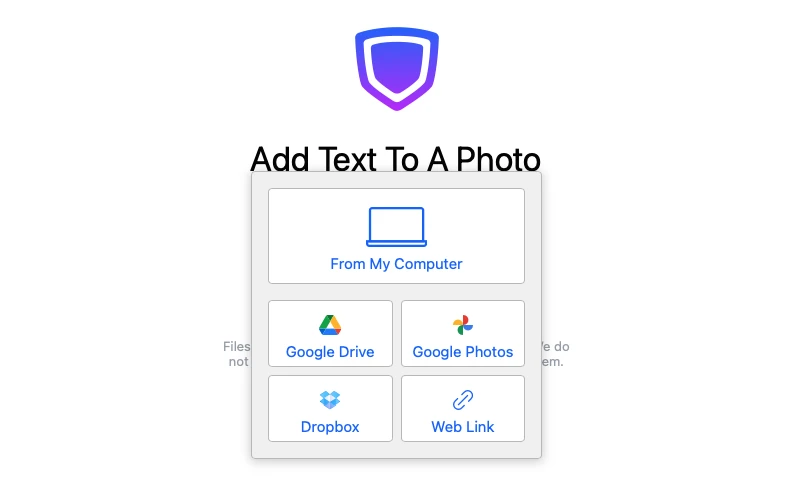
- Import an image from your device, cloud storage, or web page. Your file can be dragged from a folder and dropped into the app. Alternatively, click on “Select Image” and choose one of the featured options. Your photo will be uploaded in a second.
- Select "Add Text" or "Add Logo" to proceed.

- Use the toolkit to design your text or logo on a photo:
- Select a font (if you opted for text on a photo)
- Pick a color (choose from available options, or type in the HEX color code)
- Adjust the size
- Rotate your text or logo by the desired angle
- Add an effect if needed.
- Click Save Image. The processed copy will be downloaded to your device in an instant. Watermarkly never overwrites original files.
How to Choose the Best App to Add Text to an Image
With so many tools available for adding text to photos, it's important to choose the one that best suits your needs.
Here are the questions, the answers to which can help you determine that:
- Do you want to create professional-looking visuals for your social media accounts or websites, or just add a string of text to your photo quickly?
- Do you need to add only text/logo to your image or also additional elements like arrows, stars, speech balloons etc.?
- Do you need to edit the photo itself in addition to adding the text? For example, blur the background or remove some objects.
- Do you need templates with font combinations or different designs?
If you are very particular about the design of your text and need to be able to edit the image itself, then you probably require a more sophisticated and complex image editor. And for that kind of image editor, you usually need to pay.
But if you just want a simple and effective way to write text on a photo for free without any limits and software installation, Watermarkly’s app could be a good choice for you.
Add Text to ImageFAQ
How to add text to a photo for free?
Go to watermarkly.com > Tools > Add Text to Photo. Upload an image, add a string of text and customize it with the help of our editing toolkit. You won’t have to sign up or buy a subscription to either use the tool or download the final result.
Is Watermarkly’s Add Text to Photo app secure?
Absolutely. We do not store your images on our servers. We don’t have access to any of your files. We do not ask for any confidential information. Your privacy will never be violated.
Does the free version of the app have any limits?
Yes, there are some. In the free version, our Watermarkly logo isn’t added to the processed photo. No ads are displayed, either. However, you can process only one photo at a time and no more than 5 photos per day. Additionally, only 12 recommended fonts are available for use.
Can I add a logo to an image in your app?
Yes, of course. You can upload a logo file in any format, including SVG. More to that, it’s okay if your logo has a monochrome background – our app can remove it with a click of a button. Just like with text on an image, you can change the color, size, and position of the logo, as well as add a shadow or a contrasting background to make it more legible.