Why Choose Watermarkly to Add a Watermark to Photos
Our free watermarking app is extremely easy to use and navigate. Even if you’re not tech-savvy, you’ll be able to create a watermark for your photos in just three clicks.
Watermark Images in One Batch
Batch processing in Watermarkly is incredibly convenient. You can add a watermark to an entire set of images in one go. Our app saves your previously used watermark templates, so next time you can watermark all your photos with just one click. There’s even a Preview section where you can see how the watermark looks on each photo and adjust it if needed.

Full Customizability / Add Text or Logo
With our free watermarking app, you can easily combine text and logos in your watermark, add your brand name, include copyright symbols or image numbers. Create a watermark from scratch by choosing from over 900 fonts, 90 colors and gradients, and 36 visual effects, including shadows, backgrounds, and a 3D look.
 Watermark Pictures For Free
Privacy & Safety
Our app uses secure connections only. We don’t store your photos on our servers and never access them. No one in our company can view your files. Your images are always yours - no matter what.
Automatic & Manual Watermark Position
Watermarkly automatically scales watermarks depending on the orientation and size of your images. Smaller photos get a smaller watermark, larger photos get a bigger one. You can disable the auto-scale option if you prefer or change watermark placement for each photo in the batch.
Automatic Watermark Position

Manual Watermark Position

High-Speed Processing Without Limits
Uploads and downloads are instant, even if you have a slow internet connection or are watermarking a large batch of images. The app starts processing your files immediately when you click the “Watermark Photos” button - even on the Free plan.
Watermark Template Synchronization
Our tool to watermark photos synchronizes your watermark templates - text or logo you place on photos. This will allow you to create a consistent watermark, regardless of which device (desktop, laptop, mobile) you use the app on.
Desktop App for Large Batches
Need to watermark thousands of photos? We also offer a separate desktop app for Windows and Mac - Visual Watermark. It can process up to 50,000 files in parallel. For most tasks, the online tool above is the fastest way to watermark images in your browser.
Watermark Images OnlineHow to Add Watermark to Photo Using Watermarkly
Our free watermarking app allows you to add a watermark to any image quickly. You can work with the tool online without registration.
1. Upload your images
Upload one or multiple images right in your browser. You can import files from your device, Google Drive, Google Photos, or Dropbox, or simply drag and drop them into the app. If needed, you can add more images or remove any file before moving on. Click "Next step" once all the files are uploaded into the application, and you are ready to add a watermark to the photos.
 Watermark Images for Free
2. Select the type of watermark
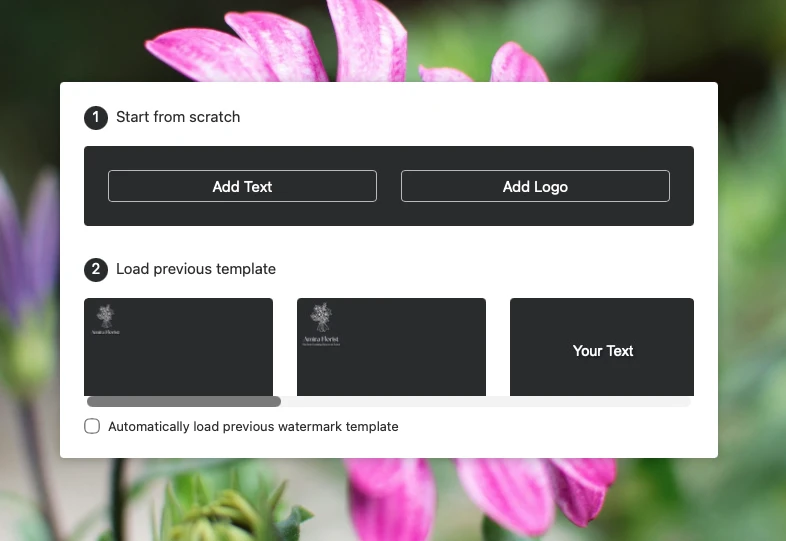
Choose whether you want to add a text watermark or a logo. Both options can be applied to a single image or to multiple photos at once, which makes it easy to process entire batches in one go.
If you’ve used Watermarkly before, you can save time by choosing a previously saved template instead of creating a new watermark from scratch.
3. Add a text watermark
Click “Add Text” to create a text watermark and customize it to match your style and branding.
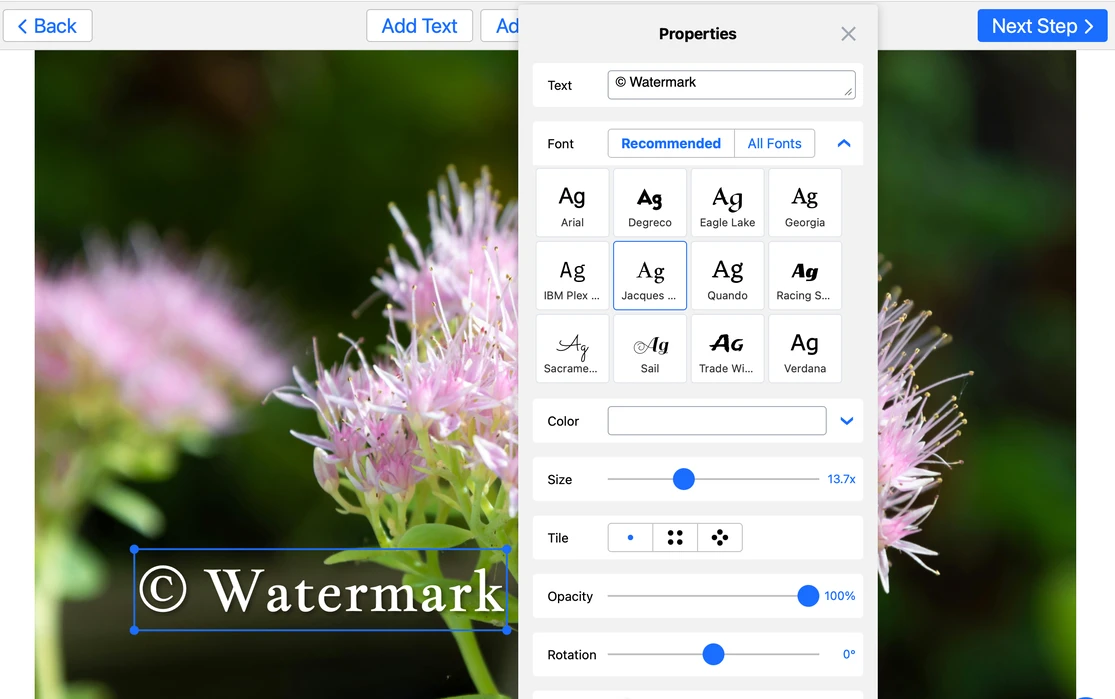
- Enter any text you want and make it your own by choosing from 900+ fonts.
- Add extra details such as the copyright symbol © or the image number to make your watermark more informative and professional.
- Adjust the appearance by changing the size, color, opacity, and angle, so the text looks exactly the way you want on your photos.
- Apply visual effects such as shadows, outlines, or a background to make your text watermark more noticeable and polished.
 Watermark Images for Free
4. Add a logo watermark
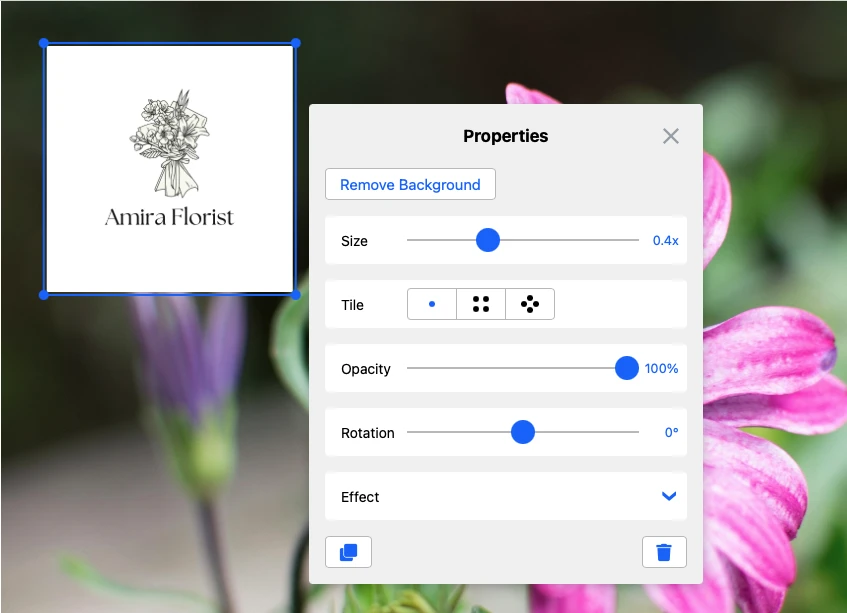
Click “Add Logo” to upload your logo or create one directly in Watermarkly.
- Use your existing logo by uploading it from your device, Google Drive, Google Photos, or Dropbox. You are not restricted to a single file type, which makes the process faster and more convenient.
- No transparent PNG? No problem. Use “Remove Background” to clean up the logo and turn it into a professional-looking watermark directly in the app.
- No logo yet? Choose an icon from Watermarkly’s built-in gallery of 490+ elements and create a simple emblem in seconds.
- Customize everything — size, placement, opacity, rotation, and effects — to make the watermark subtle or more noticeable, depending on your needs.
When adding a watermark to a photo, you can move the text/logo wherever you want and adjust the size using the blue dots at the corners of the borders.
5. Preview & Adjust
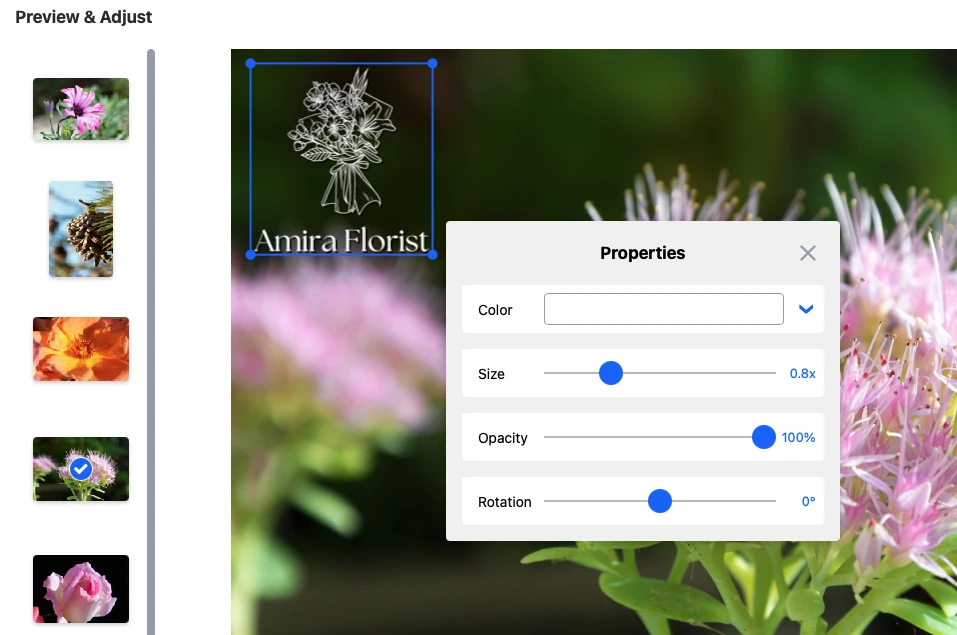
Before downloading your watermarked images, open the Preview section to check how the watermark looks on each photo in the batch.
- Review the result on every image to make sure it looks clear and consistent across the batch.
- Make final adjustments to the size, color, opacity, or rotation if needed.
- Fine-tune the placement so the watermark stays noticeable without covering the most important part of the photo.
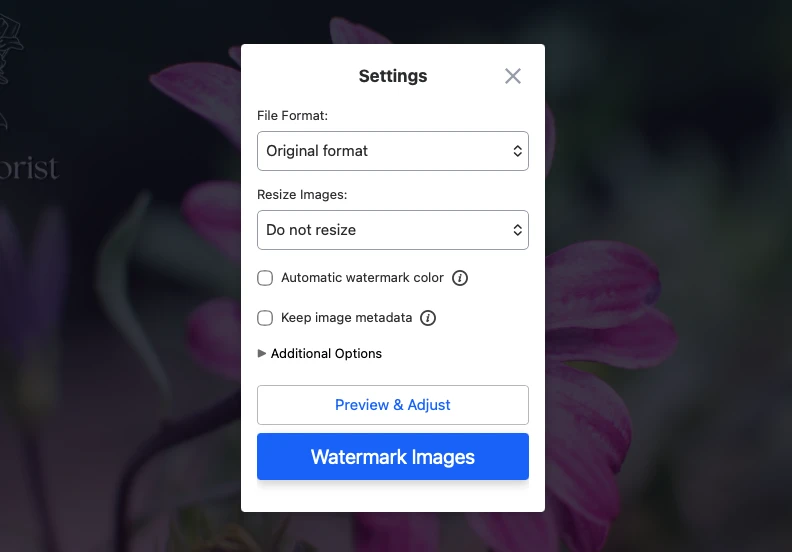
6. Choose export settings
Before saving the results, choose how you want to export your watermarked images.
- Select the output format: keep the original format or convert your files to JPEG, PNG, or WEBP.
- Resize or rename images if you want to prepare them for publishing or sharing right away.
- Use smart options to speed up the process, such as automatic watermark color adjustment based on image brightness.
- Keep image metadata if you want to preserve details like location, camera model, and resolution.
- Use advanced options to keep the same watermark size across all images or vary its placement throughout the batch. You can also blur faces or blur license plates in your images if needed.
 Watermark Images For Free
Why You Should Add a Watermark to Photos?
Adding a watermark to your photos helps protect them from unauthorized reuse and makes it clear who the original creator is. It can also strengthen your branding by keeping your name, logo, or copyright mark visible wherever your images are shared online.
While a watermark won’t make image theft impossible, it can discourage casual copying and make your photos harder to reuse without permission. For photographers, designers, online sellers, and content creators, it’s a simple way to protect original work and build stronger brand recognition at the same time.
 Watermark Pictures Online
How to Make a Watermark: Useful Tips
A watermark works best when it is visible enough to protect your image, but not so distracting that it ruins the photo. Here are a few simple tips to make your watermark more effective:
- Use some transparency so the watermark stays noticeable without covering too much of the image.
- Avoid placing it in a corner if protection is your goal, since corner watermarks are often easier to crop out.
- Put it over detailed areas rather than a plain background, which makes it harder to remove cleanly.
- Place it over the most important part of the photo if you want stronger protection against unauthorized use.
- Keep it balanced — a watermark that is too large can distract from the image, while one that is too faint may not do its job.

The Benefits and Drawbacks of Watermarking Images
The strong demand for a watermarking app suggests that users need this feature. It’s no wonder.
Watermarking photos offers several advantages:
✓ Watermark cannot be covered or clipped if it's applied correctly. Thus, protection against unauthorized copying is guaranteed.
✓ Watermark can be used as a free marketing tool. For instance, works of photographers are often shared by various accounts on social media. Thanks to watermarks that they add, people know exactly who took the photos.
✓ The company logo as a watermark can be used on advertising materials to raise brand-awareness.
But some people neglect the use of watermarks for the following reasons:
✕ Sometimes a watermark can spoil the aesthetic appearance of the image. This is especially true for photos from professional photographers. Some are afraid that logo or text will destroy the mood of their photo and alienate people.
✕ Watermark has no legal effect. It protects an image from theft but does not directly prove copyright. If you want to sue some for stealing your works, you will have to look for more solid evidence.
FAQ: Watermark Pictures
Here you can find answers to popular questions that our managers often receive from watermark app users.
How to add a watermark to a photo?
First, you need to find a convenient application where you can do this in a few minutes. Our Watermarkly app does not need to be downloaded to your device to add a watermark to a photo. You simply open the app and upload your photos. We offer two options for watermarks: text or logo. We also have a symbol gallery where you can choose an icon. For example, a house graphic is suitable for a real estate agency. You can find our step-by-step instructions on how to watermark photos above.
How should I watermark photos on IOS?
If you need to quickly add a unique watermark to your pictures, you can open the website in the mobile browser on your Apple device or download the Watermarkly app from the App Store. You can follow the instructions in this article, since the mobile version has the same interface and toolkit as the browser-based app.
How to make a watermark on Android?
The watermark app can be downloaded from the Play Market. Another option is to open our website in a mobile browser. The interface and functions do not differ. You need to upload images from the device's gallery or from your cloud storage. The next step is to add text or a logo as your watermark. After that, specify the Export settings and download the processed files to your phone. Check if you have enough free memory on your device to download all the watermarked files.
How to make a watermark to protect my photos from being copied?
You can easily watermark your images so no one can steal them or pass them off as their work. Open the Watermarkly app in a browser on your computer or phone, upload pictures, and add a text/logo. Check out our placement tips to make sure the watermark does precisely what it's supposed to do, so no one will be able to remove or crop it out.
What is the best free watermark app?
Watermarkly is a simple application where you can add a watermark for free. Your templates are stored in our system, so when you revisit our site, we can offer you the watermark you created last time.
Should I put a watermark on my Instagram photos?
To watermark photos or not is entirely up to you. Suppose you are a professional photographer or owner of a brand that invests a lot of effort and money into creating unique photos. In that case, it is better to add a watermark to your works to protect against theft. But keep in mind that your watermark shouldn’t distract from the beauty of your photos.
What is the best way to place a watermark with a logo on a picture?
It depends on what result you want to achieve. If you need to protect copyrights, we recommend applying the logo in places where it cannot be removed or cut off. If you want to promote your brand with a watermark, make your logo large and prominent. Only then will it meet your expectations.
Summing Up
Adding a watermark to a photo is a great way to protect files from copyright infringement and theft. In some cases, it can promote a company and increase brand-awareness. You can design and add a unique watermark in our straightforward and efficient Watermarkly application, which works online. Mastering our app will take little time and pose no difficulties.
Now you know how to watermark photos. Start right now! The process will take you a few minutes.